Your waitlist is a restock signal
Every back in stock signup is a customer telling you, unprompted, that they want a specific product in a specific size or colour. Added up, those signups show where demand outstrips stock, often more clearly than sales data, because sales stop the moment something sells out.
Managing the waitlist means three things: knowing which variants have the most people waiting, keeping the list clean, and following up when stock arrives. The Subscribers page covers all three.
What Shopify tells you about sold-out demand
Shopify's reports show what sold and what's in stock, but not how many people wanted a product while it was unavailable. You can see product views in analytics, but a view isn't a request. A waitlist fills that gap with names, variants and dates. See Shopify's help on analytics and reports for what the built-in reports cover.
Step by step: review and act on demand
- Open Subscribers
Go to Back in Stock and click Subscribers. Set the date range (the last 30 days by default); it applies to the whole page.
- Read the stat cards
Demand waiting, Notified, Recovered revenue (purchases by notified subscribers) and Conversion rate (notified → purchased).
- Check the high-demand banner
High demand — consider restocking appears when 5 or more customers have waited 7 days or more for the same product.
- Switch to By product
The By product view lists each variant with waiting, notified, stock, value waiting and last subscribed. Sort it to see what to reorder first.
- Filter and search
Search by email or product, and filter by Status (Unconfirmed, Waiting, Notified, Unsubscribed), Campaign and Product.
- Notify when stock lands
Restock emails go out automatically. If you think one was missed, use Notify now…, pick the campaign and click Run notify.
- Export
Click Export and choose Full data (CSV) or Marketing list (CSV), which leaves out unsubscribed customers.
What's on the Subscribers page
| Area | What it shows or does |
|---|---|
| Funnel | PDP views → Notify-me clicks → Submitted → Confirmed → Notified → Purchased |
| Daily new subscribers | Signups per day in the date range |
| Top demand (live waitlist) | The products with the most people waiting right now |
| By subscriber / By product | One row per signup, or one row per variant with totals |
| Resend notification, Mark as notified, Unsubscribe, Delete | For one row, or as bulk actions on selected rows |
| View details | Product, dates, recovered amount, activity timeline and your private notes |
| View in Shopify | Opens the matching customer search in Shopify admin |
CSV exports
| Export | Columns | Use it for |
|---|---|---|
| Full data (CSV), By subscriber view | Email, Campaign, Product, Variant, Status, Subscribed at, Notified at | Your own records and analysis |
| Full data (CSV), By product view | Product, Variant, Waiting, Notified, Waiting value, Currency, Last subscribed | Purchasing and restock planning |
| Marketing list (CSV) | Email, Product, Variant, Campaign, Status, Subscribed at, Product URL | Importing into an email platform; unsubscribed customers are left out |
The marketing list follows your current filters, so you can export, for example, only people waiting for one product. Email platforms such as Klaviyo and Mailchimp can import contacts from a CSV file, and the Product and Product URL columns can be mapped to custom fields there.
Signing up for a restock alert isn't always the same as agreeing to marketing emails. Before you import a list into a newsletter tool, check that you have the consent your local rules require, and use it for messages about the product they asked about.
Example: deciding what to reorder
A homeware store is placing its monthly order with a supplier and has budget for three restocks. It opens Subscribers with a 30-day range and switches to By product.
- Linen duvet, King, Sage: 34 waiting, value waiting 4,080 → reorder
- Linen duvet, Double, Sage: 21 waiting, banner shows High demand — consider restocking → reorder
- Ceramic vase, Large: 18 waiting, but Conversion rate from past restocks is low → reorder a smaller quantity
- Throw blanket, Rust: 3 waiting → skip this month
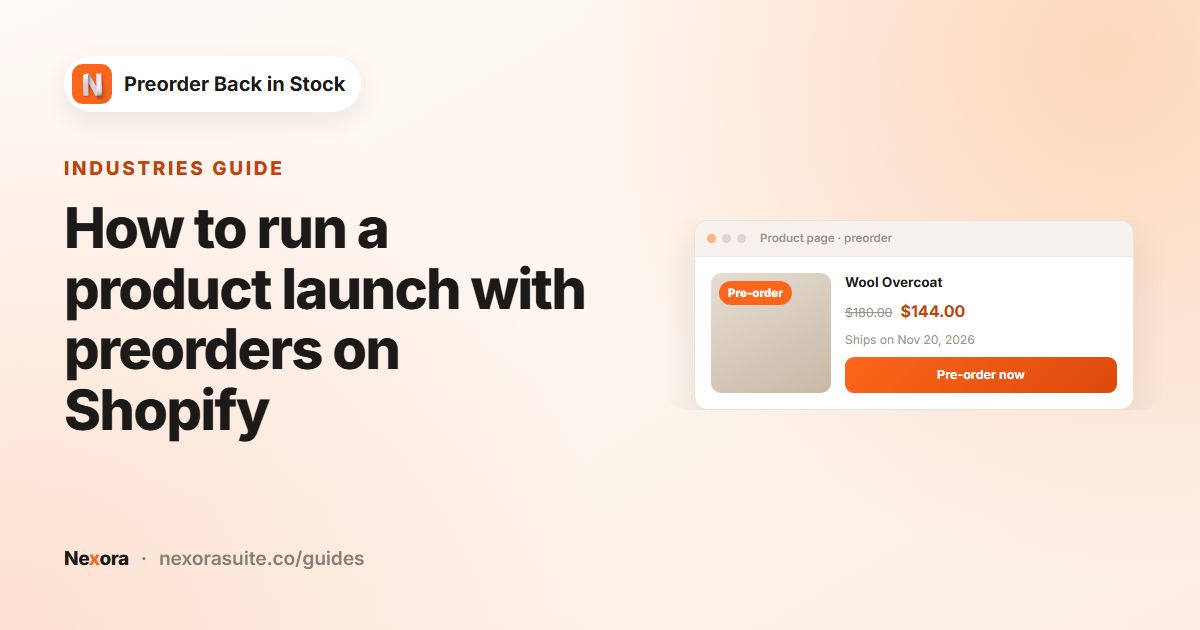
The store exports Full data (CSV) from the By product view for its purchasing spreadsheet. For the King duvet, which won't arrive for six weeks, it also opens a preorder campaign so waiting customers can secure one now.
Tips for a healthy waitlist
- Keep the list clean: Auto-remove after (days) (default 180) on the campaign's General tab deletes inactive subscribers, which helps deliverability.
- Avoid repeat spam: Re-subscribe cooldown (days) (default 30) re-adds notified customers automatically when a variant sells out again, but only after the cooldown.
- Watch Unconfirmed: with double opt-in on, a large Unconfirmed count can mean the confirmation email is landing in spam.
- Use notes: add private notes in View details for customers who contacted you about an item.
- Compare periods: change the date range around a restock to see how Recovered revenue moved.
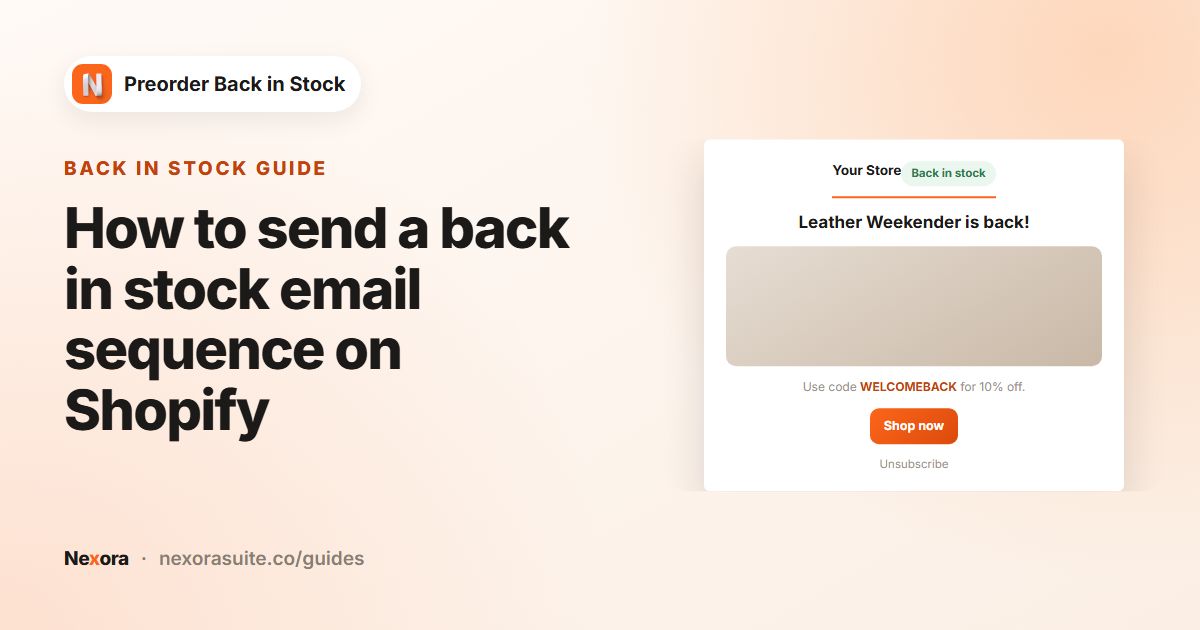
To convert more of your waitlist, see restock email sequences and preorders for product launches.
Frequently asked questions
Where do I see everyone waiting for a restock?
On the Back in Stock list, click Subscribers. It shows subscribers across all campaigns, by subscriber or by product.
What does Demand waiting mean?
The number of subscribers still waiting for a restock in the selected date range.
Can I export subscribers to Klaviyo or Mailchimp?
Yes. Export Marketing list (CSV), which leaves out unsubscribed customers, and import the file into your email platform. Make sure you have the consent you need first.
How is Recovered revenue calculated?
It's the value of purchases made by notified subscribers, matched to the product they were waiting for.
What does Notify now do?
It re-checks current inventory for a campaign and notifies confirmed subscribers whose variant has reached the campaign's threshold. Use it as a safety net.