Why the ship date matters
The most common question from preorder customers is "when will it ship?". If the answer is only on a product page they visited weeks ago, they email you, open a dispute or cancel. A ship date that appears before the purchase, on the order and in a reminder email removes most of that uncertainty.
You don't need an exact day. "Ships in the first half of November" on the product page and a conservative scheduled date on the order are enough, as long as you update customers if the date moves.
Your options on Shopify
Shopify products don't have a built-in "expected ship date" field that shows on the storefront. Merchants usually add the date to the product description, use a metafield with theme support, or rely on an app. Shopify's order list also lets you filter orders by tag, which is handy if each order carries its ship date as a tag. See Shopify's help on filtering orders.
| Option | Where the date shows | Notes |
|---|---|---|
| Product description | Product page only | Easy, but easy to forget to update, and not on the order |
| Metafield + theme block | Wherever your theme shows it | Needs theme setup, still not linked to emails |
| Preorder campaign | Under the Preorder button, on the order, in emails and cart labels | One date drives all of them |
Step by step: set a ship date
- Open the campaign
Go to Preorder and open your campaign, or click Create campaign.
- Show the date on the product page
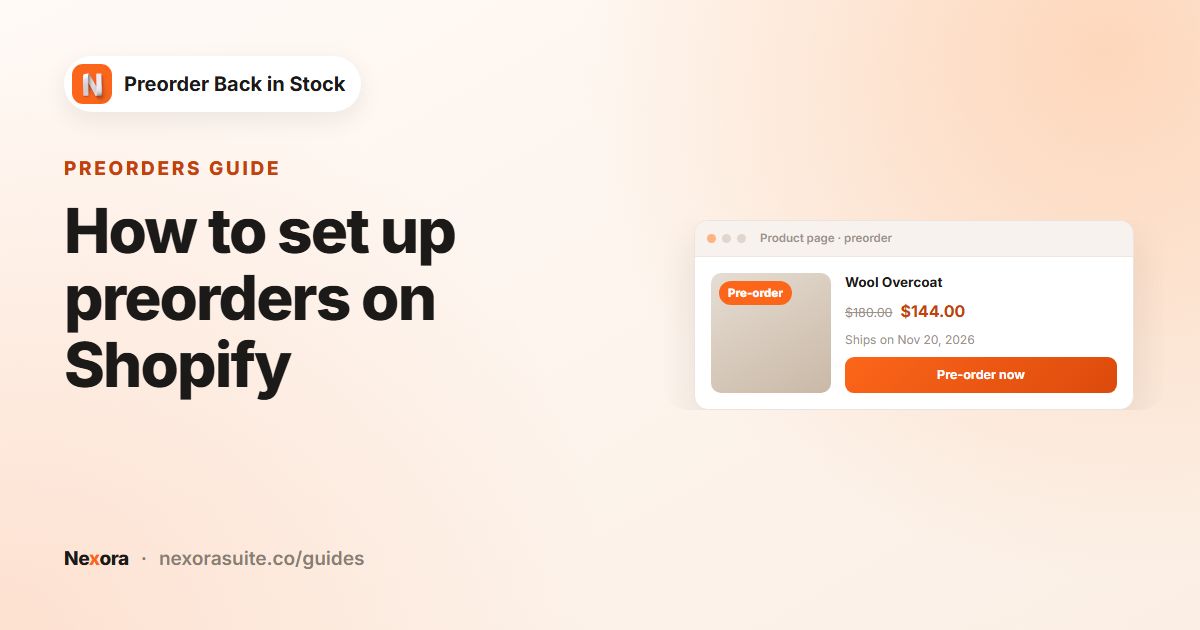
Under Button settings, write the date into Preorder message, for example
Ships the week of Nov 20. This line appears under the Preorder button. - Choose Scheduled fulfillment
Under Set fulfillment status for orders with preorder items, select Scheduled. Unfulfilled leaves orders in your normal fulfillment flow.
- Pick days or a date
Use the clock icon to enter a number of days after checkout (for rolling made-to-order lead times), or the calendar icon to choose a fixed due date (for a batch arriving on a known day).
- Turn on the reminder
On Customer emails, enable Reminder before ship and set Days before ship date (1–90, default 7).
- Use the date in emails
Add
{ship_date}to the Confirmation body, and{days_until_ship}to the reminder. - Save and test
Click Save, then place a test order and check the order's fulfillment status and tags in Shopify admin.
Scheduled uses Shopify selling plans and only works with Shopify Payments. Leave Use Shopify selling plan (purchase option) on under Advanced settings.
Days after checkout or a fixed date
| Days after checkout | Fixed due date | |
|---|---|---|
| Best for | Made-to-order, rolling lead times | One batch arriving on a known day |
| Example | 21 days | 2026-11-20 |
| Order tag added | preorder plus your Order tags | Also preorder-ship:2026-11-20 |
{ship_date} in emails | Checkout date plus the days | The date you picked |
| Reminder before ship | Sent the set number of days before | Sent the set number of days before |
With Scheduled, the order's fulfillment status is held as Scheduled and automatically changes to Unfulfilled on the date, so it appears in your fulfillment queue when it's time to ship. A fixed date also makes it easy to find every order for one batch: filter Orders in Shopify admin by the preorder-ship:YYYY-MM-DD tag.
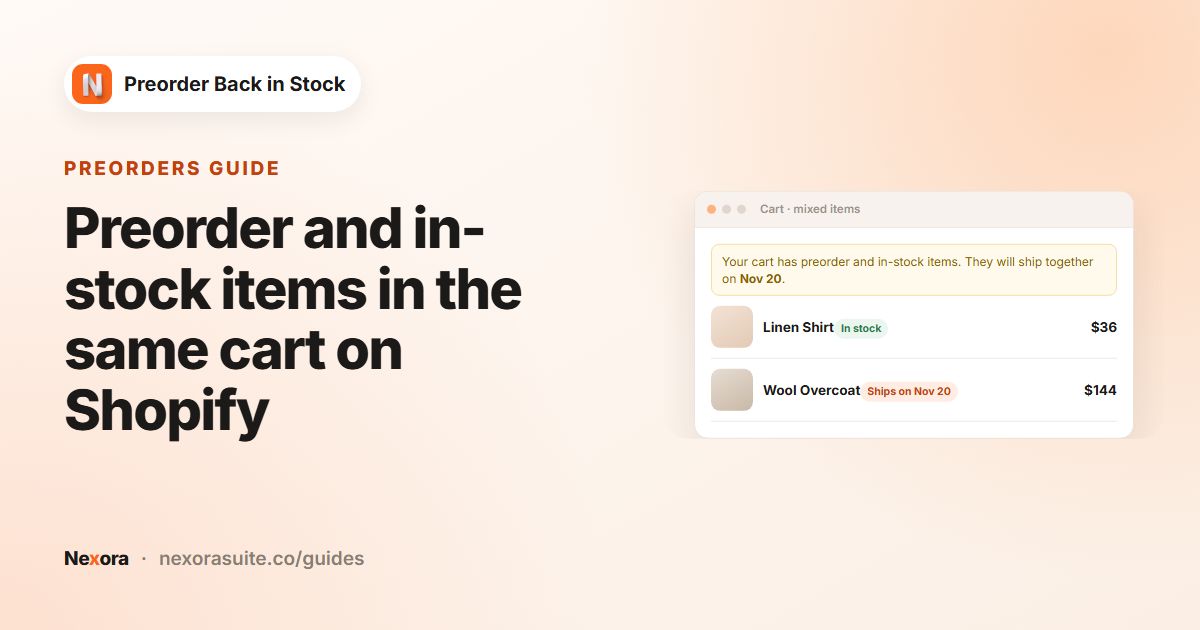
On the Mixed Cart page, the Ships-on label uses {date} for each cart line's ship date, and the Ship-together text can show the latest preorder ship date in the cart.
Example: a ceramics studio firing in batches
A ceramics studio fires a kiln of mugs every few weeks. The next batch will be packed on November 20, and the studio wants every preorder customer to know that date from start to finish.
- Preorder message:
Next kiln batch ships Nov 20 - Scheduled, calendar icon, due date
2026-11-20, so orders are taggedpreorder-ship:2026-11-20 - Confirmation body:
Thanks {customer_first_name}! Your {product_title} is expected to ship on {ship_date}. - Reminder before ship: on, Days before ship date
5, bodyYour mug ships in {days_until_ship} days. - Shipped: on, with Button text
Track your orderand{tracking_url}in the body
If the kiln is delayed, the studio changes the due date in the campaign and emails existing customers using the tag filter. New orders then get the new date automatically.
Tips and common mistakes
- Be conservative: pick a date you are confident in. Shipping early is a pleasant surprise. Shipping late is a support ticket.
- Keep the message and the order in sync: if you change the scheduled date, update Preorder message too.
- Reminder needs Scheduled: the Reminder before ship email is only sent when the campaign has a Scheduled ship date.
- Fixed dates in the past: when a batch ships, move the due date forward or end the campaign so new orders don't get an old date.
- Existing orders: changing the campaign doesn't rewrite tags on orders already placed, so contact those customers directly if a date moves.
See the app documentation for every customer email token, or set up preorders from the start.
Frequently asked questions
Can customers see the ship date before they buy?
Yes. Write it into Preorder message, which shows under the Preorder button. The Mixed Cart Ships-on label can also show it in the cart.
What does Scheduled fulfillment do?
It holds the order's fulfillment status as Scheduled and changes it to Unfulfilled on the ship date, so the order reaches your queue when it's time to ship.
Why aren't my orders tagged with a ship date?
The preorder-ship:YYYY-MM-DD tag is only added when you use a fixed due date. With days after checkout, orders get the preorder tag and your own Order tags.
When is the reminder email sent?
Days before ship date before the scheduled date, 1 to 90 days, with 7 as the default. It needs a Scheduled ship date.
Does Scheduled work with every payment method?
No. It uses Shopify selling plans and only works with Shopify Payments.