Why put a countdown on the badge itself
A sale badge says that a product is discounted. A countdown on the same badge also says for how long. Shoppers who are comparing products can see straight away whether they have a week to decide or a few hours, on the collection grid as well as on the product page.
It works best when the deadline is real: a weekend sale that ends on Sunday night, a daily order cut-off, or a Black Friday price that goes back up on Tuesday. A timer that resets for no reason, or that never ends, tends to cost trust rather than build it.
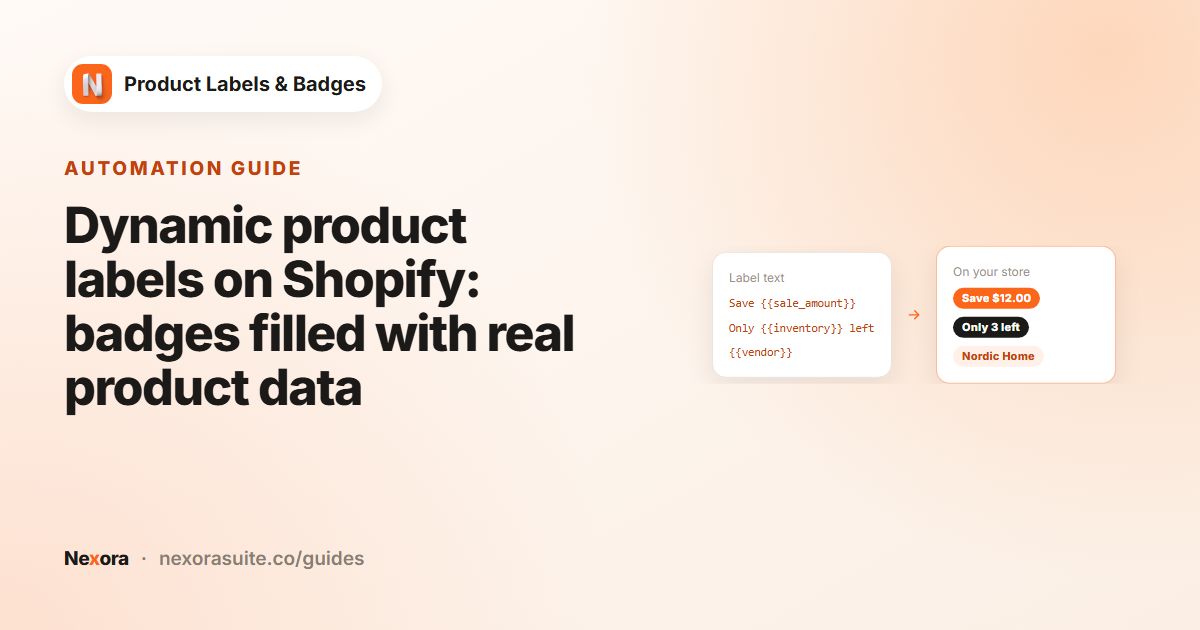
Ends in {{countdown}}on a discounted product while the sale runs.Order within {{countdown}} for same-day dispatchnear the price, counting to a daily cut-off.-{{sale_percent}} · {{countdown}}to show the discount and the time left on one badge.
Your options on Shopify
Shopify themes don't usually include a countdown that sits on product images or product cards. Common routes are a dedicated countdown timer app, which typically adds a larger timer block or a bar, custom theme code, or a label with a countdown variable.
| Option | Where it shows | Notes |
|---|---|---|
| Custom theme code | Wherever a developer adds it | Needs updating when you change themes |
| A countdown timer app | A timer block on the product page, or a bar | Good for a big, visible timer. Nexora also has a separate Countdown Timer app |
A label with {{countdown}} | On the product image or in the product info area, on cards and product pages | Small and compact; shares the label's targeting and schedule |
Step by step: a sale-ends countdown badge
{{countdown}} is part of the Pro plan ($6.99 every 30 days or $59 a year, with a 7-day free trial).
- Create a label
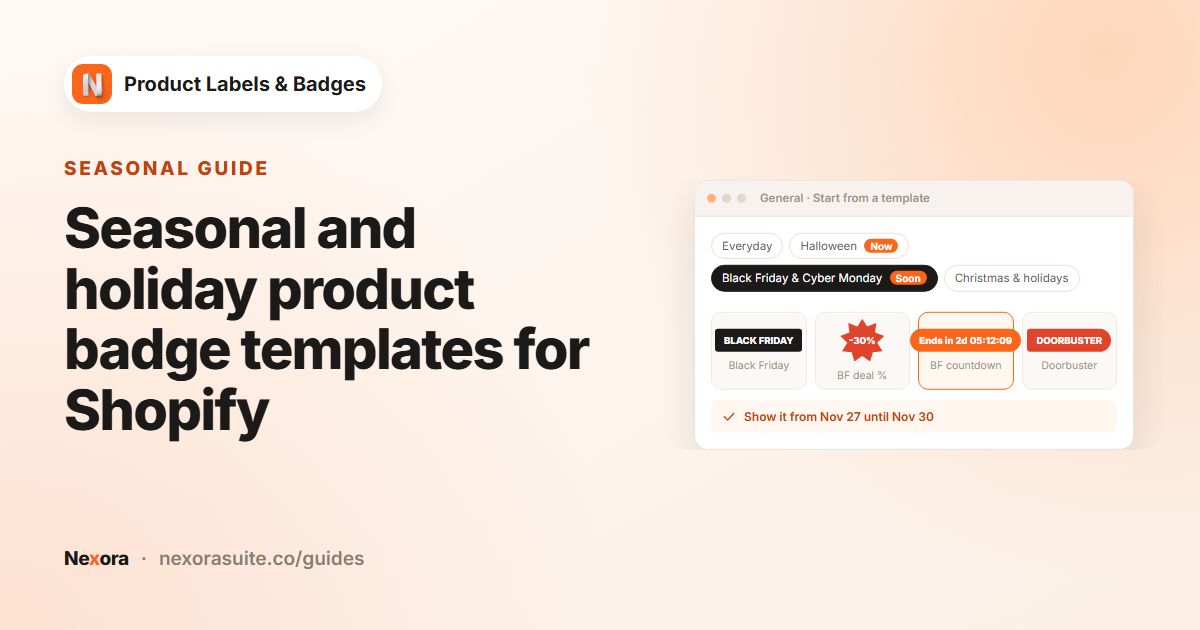
Go to Product Labels and click + Add Label. On General, keep the Text type and choose Inside Product Image or In Product Info Area. If you like, use Start from a template: *Sale ends*, *Ends tonight* and *BF countdown* already contain the countdown.
- Add the variable
On Design, type
Ends in {{countdown}}in Label Text, or insert it from Dynamic Data. The Countdown settings appear under the text as soon as the token is there. - Choose what it counts down to
Pick The label's end date for a sale with a fixed end, or A time every day for a daily cut-off and enter the Time in HH:MM, 24-hour.
- Pick a format
Choose
05:12:09,2d 05:12:09or2d 5h 12m. The short format is easiest to read on small product cards. - Set the end date
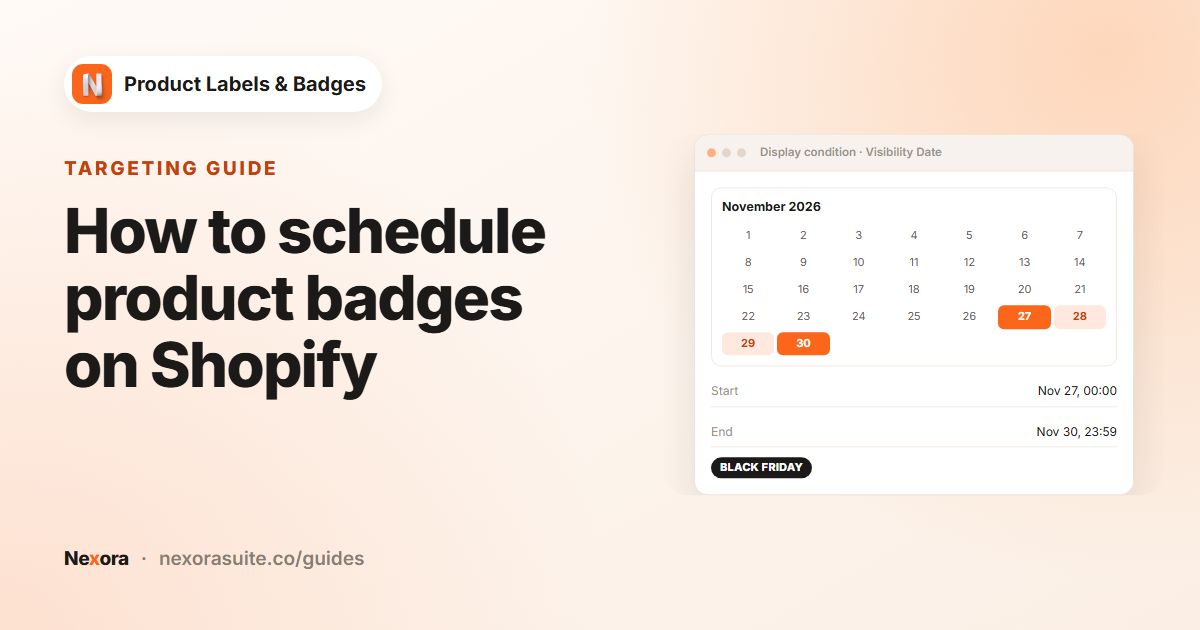
For an end-date countdown, open Display condition, set Visibility Date to Custom Date and fill in End date and End time. Without an end date, the editor warns that the countdown has nothing to count to.
- Choose the products and save
Pick the products under Products, for example a sale collection, then click Save and check a product page and a collection page.
Countdown settings explained
| Setting | Options | Notes |
|---|---|---|
| Count down to | A time every day / The label's end date | A daily time uses your store's time zone and starts again the next day |
| Time | HH:MM, 24-hour | Only for A time every day, for example 14:00 |
| Format | 05:12:09, 2d 05:12:09, 2d 5h 12m | Hours only, with days, or the short form |
| When it reaches zero | Hide the label / Show 00:00:00 | Only for The label's end date |
| End date / End time | Under Visibility Date → Custom Date | In your store's time zone, so every shopper sees the same deadline |
The countdown ticks every second while the page is open. All countdowns on a page share one timer, so a collection page with many countdown badges doesn't run dozens of separate clocks.
{{countdown}} is a text variable. It works in text labels, not in image or upload labels.
Example: a weekend sale and a daily dispatch cut-off
A homeware store runs a weekend sale that ends on Sunday at 23:59, and also ships the same day for orders placed before 2 pm. It uses two labels.
| Label | Label Text | Count down to | Other settings |
|---|---|---|---|
| Weekend sale | Ends in {{countdown}} | The label's end date | Inside Product Image, Top-Left; Format 2d 5h 12m; End date Sunday, End time 23:59; Hide the label at zero |
| Dispatch cut-off | Order within {{countdown}} for same-day dispatch | A time every day, 14:00 | In Product Info Area, Below price; Format 05:12:09; Product Page only |
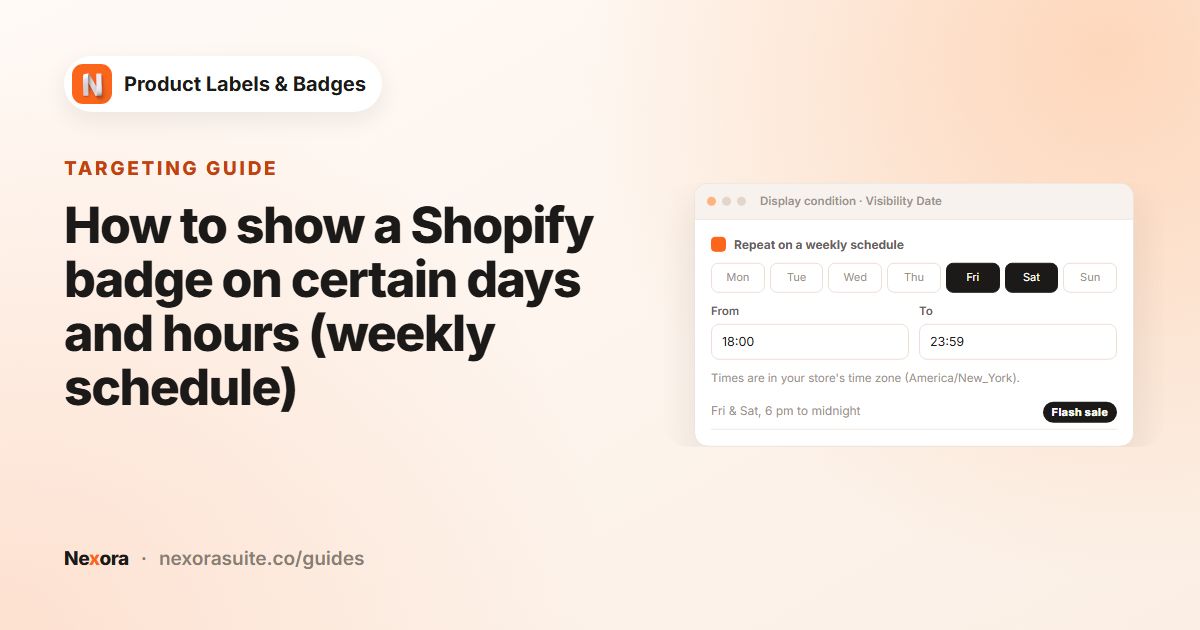
If the store only dispatches on weekdays, the cut-off label can also use Repeat on a weekly schedule with Monday to Friday ticked. See weekly label schedules.
Tips and common mistakes
- Set the end date, not just the start. An end-date countdown needs End date under Visibility Date; otherwise it has nothing to count to.
- Use the end time you mean. The default End time is 23:59 in your store's time zone. Change it if your sale ends at 9 am.
- Keep it short on cards.
2d 5h 12mfits a small image better than a long sentence. Put a longer message in the product info area. - Don't fake urgency. A daily countdown that restarts every day is fine for a real dispatch cut-off, but not as a pretend sale deadline.
- Check both pages. Open one product page and one collection page after saving, on desktop and on mobile.
For a full Black Friday plan, with dates, templates and switch-off, see Black Friday product badges.
Frequently asked questions
Does the countdown tick live?
Yes. It updates every second while the page is open, and every countdown on the page shares one timer.
What happens when the countdown reaches zero?
For The label's end date, you choose under When it reaches zero: Hide the label or Show 00:00:00. A daily countdown simply starts again the next day.
Which time zone does the countdown use?
Your store's time zone, both for A time every day and for the label's End date and End time. Every shopper sees the same deadline.
Can I combine the countdown with other variables?
Yes. For example -{{sale_percent}} · {{countdown}} shows the discount and the time left on one badge.
Can I put a countdown on an image badge?
No. Variables, including {{countdown}}, only work in text labels. Use a text shape such as Pill or Rectangle instead.
Is there a ready-made countdown template?
Yes. On General, Start from a template includes countdown templates such as *BF countdown*, *Sale ends* and *Ends tonight*, plus countdowns for other seasons.