Why start from a template
Seasonal badges tend to be made in a hurry, a few days before the sale, when there's plenty else to do. Starting from a finished design saves picking a shape, colours, font size and padding from scratch, and gives you something that already looks right on a product image.
A template is only a starting point. It fills in the design; you still choose the products, the dates and the pages, and you can change any part of the look before saving.
What's in the template library
| Occasion | Templates | Examples |
|---|---|---|
| Everyday | 16 | New, Best seller, Sale %, Free shipping, Low stock, Back in stock |
| Black Friday & Cyber Monday | 16 | Black Friday, BF deal %, BF countdown, Doorbuster, Cyber Monday |
| Christmas & holidays | 16 | Christmas, Gift idea, Sale ends, Arrives by Christmas, Stocking stuffer |
| New Year | 16 | New Year sale, New Year countdown, Year-end clearance, Lunar New Year |
| Valentine's Day | 16 | Valentine, Gift for her, Gift for him, Valentine countdown |
| Summer | 16 | Summer sale, Beach ready, Summer countdown, Summer free shipping |
| Back to school | 16 | Back to school, Student deal, School countdown, Dorm essential |
| Halloween | 16 | Halloween, Boo, Halloween countdown, Trick or treat |
A template sets the shape, text, colours, bold and letter case, animation, shadow, font size, line height and padding. Countdown templates also set up the countdown, and templates with variables turn on Hide the label when a variable has no value. Nothing reaches your storefront until you click Save.
Step by step: a badge from a seasonal template
- Open the editor
Go to Product Labels and click + Add Label, or use a template from the season card on Home.
- Pick an occasion
Under Start from a template on General, choose an occasion chip. Seasons that are on now or coming up are marked Now or Soon.
- Choose a design
Click a template to apply it. The Label Preview updates straight away. You can try another one; nothing is saved yet.
- Use the suggested dates
For seasonal templates, the editor can offer *Show it from … until …* with that season's dates. Click it to fill in Visibility Date, or set your own dates under Display condition. Dates are part of the Pro plan ($6.99 every 30 days or $59 a year, with a 7-day free trial); on the Free plan, activate and deactivate the label yourself.
- Adjust and pick products
Change the text or colours on Design if needed, then choose the products on Display condition.
- Save
Click Save. The label goes live within its dates.
Season reminders and suggested dates
Once setup is done, the Home page shows a season card, such as "Halloween starts in 9 days", with three templates and a link to see all templates for that season. At most two seasons are suggested at a time, and days follow your shop's time zone.
| Season | Window | Suggestions start |
|---|---|---|
| Valentine's | 7–14 February | 18 days before |
| Summer | 1 June – 31 August (southern hemisphere: 1 December – end of February) | 17 days before |
| Back to school | 1 August – 10 September (southern hemisphere: 15 January – end of February) | 17 days before |
| Halloween | 17–31 October | 16 days before |
| Black Friday & Cyber Monday | Black Friday to Cyber Monday, worked out each year | 42 days before |
| Christmas | 1–24 December | 14 days before |
| New Year | 26 December – 7 January | 6 days before |
If you save a seasonal label without dates before its season starts, the editor reminds you that it will show as soon as you save. If a countdown template has no end date, it offers to end the label on the season's last day.
Example: preparing Black Friday in October
- Six weeks before Black Friday, the season card on Home suggests Black Friday & Cyber Monday templates.
- The merchant picks BF countdown, accepts *Show it from … until …* for Black Friday to Cyber Monday, and targets the sale collection.
- A second label from Doorbuster goes on three hero products only, using Specific products.
- Both labels are saved weeks ahead and switch on and off by themselves. For the full plan, see Black Friday product badges.
Tips
- Adjust colours to your brand. A small colour or font change often makes a template feel like part of your store rather than a stock design.
- Check the text. Templates such as *Arrives by Christmas* make a promise; only use them where your shipping can keep it.
- Don't forget the end date. Suggested dates are only filled in when you click them.
- Hide what you don't need. You can hide a season's suggestions from the Home card.
- Translate if you sell in several languages. After applying a template, add the label text for your other languages, for example on the Translations page. See translating badges.
Frequently asked questions
How many badge templates are there?
128, with 16 in each of 8 occasions: Everyday, Black Friday & Cyber Monday, Christmas & holidays, New Year, Valentine's Day, Summer, Back to school and Halloween.
Does applying a template publish the badge?
No. A template only fills in the design in the editor. Nothing reaches the storefront until you click Save.
Does a template choose the products or dates?
No. You choose the products yourself. For seasonal templates, the editor can suggest the season's dates, which are filled in only if you click the suggestion.
When does the app suggest seasonal templates?
Ahead of 7 seasons, from 6 days before New Year to 42 days before Black Friday, with at most two seasons at a time.
Can I change a template after applying it?
Yes. Every setting a template fills in, from the text to the colours and animation, can be edited on Design before or after you save.
Are there templates with a countdown?
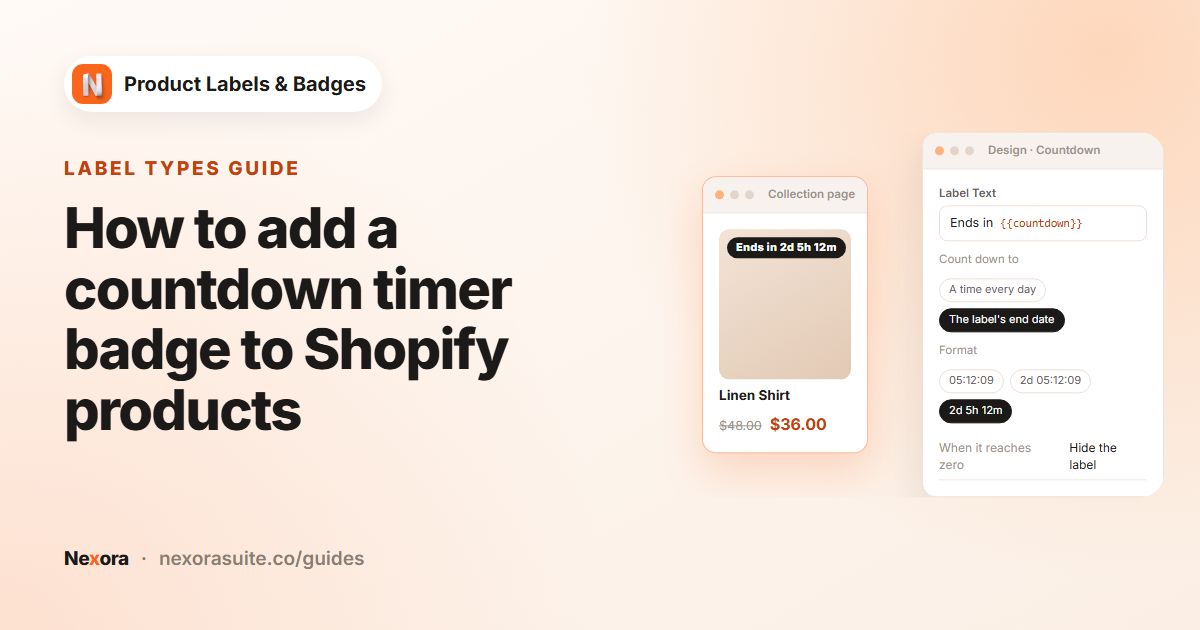
Yes, for example *BF countdown*, *Sale ends* and *Ends tonight*, plus countdowns for New Year, Valentine's, Summer, Back to school and Halloween. Countdowns are part of the Pro plan.