When a weekly schedule makes sense
Many offers repeat on a rhythm rather than running once: a Friday evening flash sale, a weekend bundle, a lunchtime deal for a café's online shop, or a "Ships today" note that only holds on weekdays. Switching a badge on and off by hand every week is easy to forget, and a badge that stays up after the offer has ended confuses shoppers.
A weekly schedule lets the label switch itself on and off in the same window every week, so the badge matches the offer without you having to remember it.
Your options on Shopify
Shopify discounts take a start and end date, and you can schedule each one ahead of time. For a repeating offer, you set up the discount for each period, or keep one discount running and only advertise it at certain times. A badge that follows a weekly pattern is the part themes don't usually cover.
| Option | Repeats every week | Hours | Notes |
|---|---|---|---|
| Turning a label on and off by hand | Only if you remember | Any | Easy to forget at 11 pm on a Friday |
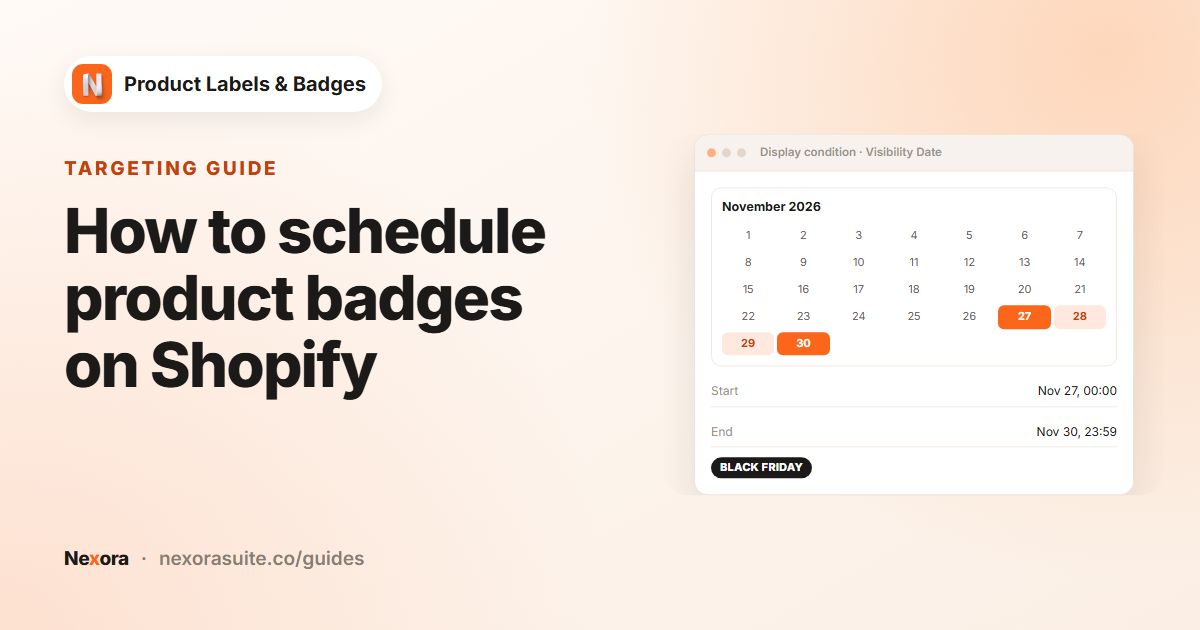
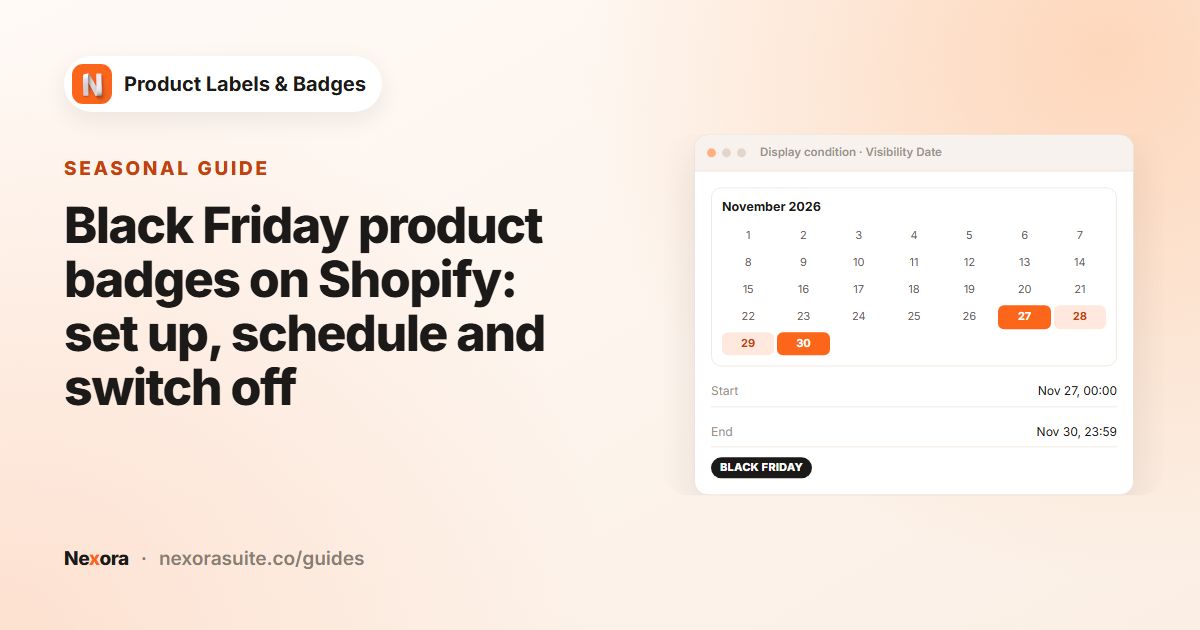
| Visibility Date with Custom Date | No, one window | Yes, Start time and End time | Best for a one-off campaign; see scheduling badges |
| Repeat on a weekly schedule | Yes | Yes, From and To | Can be combined with a Visibility Date window |
The badge doesn't change your prices. Make sure the discount itself is active during the same hours, for example with a Shopify discount scheduled for each window.
Step by step: a Friday night flash sale badge
The weekly schedule is part of the Pro plan ($6.99 every 30 days or $59 a year, with a 7-day free trial).
- Create the label
Go to Product Labels, click + Add Label and, on General, enter a Label name such as
Friday flash sale. On Design, set the Label Text toFlash saleor-{{sale_percent}} tonight. - Choose the products
On Display condition, under Products, choose the collection that's part of the sale.
- Turn on the weekly schedule
Tick Repeat on a weekly schedule. Every day starts selected with 00:00 to 23:59, so click the other days to unselect them and keep only Fri. At least one day must stay selected.
- Set the hours
Enter From
18:00and To23:59. Times use HH:MM, 24-hour, and the editor shows your store's time zone under the fields. - Optionally limit the season
Leave Visibility Date on Immediately to repeat every week, or choose Custom Date so the weekly window only runs between two dates, for example during the summer.
- Save and check
Click Save. Inside the window, reload a product page to see the badge; outside it, the badge stays hidden.
How the weekly schedule works
| Detail | How it behaves |
|---|---|
| Days | Any combination of Monday to Sunday |
| From / To | HH:MM, 24-hour, in your store's time zone |
| Overnight windows | If To is earlier than From, the window runs past midnight into the next day |
| End of day | 23:59 means the end of the day |
| With Visibility Date | The weekly window only applies while the date window is open |
| When it's checked | When the page loads. A page left open across the start or end of a window updates on the next reload |
Example schedules
| Offer | Days | From | To | Label Text |
|---|---|---|---|---|
| Friday night flash sale | Fri | 18:00 | 23:59 | Flash sale |
| Weekend bundle | Sat, Sun | 00:00 | 23:59 | Weekend deal |
| Late-night deal | Fri, Sat | 22:00 | 02:00 | Night owl -15% |
| Weekday dispatch note | Mon–Fri | 00:00 | 14:00 | Order by 2 pm, ships today |
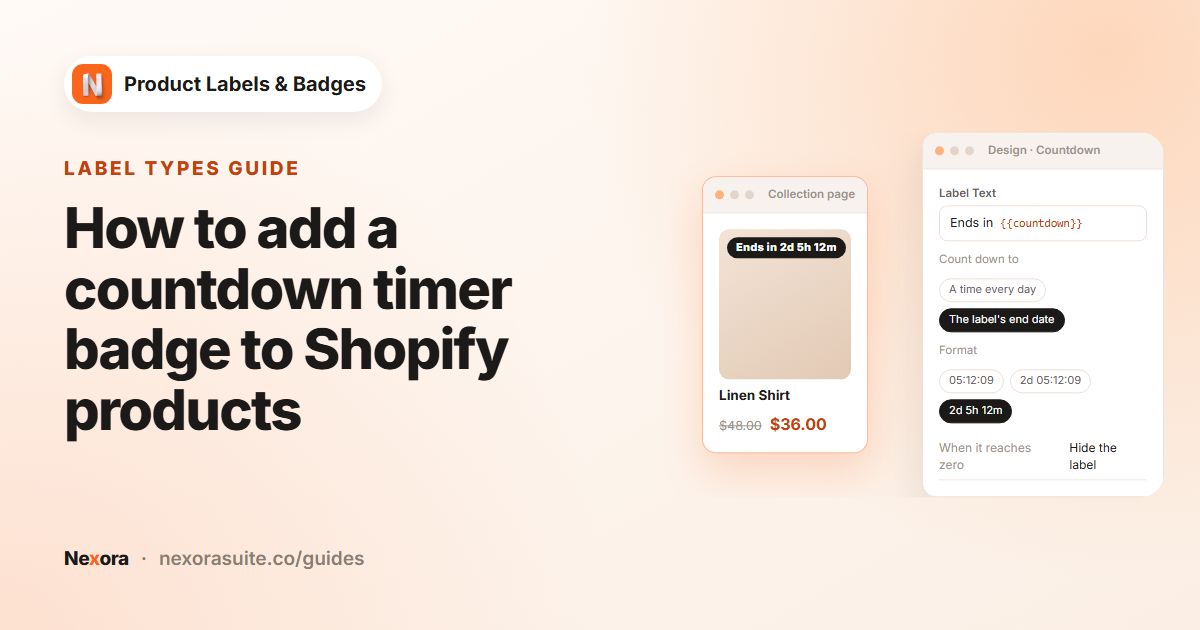
For the dispatch note, a countdown can make the cut-off clearer: put Order within {{countdown}} in the text and set Count down to A time every day at 14:00. See countdown timer badges.
Tips and common mistakes
- Think in store time. The window follows your store's time zone, not the shopper's. A 6 pm sale in New York starts at 6 pm New York time for everyone.
- Overnight needs only the start day. For Friday 22:00 to 02:00, tick Fri; the window continues into early Saturday.
- Reload to see the switch. Shoppers who keep a page open across the boundary see the change on the next page load.
- Line up the discount. The label only shows the message; the discount itself is set up in Shopify.
- Use a clear label name.
Friday flash sale (weekly)in the list makes it obvious why the badge isn't visible on a Tuesday.
How the schedule combines with other conditions
The weekly schedule is one more condition on the label. A product shows the badge only when everything agrees: it's one of the label's products, the date window is open, the day and time are inside the weekly window, and any customer, country, device and page settings also match.
| Combine with | Example |
|---|---|
| Visibility Date | Friday flash sales only from 1 June to 31 August |
| Customers | A Tuesday members' hour, only for Signed-in customers |
| Show on devices | A lunchtime deal shown on Mobile only |
| Also show in the cart | The flash sale badge also appears on cart lines during the window |
| Label groups | A group's weekly schedule switches the whole cluster on or off |
Frequently asked questions
Can a label repeat every week on certain days?
Yes. Turn on Repeat on a weekly schedule under Display condition, pick the days and set From and To.
Which time zone is used?
Your store's time zone. The editor shows it under the time fields.
Can the window run past midnight?
Yes. If To is earlier than From, for example 22:00 to 02:00, the window runs into the next day.
Can I combine the weekly schedule with start and end dates?
Yes. Set Visibility Date to Custom Date and the weekly window only runs between those dates.
Does the badge appear at the exact minute on an open page?
The schedule is checked when the page loads, so an open page updates on the next reload or page view.