
Before you start
- Install Nexora Cart Upsell Cart Drawer from the Shopify App Store. It's free.
- Have at least one active product so you can test the drawer.
- For gift wrapping or shipping protection, create those as products in Shopify first, with the price you want to charge.
- If your store sells in several languages, make sure they're published in Shopify's language settings.
Getting started
- Turn on the app embed
Open the app. On Home, in the Setup guide, click Activate app embed. In the theme editor, switch on Nexora Cart Drawer and click Save.
- Open the Cart editor
Click Cart editor in the app menu (or Go to Cart editor in the Setup guide).
- Pick a template
Click Design, choose one of the templates under Templates and click Apply. Adjust Cart width and the header Heading if you like.
- Choose your blocks
In Main group, Extra group and Footer group, switch on the blocks you want and drag them into the order you prefer. Cart items, Cart note and Cart buttons are on by default.
- Edit each block
Click a block to open its settings. Watch the preview on the right as you make changes.
- Set up the empty cart
Change Preview to Empty cart, click Design, and add a collection or products so an empty cart still helps shoppers find something.
- Save
Click Save in the save bar at the top of the page.
- Check it on your store
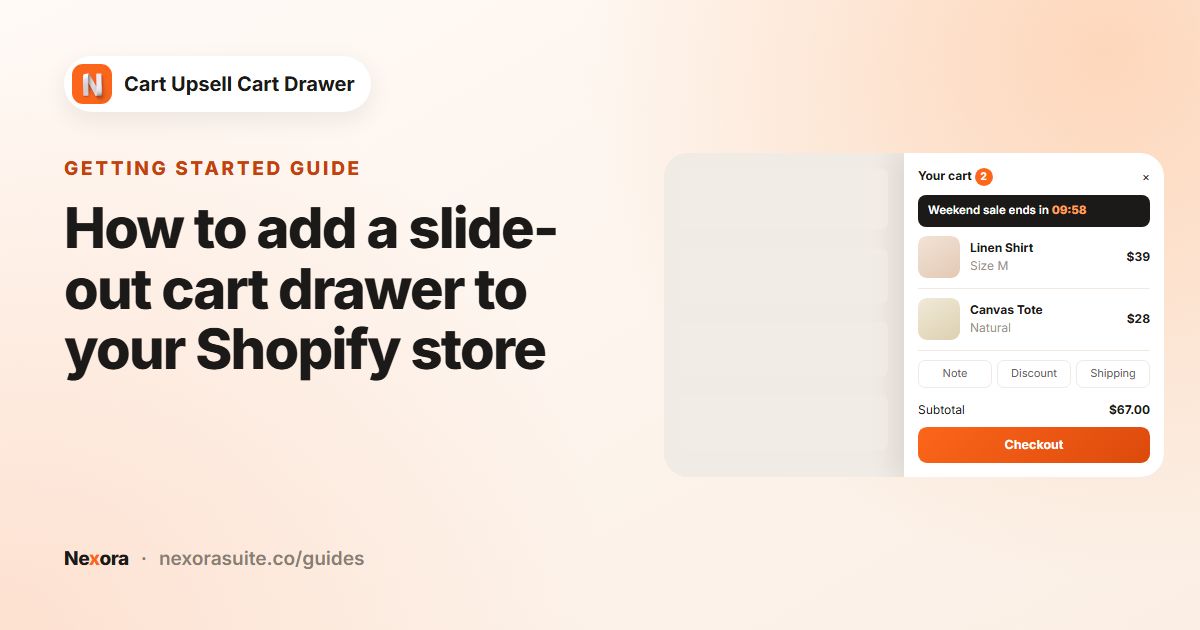
Open your online store, add a product to the cart and click the cart icon. The Nexora drawer should slide open. If your theme's own cart appears instead, see the Advanced settings or contact us on live chat.
 Related guideHow to add a slide-out cart drawer to your Shopify store→
Recipe: Show progress toward free shipping
Encourage bigger orders by showing how much more a shopper needs to spend.
- Set up free shipping in Shopify
In Shopify, create a free shipping discount (or a free shipping rate) with a minimum order amount, for example $75.
- Turn on the Reward bar
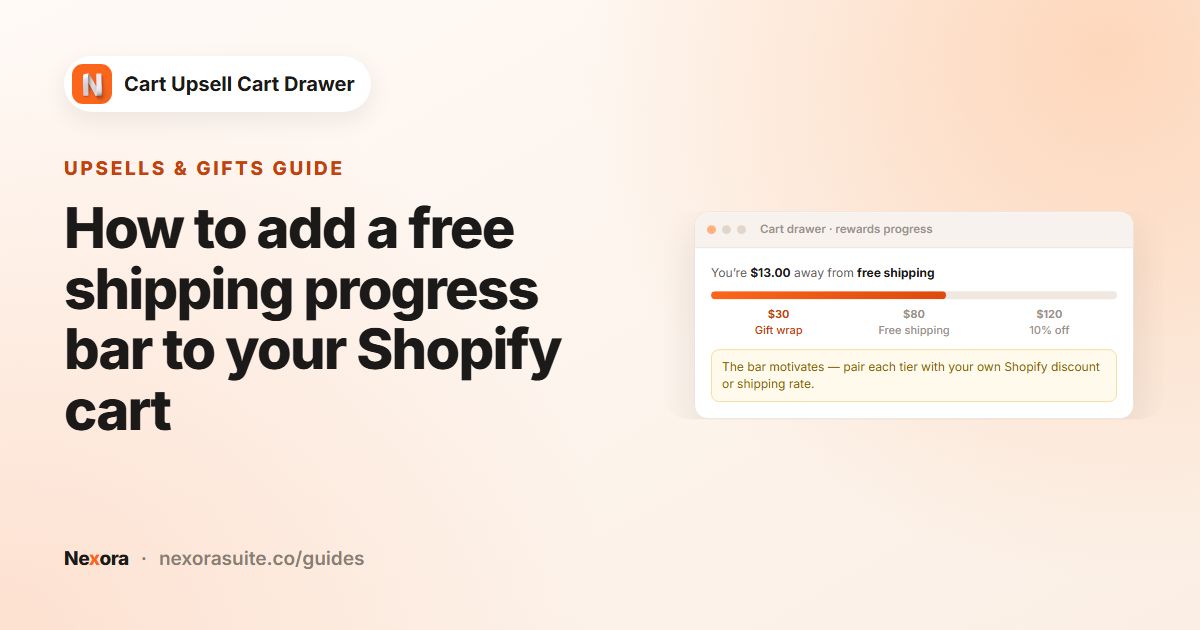
In the Cart editor, switch on Reward bar in Main group and set Count the reward bar based on to Total Value.
- Match the tier
For Tier 1 Settings, choose Free shipping, set Minimum Amount to the same amount you used in Shopify, and write a Message before complete such as "Spend [min_amount] more for free shipping".
- Save and test
Click Save, then add products on your store and watch the bar fill up.
The bar itself doesn't give free shipping. It only shows progress, so the Shopify discount or shipping rate from step 1 is what makes shipping free at checkout.
 Related guideHow to add a free shipping progress bar to your Shopify cart→
Recipe: Offer a discounted add-on with Complementary products
- Open the block
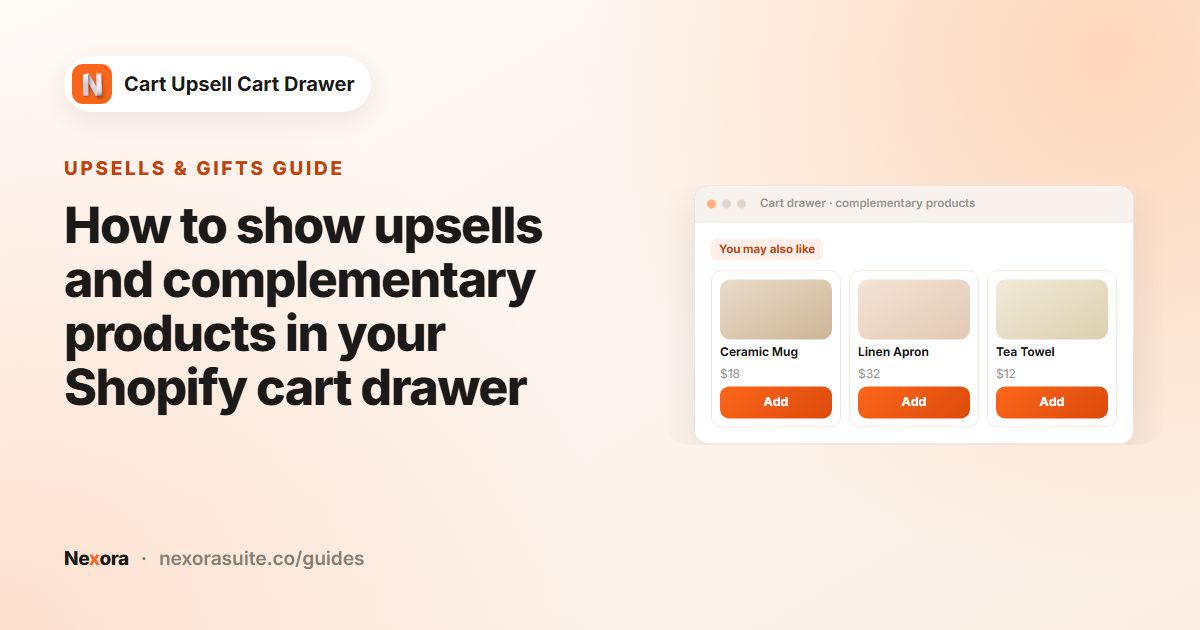
Switch on Complementary products and set Type to Manual.
- Create a rule
Under Upsell products, click Add item. Choose Specific products under When buy this products and pick your main product, then pick the add-on under Then show this products.
- Add a discount (optional)
Turn on Discount and enter a Discount value, for example 10%.
- Limit when it shows (optional)
Turn on Display conditions, for example Cart value Less than 100, then click Create.
- Save and test
Click Save. On your store, add the main product: the add-on should appear in the drawer with its discounted price, and the discount is applied at checkout.
 Related guideHow to show upsells and complementary products in your Shopify cart drawer→
Recipe: Give a free gift with purchase
- Turn on Free gifts
Switch on Free gifts in Main group.
- Create the offer
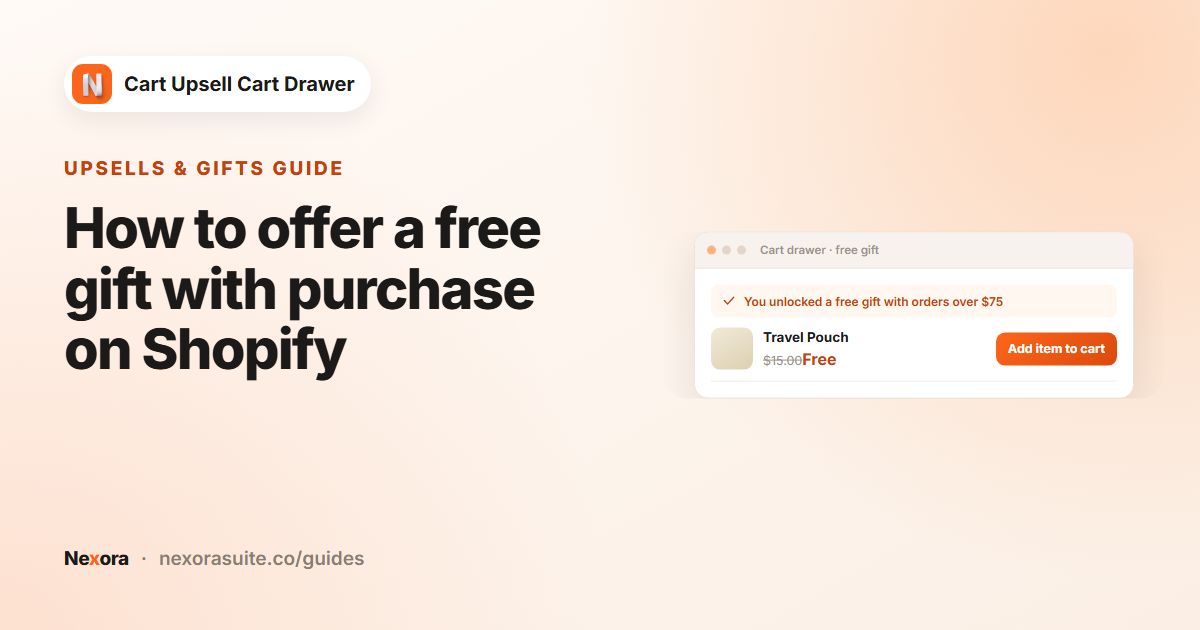
Enter an Offer name, choose Minimum quantity of items or Minimum purchase amount and enter the number, then choose the products or collection under Customer buy.
- Pick the gift
Under Customer gets (gift products), select the product to give away. Make sure it's in stock and available on your Online Store.
- Save and test
Click Save. On your store, add qualifying products, then click Add item to cart on the gift in the drawer. At checkout, one unit of the gift should be free.
 Related guideHow to offer a free gift with purchase on Shopify→
Recipe: Add a countdown message and a sticky cart
- Add a countdown
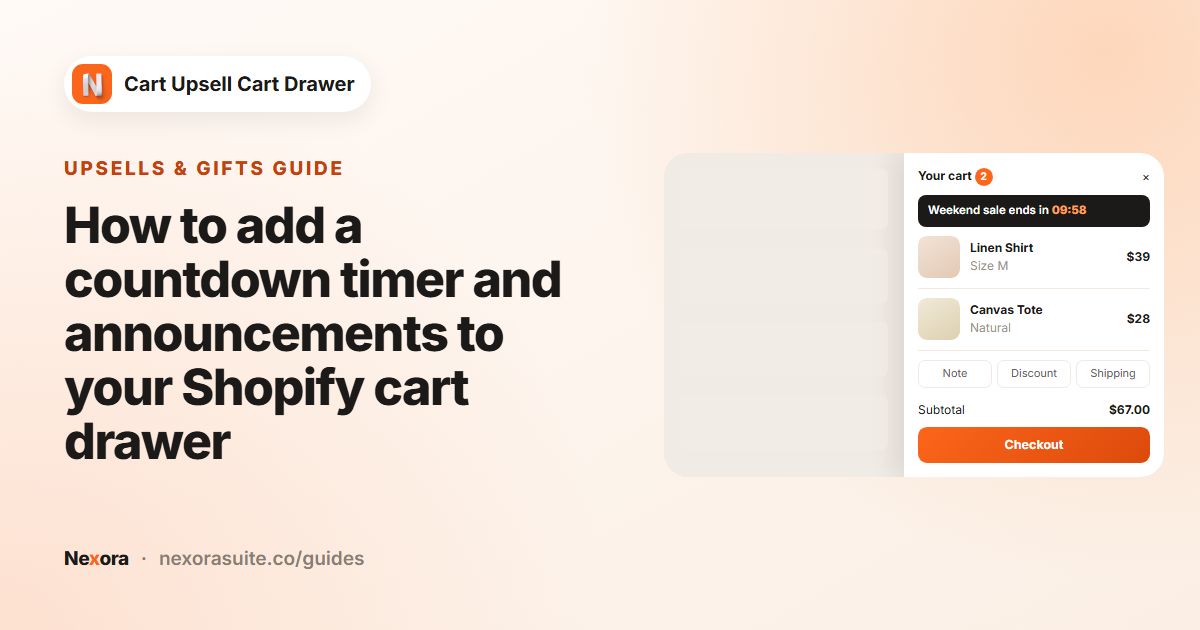
Switch on Announcement. Add an item, set Type to Countdown timer, write Content such as "Checkout within [timer] to keep your items", set Duration(minutes) and choose an Action ends option.
- Save the drawer
Click Save.
- Set up the Sticky cart
Open Sticky cart from the app menu, switch it on, pick a Cart icon, choose Show on device and a Position, then click Save.
- Check on mobile
Open your store on a phone: the floating cart button should appear in the corner you chose and open the drawer when tapped.
 Related guideHow to add a countdown timer and announcements to your Shopify cart drawer→