Why the cart is a good place for suggestions
When a shopper opens the cart, they've already decided to buy something. A relevant suggestion at that moment, such as a case for the phone they picked or a refill for the bottle they added, can save them a search and raise your average order value.
The key word is relevant. Random products in the cart feel like noise. Good cart upsells are small, related and easy to add: one or two products that obviously go with what is already in the cart.
- Accessories for the main item (cases, straps, filters).
- Consumables that run out (refills, cartridges, samples).
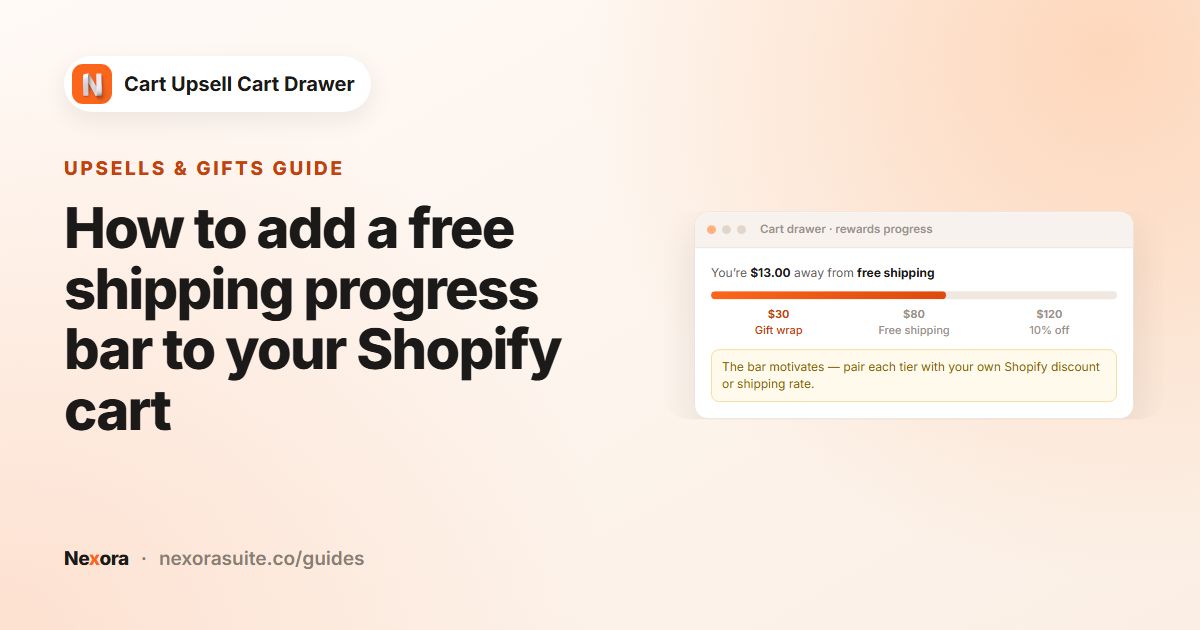
- Low-cost add-ons that help reach a free shipping threshold.
Your options on Shopify
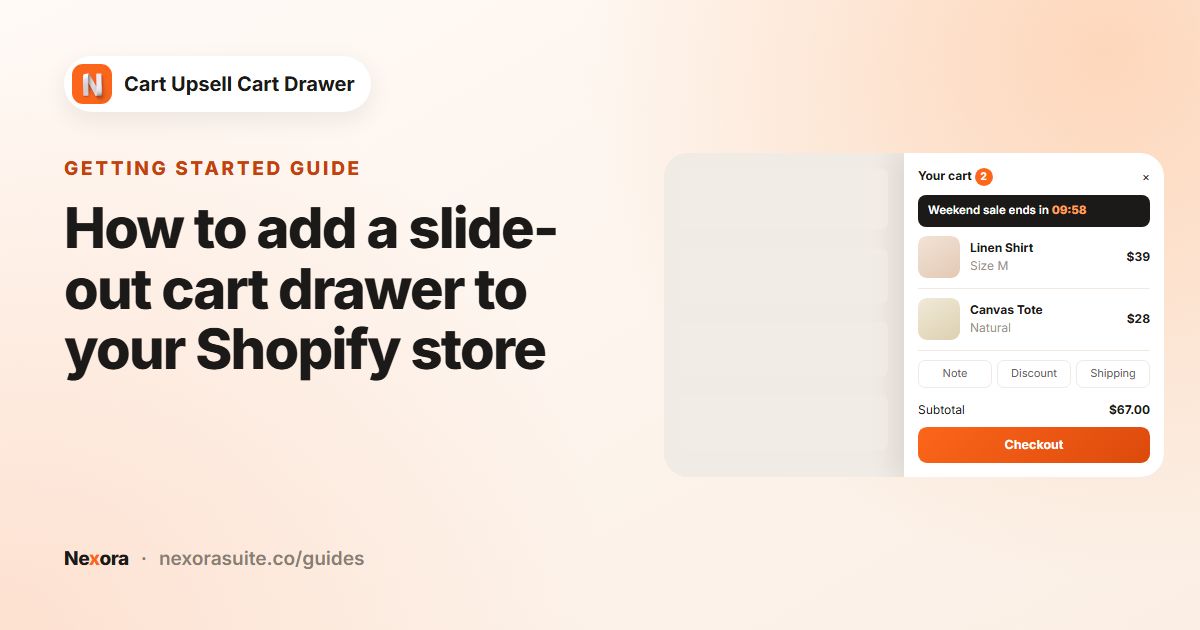
Shopify has a free Search & Discovery app where you can choose complementary and related products for each product. Many themes show these recommendations on product pages. Theme cart drawers often don't show suggestions at all, or show them without any control over which products appear.
| Approach | Good for | Limits |
|---|---|---|
| Theme product recommendations | Product pages | Usually not shown in the cart |
| Complementary products with AI recommendations | Hands-off suggestions in the drawer | Complementary algorithm only shows products set up in Search & Discovery |
| Complementary products with Manual rules | Exact pairings, optional discount and conditions | You create and maintain the rules |
Step by step: add upsells to the drawer
- Turn on the block
In the Cart editor, switch on Complementary products in Main group and click it to open its settings.
- Choose a type
Pick AI recommendations and an Algorithm (Related or Complementary), or pick Manual to write your own rules.
- Create a manual rule
For Manual, under Upsell products, click Add item. In Create upsell, choose When buy this products (All products, Specific products or Specific collections) and select what to offer under Then show this products.
- Add a discount (optional)
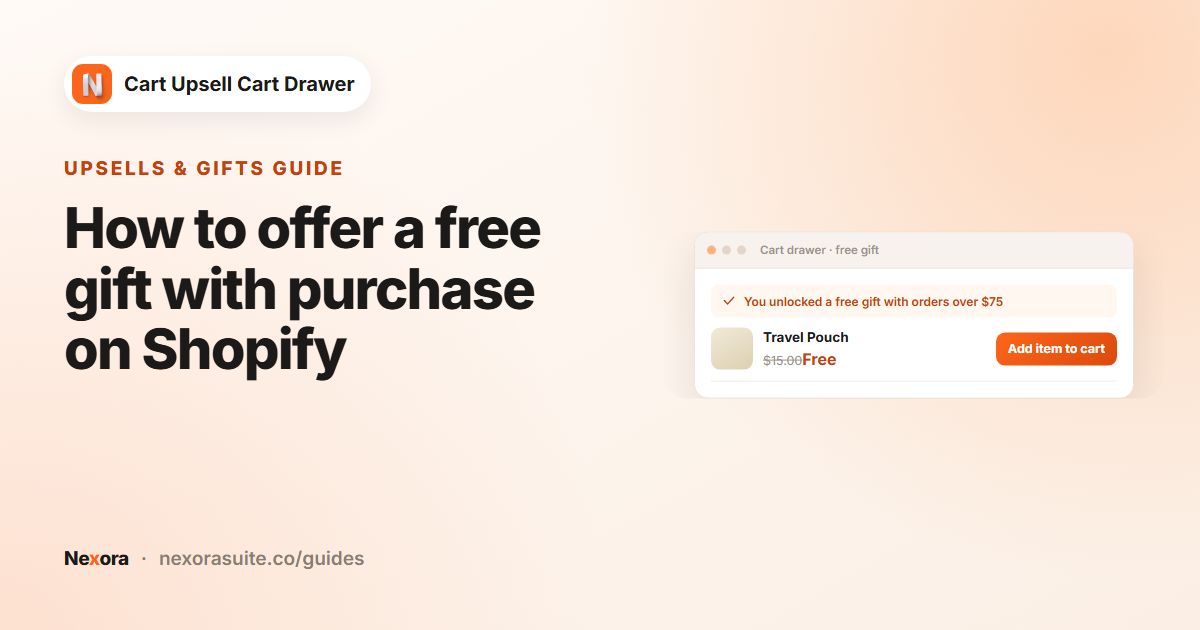
Turn on Discount and enter a Discount value, for example 15. The percentage is applied when the offered product is added from the drawer.
- Limit when it shows (optional)
Turn on Display conditions and choose whether All or Any conditions must match, for example Cart value Less than 60. Click Create.
- Style and save
Set Max upsell items, the Heading and button labels. Click Sync settings from Cart items to match your item cards, then click Save.
Settings reference
| Setting | What it does |
|---|---|
| Type | AI recommendations or Manual. |
| Algorithm | Related or Complementary (AI recommendations only). |
| When buy this products | The cart items that trigger the rule: All products, Specific products or Specific collections. |
| Then show this products | The products offered in the drawer. |
| Discount / Discount value | An optional percentage off the offered product when added from the drawer. |
| Display conditions | Show the rule only when Cart value or Cart quantity meets your comparison. |
| Max upsell items | How many suggestions are shown. |
| Text add to cart, Text in cart, Text sold out | The button labels. |
For Specific products rules, the discount covers one offered unit for each qualifying product the customer buys. Discounted cards show a percentage badge and the original price crossed out.
Example: a discounted accessory for a coffee grinder
A coffee store wants to offer a cleaning brush to anyone buying a grinder, and suggest beans to everyone else.
- Rule 1: When buy this products > Specific products > the grinder. Then show this products > the cleaning brush. Discount on, Discount value 20.
- Rule 2: When buy this products > All products. Then show this products > two best-selling bean bags. Display conditions: Cart value Less than 50, so the suggestion helps smaller carts reach the free shipping threshold.
- Max upsell items: 2, so the drawer stays tidy.
- Heading:
Goes well with your order.
After a few weeks, check Cart Upsell on the Analytics page to see how many suggested items were added and the revenue they brought in.
Tips and common mistakes
- No products with Complementary: that algorithm only shows products you've set up in Search & Discovery. Set them up there, or switch to Related.
- Discount not applied: the discount only applies to offered products added from the drawer while the cart still contains the trigger product. Make sure you clicked Save after editing the rule.
- Suggesting what's already in the cart: keep offers to products shoppers are unlikely to have picked already.
- Too many cards: two or three focused suggestions usually look better than a long slider.
- If the discount stops working, check the Discount Functions card on Home, where you can recreate the app's discounts.
Pair upsells with a cart progress bar so shoppers can see how a small add-on gets them closer to free shipping.
Frequently asked questions
Where do AI recommendations come from?
From Shopify's product recommendations for the items in the cart. Related is generated automatically; Complementary uses the products you choose in Shopify's Search & Discovery app.
Can I give a discount on the upsell product?
Yes, with Manual rules. Turn on Discount and enter a Discount value; it applies when the offered product is added from the drawer.
Can I show an upsell only for small carts?
Yes. Turn on Display conditions and use Cart value or Cart quantity, for example Cart value Less than 50.
Do I pay a commission on upsell sales?
No. The app is free and doesn't charge fees or commission on sales made through the drawer.
Can I match the upsell cards to my cart items?
Yes. Click Sync settings from Cart items to copy the item card styling into the block.