
How the app is organised, and getting help
Nexora replaces your theme's cart with a slide-out cart drawer. You build the drawer from blocks in the Cart editor, and it appears on your store through an app embed that you turn on in the Shopify theme editor.
| Menu item | What you do there |
|---|---|
| Home | Setup guide, quick stats (Total Upsells Purchased, Total Add-ons Purchased, Orders), the Discount Functions card, help videos and live chat. |
| Cart editor | Pick a template, turn blocks on or off, reorder them, edit each block and preview the drawer live. |
| Sticky cart | A floating cart button that stays on screen and opens the drawer. |
| Translations | Translate the drawer's text into each language published on your store. |
| Analytics | Orders, revenue and add-to-cart activity that came through the drawer. |
The app is completely free and every block is unlocked. There are no paid plans to choose.
Help and support
- Home has a Help center with short videos on setting up the drawer, enabling it on your store, adding blocks and global settings.
- Many settings panels show Need Help? links to the user guide.
- Click Need help? on Home or Chat with us to open live chat with our team.
- You can also email us at [email protected].
The Discount Functions card on Home lets you recreate the app's discounts. If free gifts stop being free at checkout because the app's discount was deleted in Shopify, click Sync Free Gift.
App embed (turning the drawer on or off)
The drawer only shows on your storefront when the Nexora Cart Drawer app embed is switched on in your theme. This toggle is the on/off switch for the whole drawer, including the Sticky cart.
- Open the theme editor
On Home, in the Setup guide, click Activate app embed under Active cart drawer app embed. This opens your theme editor on the App embeds panel.
- Switch it on
Turn on Nexora Cart Drawer and click Save in the theme editor.
- Turn it off later
To hide the drawer, switch the same app embed off and save. Your settings in the app are kept.
If you use more than one theme, turn on the app embed in each theme where you want the drawer, including a new theme before you publish it.
 Related guideHow to add a slide-out cart drawer to your Shopify store→
Cart editor basics
The Cart editor has three parts: a menu on the left, a settings panel in the middle and a live preview on the right. The preview runs the same drawer code your store uses, filled with sample products, so what you see is close to what shoppers will see.
| Area | What it does |
|---|---|
| Preview | Switch between Main cart (a cart with items) and Empty cart (the screen shown when the cart is empty). |
| Design | Templates and the look of the whole drawer (or the Empty cart settings when Empty cart is selected). |
| Advanced | Theme compatibility selectors and custom CSS/JS. |
| Main group | The scrolling middle of the drawer: Cart items, Reward bar, Announcement, Complementary products, HTML code, Free gifts. |
| Extra group | Small toolbar buttons under the items that open a panel: Cart note, Discount code, Cart sharing, Gift wrapping, Estimate shipping. |
| Footer group | The fixed bottom of the drawer: Cart buttons, Payment icons, HTML code, Secure & safe checkout, Popup related products, Shipping protection. |
- Use the switch next to a block to turn it on or off. Clicking a block opens its settings.
- Drag a block by its handle to change its order inside its group.
- The pointer button next to each group name highlights where that group sits in the preview.
- When you change anything, Shopify's save bar appears at the top. Click Save to publish, or Discard to undo your changes.
On smaller screens the editor shows one panel at a time. Use the back arrow at the top of a block's settings to return to the block list.
Main group blocks
Cart items
The list of products in the cart, with quantity buttons and a remove icon. Under Product card item, choose a Style: Classic, Compact list, Showcase or Price corner, then set colours, Item gap, padding, Border radius, an optional bottom border and shadow. Under Product card content you can show the vendor and set font size and weight for the title, price, coupon and variant text.
Quantity style has six options: Outline box, Rounded pill, Floating circles, Segmented fill, Solid dark and Underlined. You can also adjust Quantity button scale, Quantity input size, and the remove icon's size and colour.
Reward bar
A progress bar with up to three tiers that shows shoppers how close they are to a goal, for example "Spend $20 more to get free shipping". Choose Count the reward bar based on: Total Value (cart total) or Total Quantity (number of items).
| Setting (per tier) | What it does |
|---|---|
| Reward Type | Free product, Free shipping or Discount. Sets the icon and the tier name shown on the bar. |
| Minimum Amount / Minimum Quantity | The cart total or item count needed to reach the tier. |
| Label | The tier name shown on the bar. |
| Message before complete | The text shown before the tier is reached. Use [min_amount] to show how much is still needed. |
Under Colors, set Background, Text color, Tier background and Success color.
The Reward bar is a progress message only. It does not apply free shipping, discounts or free products at checkout. If you want the reward to actually apply, set up a matching discount or free shipping rate in Shopify (for example a free shipping discount with the same minimum amount). Also, if you pick Free product and add products to its list, those products may be added to the cart at their normal price, so leave the list empty unless you've set up your own discount for them.
Announcement
A rotating message slider. Under Items, add as many messages as you like. Each item has a Type:
| Type | Settings |
|---|---|
| Text | Content: the message to show. |
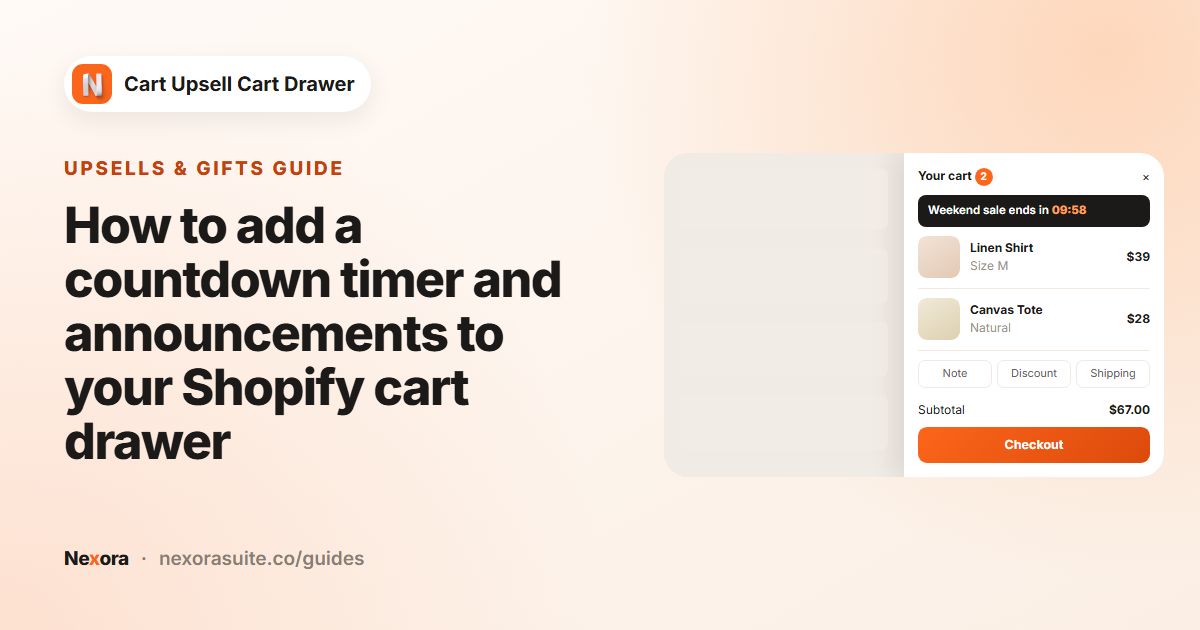
| Countdown timer | Content (include [timer] where the countdown should appear), Expired content, Duration(minutes) and Action ends: Repeat (restart the timer), Hide (remove the message) or Show expired message. |
The countdown runs separately for each visitor, starting when they first see it, and keeps going if they reload the page. You can also set text size, weight and alignment, Background color and Text color, and slider options: Show navigate, Autoplay, Speed and Loop.
Complementary products
Product suggestions shown inside the drawer with an add-to-cart button. Pick a Type:
- AI recommendations: uses Shopify's product recommendations for the items in the cart. Choose the Algorithm: Related or Complementary. Complementary only shows products you've set up in the Shopify Search & Discovery app.
- Manual: under Upsell products, click Add item to create your own rules (see below).
In a manual rule (Create upsell), choose When buy this products (All products, Specific products or Specific collections) and Then show this products. Turn on Discount to give a percentage off with Discount value; the discount is applied when the offered product is added from the drawer. Turn on Display conditions to show the rule only when All or Any of these match: Cart value or Cart quantity compared with a number (Equal to, Not equal to, Greater than, Less than, Greater or Equal, Less or Equal).
Max upsell items limits how many products are shown. Design options include the Heading, button labels (Text add to cart, Text in cart, Text sold out), card colours, radius, shadow, fonts and slider settings. Click Sync settings from Cart items to copy the Cart items styling into this block.
For Specific products rules, the discount covers one offered unit for each qualifying product the customer buys. Discounted products show a percentage badge and the original price crossed out.
Free gifts
Offer a free product when the cart meets a condition. Add one or more offers under General settings:
| Setting | What it does |
|---|---|
| Offer name | The name of the offer, shown with the gift and on the order's discount. |
| Minimum quantity of items / Minimum purchase amount | Choose the condition type, then enter the Quantity or Amount. |
| Customer buy | Specific products or Specific collections that count toward the condition. |
| Customer gets (gift products) | The products offered as a gift. |
When the cart qualifies, the gift appears in the drawer and the customer adds it with the Add item to cart button (they can pick a variant if the gift has several). At checkout, one unit of the gift is made free (100% off) as long as the cart still qualifies. You can rename the buttons with Choose variant text and Add item to cart text, and style the cards under Design.
HTML code
Add your own content with HTML code and CSS code. This block is available in both the Main group and the Footer group. Liquid is not processed, so use plain HTML.
 Related guideHow to show upsells and complementary products in your Shopify cart drawer→
Extra group blocks
Extra group blocks appear as small buttons in a toolbar. Each button opens a panel inside the drawer. For each block, Extra item text sets the button name, and the other fields let you rename every label, placeholder and message.
| Block | What the shopper can do |
|---|---|
| Cart note | Write a note for the order (for example delivery instructions) and save it. The note is added to the order. |
| Discount code | Enter and apply discount codes. Applied codes are listed and can be removed. If a new code can't be combined with an existing one, the message in Combinability warning is shown ({codes} and {newCode} are filled in automatically). |
| Cart sharing | Copy a link that rebuilds the same cart, to send to themselves or someone else. |
| Gift wrapping | Add or remove gift wrapping. Pick the product to add under Gift wrapping product (for example a "Gift wrap" product with a price), and describe it in Content. |
| Estimate shipping | Enter country, province and ZIP code to see your store's shipping rates before checkout. You can edit the success and error messages. |
Create the gift wrap product in Shopify first, with the price you want to charge, then select it in the block.
 Related guideHow to add a gift wrapping option to your Shopify cart→
Footer group blocks
Cart buttons
The totals and the checkout button. Settings include:
- Label subtotal, Label discount and Label estimated total, with text sizes.
- Show shipping/tax notice with Label taxes policy.
- Show terms of service checkbox with Label terms. Customers must tick it before they can check out.
- Label checkout.
- Show view cart button with Label view cart and View cart style: Outline button, Compact outline, Text link or Icon + text.
- Buttons direction: Stacked — Checkout on top, Stacked — View cart on top, Side by side — Checkout right or Side by side — Checkout left.
Payment icons
Shows the icons of the payment methods enabled on your store. Turn on Show custom image to use your own image instead, and set Custom image width.
Secure & safe checkout
A trust badge with a short message. Choose a logo under Payment gateway providers (Amazon Pay, Authorize.net, Klarna, Opayo, PayPal, Shop Pay, Skrill, Stripe, or None), or upload a Custom image, and edit the Content.
Popup related products
When a shopper adds a product to the cart, a popup shows "You just added" and suggests other products (default heading: "Frequently bought together"). Like Complementary products, choose AI recommendations (Related or Complementary) or Manual rules, set Max upsell items, and style the popup, cards, slider (Products per slide) and labels.
Shipping protection
A checkbox that lets shoppers add shipping protection to their order. Select the product to add under Shipping protection product, then set the Title, Description, text sizes and whether to Show image. The price shown is the product's current price.
Create a dedicated product (for example "Shipping protection") with the price you want to charge. You may want to hide it from your collections and search so it can't be bought on its own.
 Related guideHow to add a terms and conditions checkbox to your Shopify cart→
Design and templates
Click Design (with Preview set to Main cart) to style the whole drawer.
| Section | Options |
|---|---|
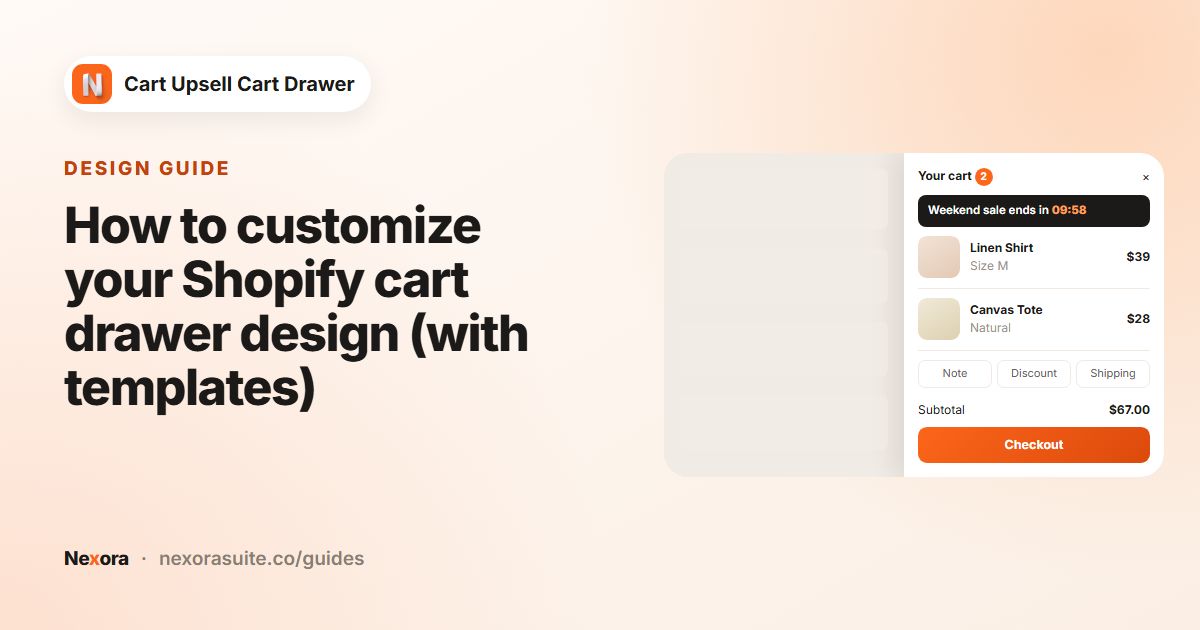
| Templates | Five ready-made looks: Minimal Light, Bold Pop, Premium Dark, Eco Natural and Tech Modern. Applying one replaces your design settings (colours, typography, borders, shadows, padding) but keeps block content such as product lists, labels and conditions. You'll be asked to confirm with Apply. |
| Cart width | Drawer width from 300 to 800 px. |
| Header | Background and text colour, Heading text, heading size and weight, Quantity size, Close icon size, Close icon style (Background or Only icon) and Quantity/close border radius. |
| Body | Background color and Block spacing. |
| Extra | Toolbar background, Show icon and text (Only icon, Only text, Icon and text), Style (Toolbar (plain), Button, Button (rounded), Button outline, Button outline (rounded)), Item color and Item background. |
| Footer | Background color and Block spacing. |
| Global styles | Shared colours (background, text, solid button, outline button, shadow) and the font, border and shadow of buttons, inputs, media (images) and popups. |
In the Heading, use [quantity] to show the item count inside the text, for example Cart ([quantity]), or __[quantity]__ to show it as a small badge. Leave the token out to hide the count.
 Related guideHow to customize your Shopify cart drawer design (with templates)→
Empty cart
Set Preview to Empty cart, then click Design to edit what shoppers see when their cart is empty.
| Setting | What it does |
|---|---|
| Collection | Show products from a collection. Leave it empty to hide this part. Add a Collection heading and choose Collection layout: Grid or Slider. |
| Products | Show hand-picked products, with Product heading and Product layout (Grid or Slider). |
| Show "Continue shopping" button | Shows a button that closes the drawer so shoppers keep browsing. |
| Show login button | Shows a login prompt with Login button heading and Login button label. Wrap the link text in __, for example __Log in__ to check out faster. |
| Display order | Drag to reorder these elements on the empty cart screen. |
 Related guideHow to add a countdown timer and announcements to your Shopify cart drawer→
Advanced settings
Most themes work without changes. Use Advanced only if something doesn't behave as expected.
| Setting | When to use it |
|---|---|
| Hide default drawer | (Compatible tab) Your theme's own cart drawer still appears. Enter its CSS selector to hide it. |
| Cart count selector | (Compatible tab) The cart count bubble in your header doesn't update. Enter its selector. |
| Cart button selector | (Compatible tab) Clicking your cart icon doesn't open the drawer. Enter the cart icon's selector, for example .header__icon--cart. |
| Custom CSS / Custom JS | (Custom CSS/JS tab) Add your own styles or scripts to the drawer. |
Not sure which selector to use? Message us on live chat and we'll check your theme for you.
Sticky cart
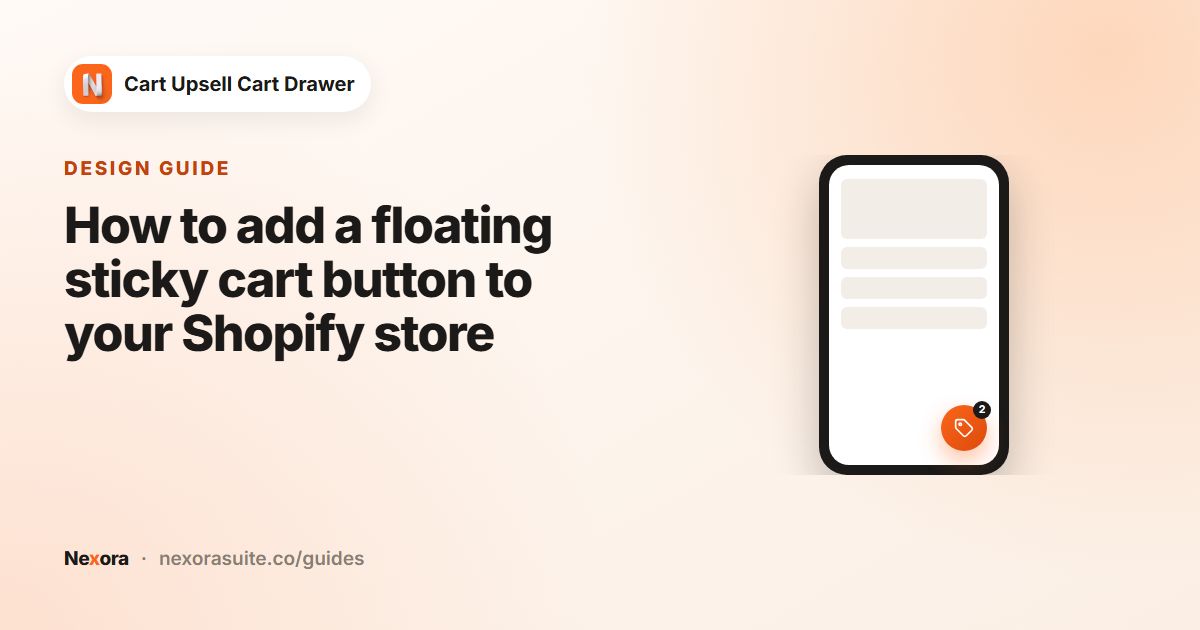
The Sticky cart page adds a floating cart button with an item count. Shoppers can tap it from anywhere on the page to open the drawer. Turn it on with the switch next to the page title, adjust the settings, and click Save.
| Setting | What it does |
|---|---|
| Cart icon | Choose one of nine icons, then set Icon size and Icon color. |
| Show on device | All devices, Desktop only or Mobile only. |
| Shape | Default or Round. |
| Position | Top left, Top right, Bottom left or Bottom right, with X axis and Y axis offsets. |
| Size / Background color | The size and colour of the button. |
| Border / Shadow | Thickness, opacity, corner radius and colour; shadow offsets, blur and colour. |
| Quantity icon | Font size, size scale, Quantity background, Quantity color and position of the count badge. |
Size, position and offsets can be set separately for desktop and mobile. Use the desktop and mobile buttons above the preview to switch.
 Related guideHow to add a floating sticky cart button to your Shopify store→
Translations
The text you write in the Cart editor is used for your store's default language (shown in the Default badge). The Translations page lets you add a version for each other language published on your store.
- Pick a language
Choose a language from the menu at the top. Only published languages are listed. To add one, click Create language, which opens Shopify's language settings.
- Translate
Each row shows the Original text and a Translation field, starting with Header text and then the text of each block, including each Announcement message and each Free gift offer.
- Save
Click Save changes. Shoppers browsing in that language see your translation. Any field you leave unchanged shows the original text.
Analytics
The Analytics page shows how the drawer is performing. Pick a range (Today, Yesterday, Last 7 days, Last 30 days) and use the refresh button to reload.
| Card | What it shows |
|---|---|
| Cart Order, Cart Revenue, AOV (Average Order Value) | Your store's All figure next to the Cart drawer figure (orders that went through the drawer). |
| Cart Upsell / Cart Addon | Quantity added to cart and revenue, broken down by the block that added them (for example Free gifts or Shipping protection). |
| Revenue trend | Daily revenue over the selected range. |
| Conversion Funnel | Cart Opens, Checkout Clicks and Completed Orders, plus Checkout Rate, Abandon Rate, Conversion and Unique Cart Opens. |
Data starts appearing within 24 hours of the first cart open. The same headline numbers appear on Home, with a View Analytics button.