Why put messages in the cart
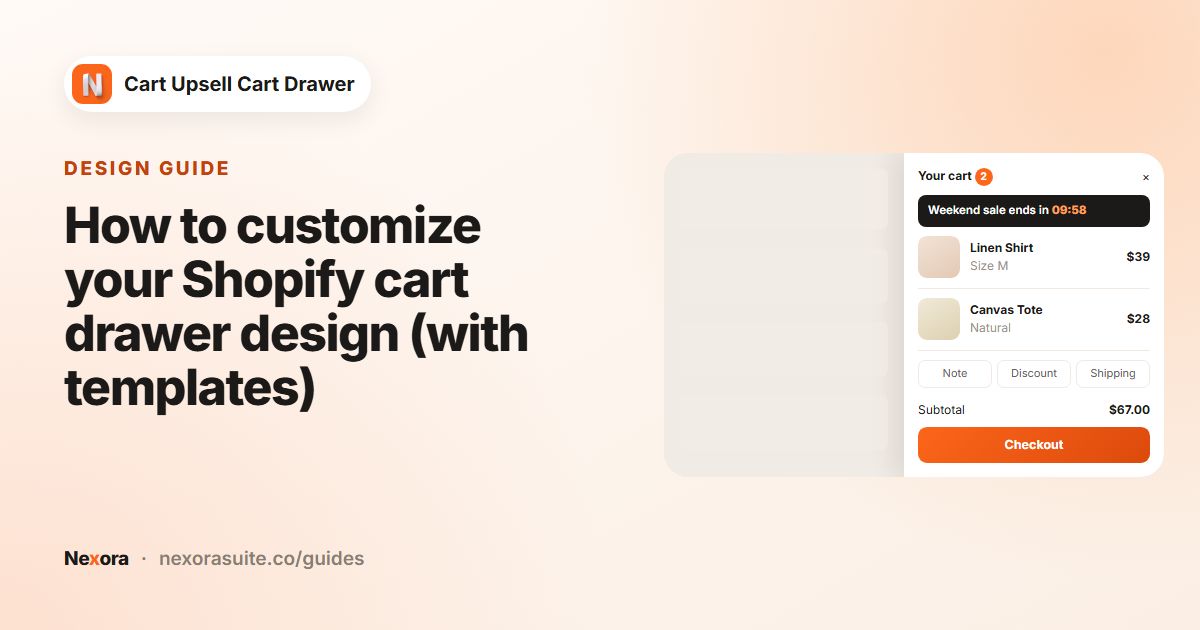
The cart is where shoppers check the details before paying, so it's a good place for short, useful information: when orders ship, a returns promise, a sale end date or a reminder about free shipping.
A countdown timer adds a sense of time to a message. Used honestly, for a real offer or a real dispatch cut-off, it helps shoppers decide. Used to fake scarcity, it erodes trust, so keep it tied to something true.
- Dispatch cut-off:
Order in the next [timer] for same-day dispatch. - Limited offer:
Your 10% welcome code is valid for [timer]. - Plain messages:
Free returns within 30 daysorGift wrapping available.
Good and bad uses of a timer
| Use | Why |
|---|---|
| A real time-limited offer | The deadline is true, so the timer is useful information. |
| A gentle checkout reminder | Complete your order in [timer] nudges without making claims. |
| Saying items are reserved | Shopify doesn't hold stock in carts, so this would mislead shoppers. |
| Claiming a sale ends when the timer just restarts | Shoppers notice, and it damages trust. |
Your options on Shopify
Most Shopify themes include an announcement bar at the top of every page, set up in the theme editor. That's great for store-wide messages, but it isn't inside the cart drawer and usually doesn't include a timer. Shopify doesn't hold stock in a shopper's cart, so a cart timer is a message only; it doesn't reserve items.
| Option | Where it shows | Timer |
|---|---|---|
| Theme announcement bar | Top of the store pages | Usually no |
| Nexora Announcement block | Inside the cart drawer | Yes, per visitor |
Step by step: set up announcements and a countdown
- Turn on the block
In the Cart editor, switch on Announcement in Main group. Drag it to the top of the group if you want it above the items.
- Add a text message
Under Items, add an item, set Type to Text and write the Content.
- Add a countdown
Add another item, set Type to Countdown timer and write Content with
[timer]where the countdown should appear. - Set the duration
Enter Duration(minutes), for example 15, and write the Expired content shown after it ends.
- Choose what happens at the end
Under Action ends, pick Repeat (restart the timer), Hide (remove the message) or Show expired message.
- Style the slider
Set font size, weight, Text alignment, Background color and Text color, then slider options Show navigate, Autoplay, Speed and Loop. Click Save.
Settings reference
| Setting | What it does |
|---|---|
| Type | Text or Countdown timer, per item. |
| Content | The message. For timers, include [timer]. |
| Expired content | Shown when the timer ends, if you choose Show expired message. |
| Duration(minutes) | How long the countdown runs for each visitor. |
| Action ends | Repeat, Hide or Show expired message. |
| Show navigate / Autoplay / Speed / Loop | How the slider moves between messages. |
Each visitor gets their own countdown, starting when they first see it. It keeps running if they reload the page, so it doesn't reset every time the drawer opens.
Example: a weekday dispatch message
A store that packs orders the same day might set up three rotating items:
- Text:
Free UK delivery over £40. - Countdown timer:
Checkout within [timer] and we'll pack your order today, Duration(minutes) 20, Action ends Show expired message, Expired contentOrders placed now ship next working day. - Text:
30-day free returns. - Slider: Autoplay on, Loop on, Show navigate off for a clean look.
Because the timer is per visitor, it isn't a clock tied to your real cut-off time. Phrase it so it stays true for any visitor, or use a plain Text message for a fixed time like Order by 2pm for same-day dispatch.
Tips and common mistakes
- Missing
[timer]: without the token, the countdown has nowhere to appear. - Too many messages: two or three rotating items are easier to read than six.
- Fake urgency: don't say items are reserved or about to sell out unless that's true.
- Speed too fast: give shoppers time to read each message before it slides.
- Other languages: each Announcement message can be translated on the Translations page.
Text messages are often more useful than timers. Shipping cut-offs, return windows, care instructions or a reminder that gift wrapping is available all answer questions shoppers have at the cart stage. Rotate two or three and review them when your policies or promotions change.
To show progress toward free shipping, use the cart progress bar rather than a static message.
Frequently asked questions
Is the countdown the same for every shopper?
No. Each visitor gets their own countdown, starting when they first see it, and it continues if they reload the page.
What happens when the timer reaches zero?
It depends on Action ends: Repeat restarts it, Hide removes the message, and Show expired message shows your Expired content.
Does the timer reserve stock?
No. It's a message only. Shopify doesn't hold items in a cart, so avoid wording that suggests they're reserved.
Can I show several messages?
Yes. Add as many items as you like; they rotate in a slider.
Can I mix text and countdown messages?
Yes. Each item has its own Type.