Why a free gift with purchase works
A free gift gives shoppers a reason to choose a specific product, or to add one more item, without lowering the price of your main products. It's common for launches, holidays and for clearing samples or small items you have in stock.
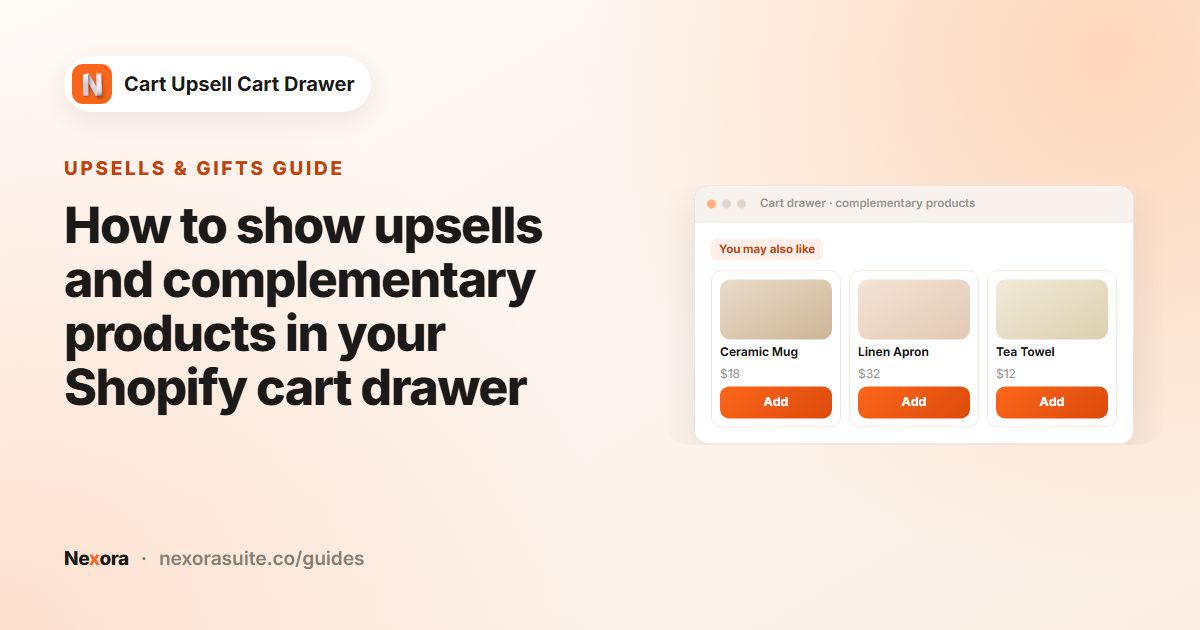
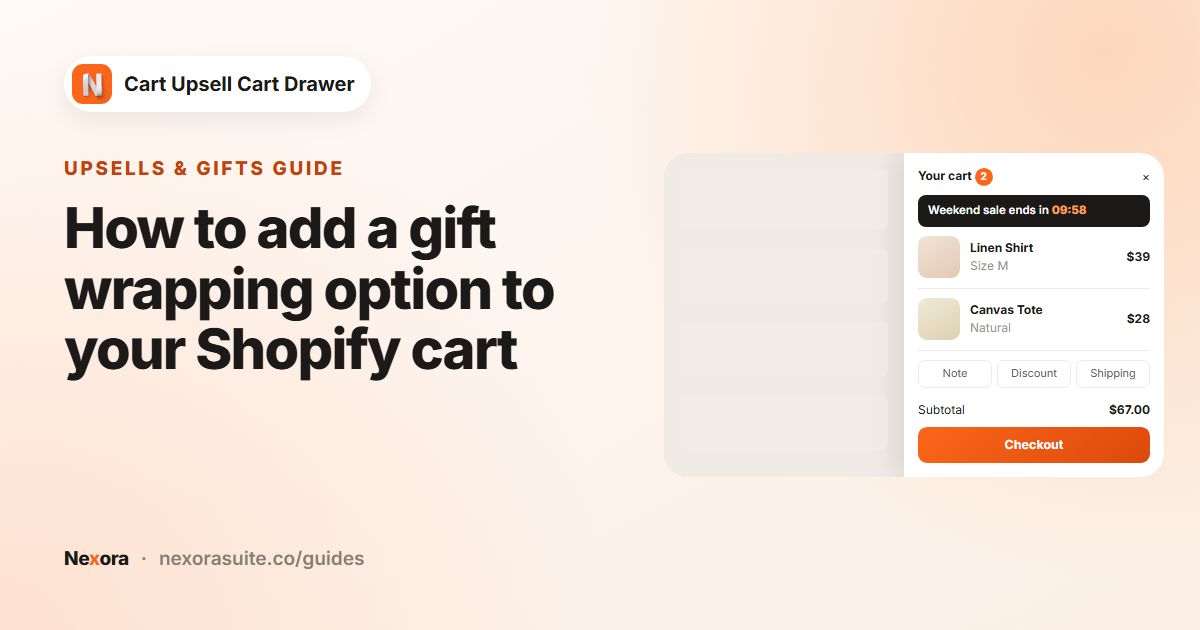
The gift works best when it's clearly visible at the right moment. Showing it inside the cart drawer, right after the shopper qualifies, makes it obvious that they've earned something and how to claim it.
- Product launches: buy the new serum, get a travel-size cleanser.
- Bundling: buy two candles, get a matchbox.
- Bigger carts: spend above a set amount on a collection, get a tote bag.
Your options on Shopify
Shopify's built-in Buy X get Y discount can make a product free when a condition is met. Shopify notes that customers must add all items to their cart themselves; the free item is never added automatically. That means shoppers need to know the offer exists and find the gift on their own.
| Approach | How shoppers find the gift | How it becomes free |
|---|---|---|
| Shopify Buy X get Y | Banners, product descriptions or emails you write | Shopify discount at checkout |
| Nexora Free gifts block | The gift card appears in the cart drawer once the cart qualifies | One unit 100% off at checkout, through the app's discount |
Both approaches are valid. If you already use Buy X get Y, you don't need to replace it, but avoid running both for the same gift so it isn't discounted twice in confusing ways.
Step by step: create a free gift offer
- Prepare the gift product
Make sure the gift product is active, in stock and available on your Online Store sales channel. It can have a normal price; one unit is made free at checkout.
- Turn on Free gifts
In the Cart editor, switch on Free gifts in Main group and click it.
- Create the offer
Under General settings, add an offer and enter an Offer name, for example
Free tote bag. The name appears with the gift and on the order's discount. - Set the condition
Choose Minimum quantity of items or Minimum purchase amount, then enter the Quantity or Amount.
- Choose qualifying products
Under Customer buy, select Specific products or Specific collections that count toward the condition.
- Pick the gift
Under Customer gets (gift products), select the product to give away.
- Save and test
Click Save. On your store, add qualifying products, open the drawer and click Add item to cart on the gift. At checkout, one unit of the gift should be free.
Settings reference
| Setting | What it does |
|---|---|
| Offer name | Shown with the gift and on the order's discount line. |
| Minimum quantity of items / Minimum purchase amount | The condition type, with the Quantity or Amount to reach. |
| Customer buy | Specific products or Specific collections that count toward the condition. |
| Customer gets (gift products) | The product or products offered as the gift. |
| Choose variant text / Add item to cart text | Labels on the gift card buttons. Shoppers can pick a variant if the gift has several. |
| Design | Card colours, fonts and spacing for the gift cards. |
You can add more than one offer, and each offer's text can be translated on the Translations page.
Example: a free tote with any two candles
- Offer name:
Free tote with 2 candles. - Minimum quantity of items, Quantity: 2.
- Customer buy: Specific collections > Candles.
- Customer gets (gift products): Canvas tote.
- Add item to cart text:
Claim my free tote.
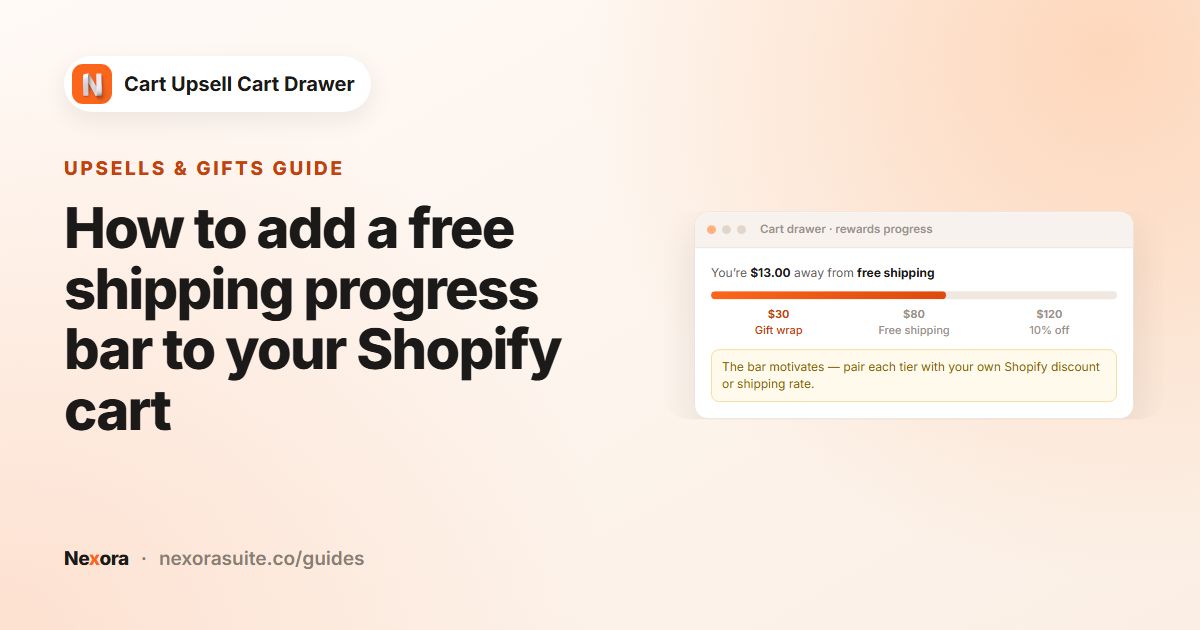
To make the offer visible earlier, add a Reward bar tier that tells shoppers how close they are. Keep in mind the bar only shows a message; the gift itself comes from the Free gifts offer.
The Cart Addon card on Analytics shows how many gifts were added, broken down by block.
Tips and common mistakes
- Gift isn't free at checkout: check the cart still meets the condition and that the gift was added from the drawer. If the app's discount was deleted in Shopify, click Sync Free Gift in the Discount Functions card on Home.
- Shopper removes a qualifying item: the gift stays in the cart, but it's only free while the cart still qualifies, so it would be charged at its normal price.
- Only one unit is free: if a shopper increases the gift's quantity, the extra units are charged.
- Gift out of stock: an unavailable gift can't be added, so check stock before a promotion.
- Test the exact cart you advertise (for example two candles) before announcing the offer.
Combine gifts with cart upsells so shoppers who are one item short see something they can add.
Frequently asked questions
Is the free gift added to the cart automatically?
No. When the cart qualifies, the gift appears in the drawer and the shopper adds it with Add item to cart. That way nobody gets an item they didn't want.
How is the gift made free?
Through the app's discount: at checkout, one unit of the gift is 100% off while the cart still meets the offer's condition.
Can I run several gift offers?
Yes. Add more than one offer under General settings, each with its own condition and gift.
What if the gift has sizes or colours?
Shoppers can pick a variant before adding it. You can rename that button with Choose variant text.
Does the app charge for gifts given away?
No. The app is free and doesn't charge fees or commission.