What a slide-out cart drawer is, and why stores use one
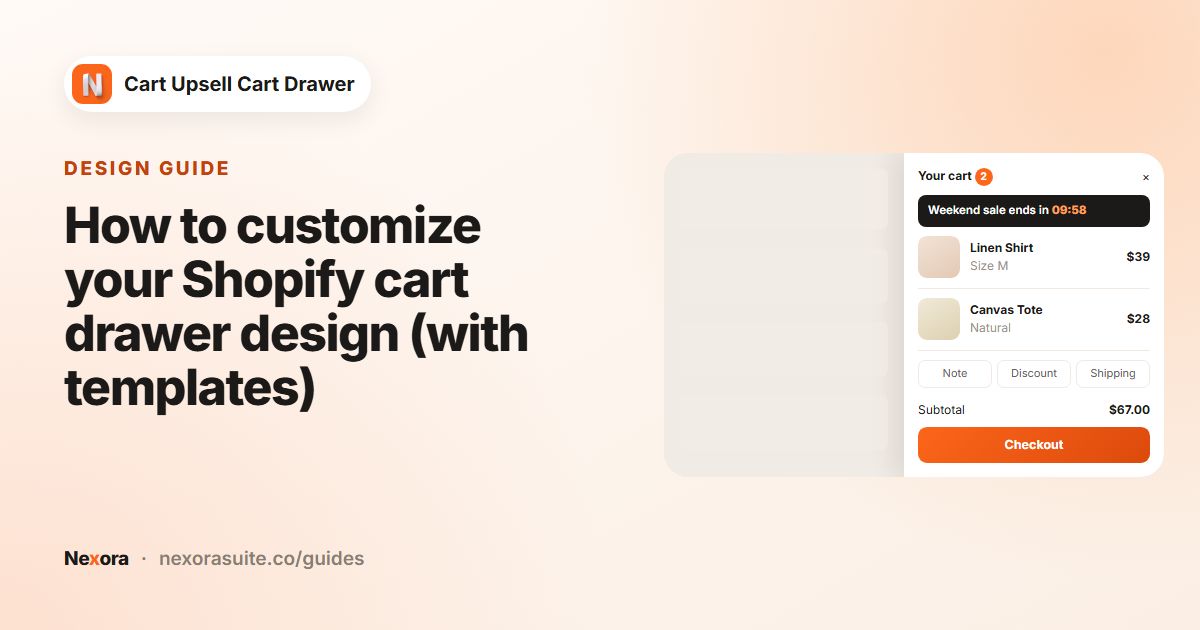
A cart drawer is a panel that slides in from the side of the screen when a shopper adds a product or clicks the cart icon. Instead of jumping to a separate cart page, the shopper sees their items, the subtotal and a checkout button on top of the page they were already browsing.
That small change matters for two reasons. Shoppers who want to keep browsing can close the drawer and carry on, and shoppers who are ready to buy are one click from checkout. The drawer is also a natural place for helpful extras: a note field, a discount code box, a suggestion for a matching product or a message about free shipping.
- Fewer page loads: adding to cart doesn't take the shopper away from the product they were looking at.
- Clear next step: totals and the checkout button are always visible in the drawer's footer.
- Room for useful extras: upsells, gifts and checkout helpers sit right next to the items.
Your options on Shopify
Many Shopify themes already include a basic cart drawer. In Dawn and other free Shopify themes, go to Online Store > Themes > Customize > Theme settings > Cart and set Cart type to Drawer (the other choices are Page and Popup notification). Dawn can also show a cart note and a collection when the drawer is empty. See Theme customizations for Dawn.
| Need | Theme cart drawer | Nexora cart drawer |
|---|---|---|
| Slide-out cart with items and checkout | Yes, in many themes | Yes |
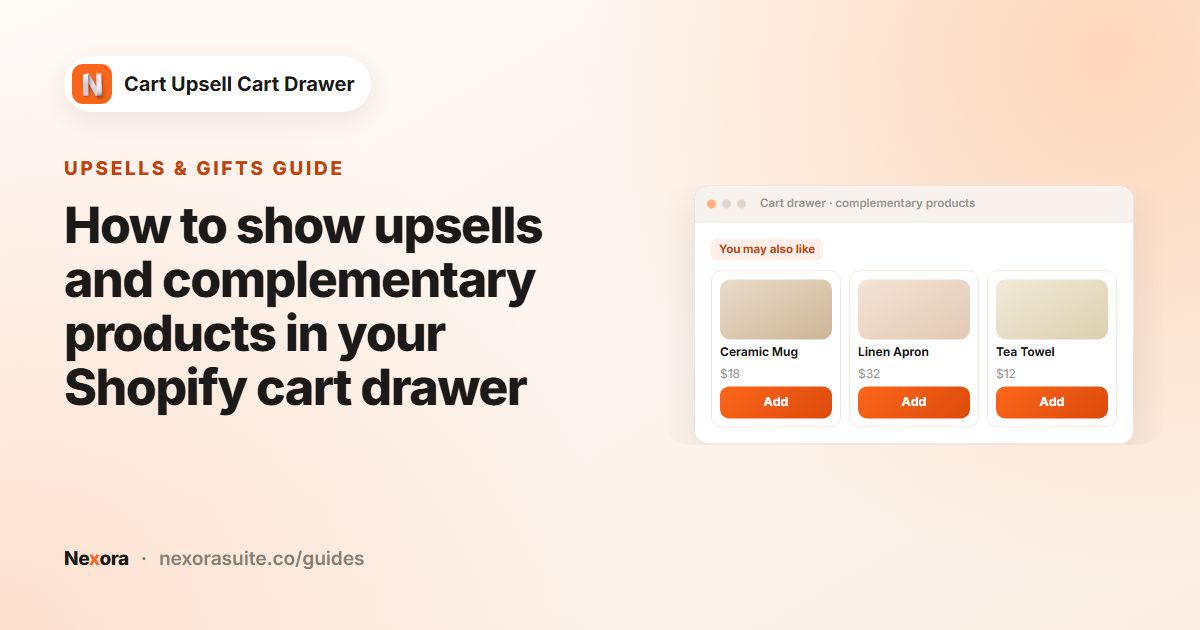
| Product suggestions inside the cart | Depends on the theme | Complementary products block |
| Free gift, gift wrapping, shipping protection | Usually not | Dedicated blocks |
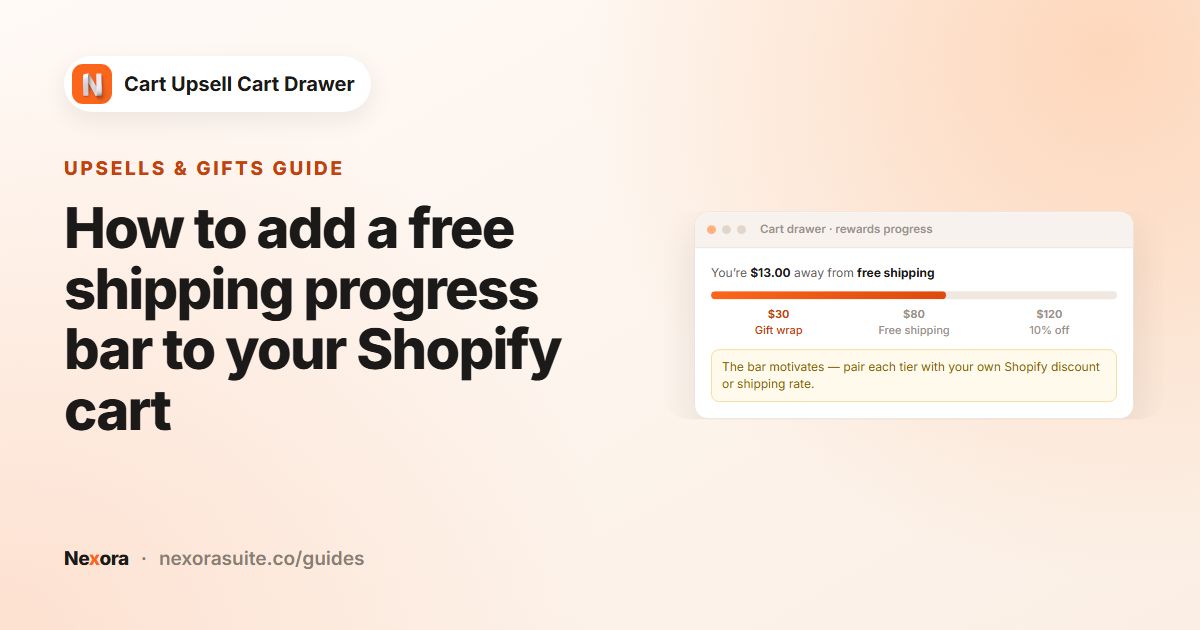
| Progress bar toward a goal | Usually not | Reward bar block |
| Ready-made design templates | Theme styling only | Five templates plus detailed design settings |
| Same drawer if you change theme | Depends on the new theme | Yes, after you turn on the app embed in the new theme |
If your theme's drawer already does everything you need, there's no reason to replace it. An app makes sense when you want extra blocks, more control over the design, or the same drawer across themes.
Step by step: add the drawer with Nexora
- Install the app
Install Nexora Cart Upsell Cart Drawer from the Shopify App Store. It's free, and every block is unlocked.
- Turn on the app embed
On Home, in the Setup guide, click Activate app embed. The theme editor opens on App embeds. Switch on Nexora Cart Drawer and click Save. This app embed is what turns the drawer on or off on your storefront. Shopify explains app embeds in Extend your theme with apps.
- Open the Cart editor
Back in the app, click Cart editor. You'll see the block list on the left, settings in the middle and a live preview on the right.
- Pick a template
Click Design, choose a template under Templates (for example Minimal Light) and confirm with Apply. Adjust Cart width and the header Heading if you like.
- Choose your blocks
Cart items, Cart note and Cart buttons are on by default. Switch on any others in Main group, Extra group or Footer group, and drag them into the order you want.
- Save and test
Click Save in the save bar. Open your store, add a product to the cart and click the cart icon: the Nexora drawer should slide open.
The main areas of the drawer
| Area | Blocks you can use |
|---|---|
| Main group (scrolling middle) | Cart items, Reward bar, Announcement, Complementary products, HTML code, Free gifts |
| Extra group (toolbar buttons) | Cart note, Discount code, Cart sharing, Gift wrapping, Estimate shipping |
| Footer group (fixed bottom) | Cart buttons, Payment icons, HTML code, Secure & safe checkout, Shipping protection |
| Design | Templates, Cart width, header, body, extra toolbar, footer and Global styles |
| Empty cart preview | A collection or products, Continue shopping and login buttons |
Use the Preview switch to move between Main cart and Empty cart. The preview uses sample products, so it looks close to, but not exactly like, your live store.
Example: a simple starter drawer
Here's a sensible first setup for a small store that ships with a free shipping threshold of $60. Start small, check it on your store, then add more blocks later.
- Design: template Minimal Light, Cart width around 420 px, Heading
Your cart ([quantity]). - Main group: Cart items, then Reward bar with one Free shipping tier at 60 (and a matching free shipping discount created in Shopify).
- Extra group: Cart note and Discount code.
- Footer group: Cart buttons and Payment icons.
- Empty cart: your best-sellers collection with Collection layout set to Slider.
Once it's live, the Analytics page shows cart opens, checkout clicks and orders that went through the drawer, so you can see whether the drawer is being used.
Tips and common mistakes
- Two drawers open at once: your theme's own drawer may still appear. Enter its selector in Advanced > Hide default drawer, or set your theme's Cart type to Page so only one drawer is used.
- Cart icon doesn't open the drawer: add your theme's cart icon selector in Cart button selector, for example
.header__icon--cart. - Header count doesn't update: add the count bubble's selector in Cart count selector.
- New theme: turn on the app embed in that theme too, before you publish it.
- Too many blocks: a short drawer is easier to use. Add blocks one at a time and check them on a phone.
Frequently asked questions
Do I need to edit theme code to add the drawer?
No. The drawer is added through the Nexora Cart Drawer app embed, which you switch on in the theme editor. Most themes work without changes.
How do I turn the drawer off?
Switch off the Nexora Cart Drawer app embed in your theme editor and save. Your settings in the app are kept.
Does the drawer work on mobile?
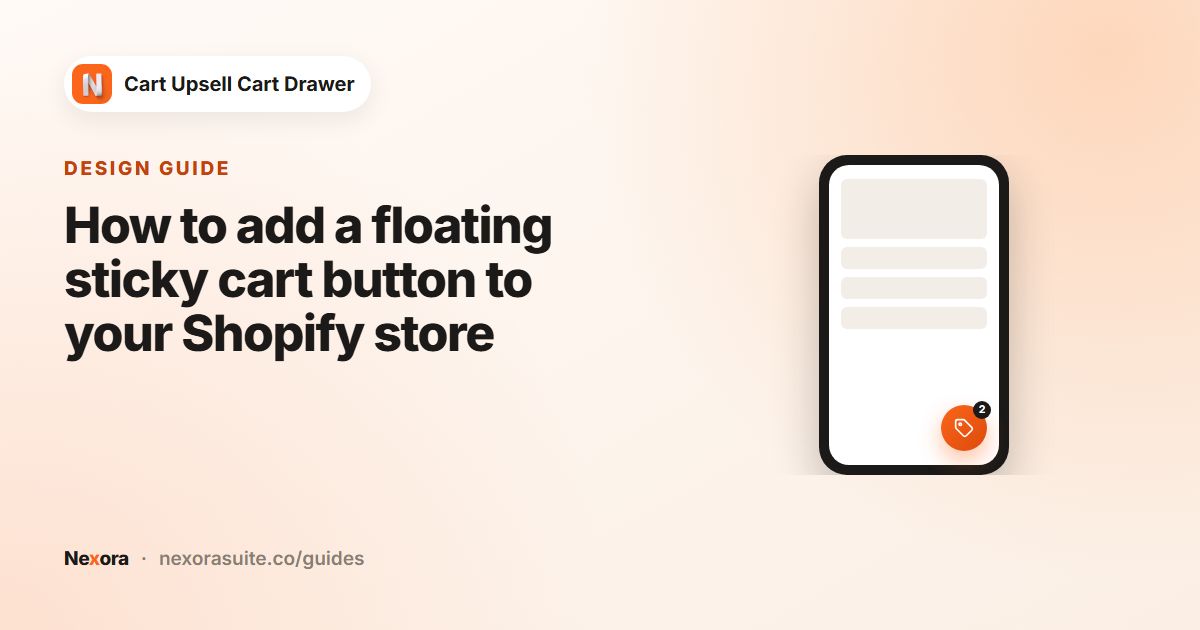
Yes. The drawer is responsive, and you can check it on a phone after saving. You can also add a floating sticky cart button.
Will my changes appear on the store right away?
Yes, after you click Save in the Cart editor. Refresh your store page to see them.
How much does it cost?
Nothing. The app is free and every block is unlocked.