Why a store locations page matters
If you have shops, showrooms or stockists, some customers want to see and touch the product before buying. A clear store locations page tells them where to go, when you are open and how to get there, and it reassures online shoppers that there is a real business behind the store.
- Brands with a few own shops in different cities.
- A showroom or studio that welcomes visits by appointment.
- Brands sold through stockists or partner retailers.
- Stores offering local pickup that want a page explaining where to collect.
What these sections are (and are not)
A store locations section is content you fill in: one block per location, shown as cards or a list with a map. It suits stores with a manageable number of locations. It is not a searchable store-locator database — visitors can't type a postcode to find the nearest store — so if you have hundreds of locations, a dedicated store locator app is a better fit.
| Section type | What visitors see | Per-store fields |
|---|---|---|
| Store cards | A grid of locations, each with a storefront photo | Storefront image, city, address, opening hours, phone, link |
| Store list with map | A list of stores beside an embedded Google map; choosing a store opens its details and moves the map | Store name, map address, displayed address, phone, email, opening hours, directions link |
| Single location map | One address with a map, opening hours and a directions button | Address for the map, info groups such as hours and contact |
Most map sections embed a Google map from the address you type and need no API key. One map layout asks for a Google Maps API key; its setting links to Shopify's instructions. Some map layouts also let you upload a map image to show instead of the live map.
Set up your store locations step by step
- Collect the details
For each store: name or city, full address, opening hours, phone, and a good storefront photo.
- Find a layout
In the app, open Sections and search "store locations" or "map", or browse the map category. Check the DEMO of each.
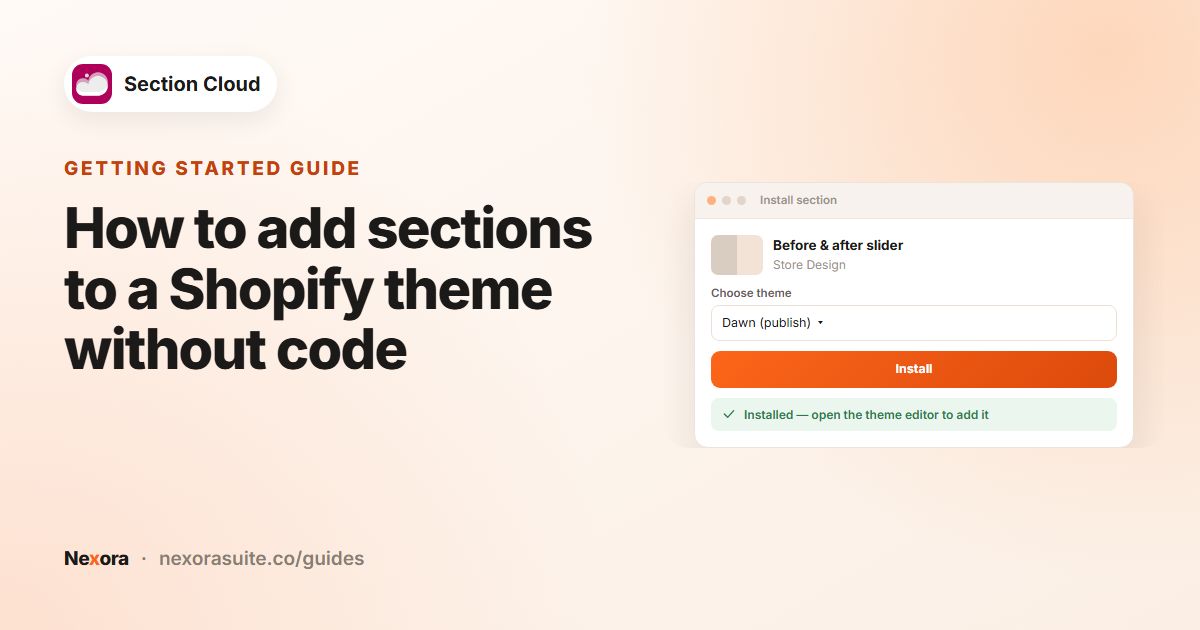
- Install it
Click Install or Purchase, pick the theme, click Install, then Customize.
- Add it to a page
Open your stores or contact page in the theme editor, click Add section and choose the section.
- Add one block per store
Click Add block → Store and fill in the fields. For map layouts, type the full address into the map address field so the pin lands in the right place.
- Set columns and save
For card grids, choose Columns (desktop), Columns (tablet) and Columns (mobile). Click Save and test the directions links.
Store locations settings
| Setting | Where | What it does |
|---|---|---|
| Heading, Description | Section | Page title and an intro line, for example "Visit us". |
| Columns (desktop), Columns (tablet), Columns (mobile) | Section (cards) | How many store cards per row. |
| Image ratio (desktop and mobile) | Section (cards) | Shape of the storefront photos. |
| Storefront image, City, Address | Store block | The basics of each location. |
| Opening hours, Phone | Store block | Entered one line per entry in some layouts. |
| Map address / Address for the map | Block or section (maps) | The address used to place the map and directions link. |
| Map position (desktop), Map height | Section (maps) | Map on the left or right and how tall it is. |
| Open directions in a new tab | Section (maps) | Keeps your store open while Google Maps opens. |
Example: three city shops
- Page "Our stores", linked from the main menu (Menus and links).
- Top: a store list with map. Three Store blocks — Manchester, Leeds and York — each with address, phone, opening hours and a directions link.
- Below: a store card grid with photos of each shopfront and a "Book a fitting" link per store.
The store uses the same addresses in both sections and puts the full street address, including postcode, in each map address field.
Tips and common mistakes
- Keep opening hours current, especially around holidays — wrong hours cost more trust than none.
- Use the full address with postcode so the map pin is accurate.
- Photograph the shopfront from the street so people recognise it when they arrive.
- Add the page to your footer as well as the main menu.
- Page templates for Contact and Stockists pages can give you a starting layout to edit.
Frequently asked questions
Can customers search for the nearest store by postcode?
No. These sections list locations you enter yourself. For a searchable locator with many locations, use a dedicated store locator app.
Do I need a Google Maps API key?
Most map layouts embed the map from the address and need no key. One map layout requires a key and links to Shopify's instructions.
How many stores can I add?
Each store is a block, so you can add several. Card grids and lists work best for a handful to a few dozen locations.
Can I show stockists instead of my own shops?
Yes. Use the same blocks for partner retailers; the app also has Stockists page templates.
Can I show a photo instead of a live map?
Yes. Some map layouts include an optional map image that replaces the live map.