When a comparison table helps
A comparison table answers "which one should I buy?" without making the shopper open several tabs. It works best when the options are genuinely similar and differ in a handful of clear ways.
- Product models — Basic, Plus and Pro versions with different capacity, materials or accessories.
- Sizes or bundles — a starter kit, a family pack and a refill pack, with price per unit.
- You versus the usual alternative — your product next to a generic option, on factual points such as ingredients, materials or warranty.
- Collections — comparing two ranges, for example everyday versus performance fabrics.
If you compare against another brand or a typical alternative, stick to facts you can back up. Avoid naming competitors unless you are sure every claim is accurate and allowed where you sell.
Options on Shopify
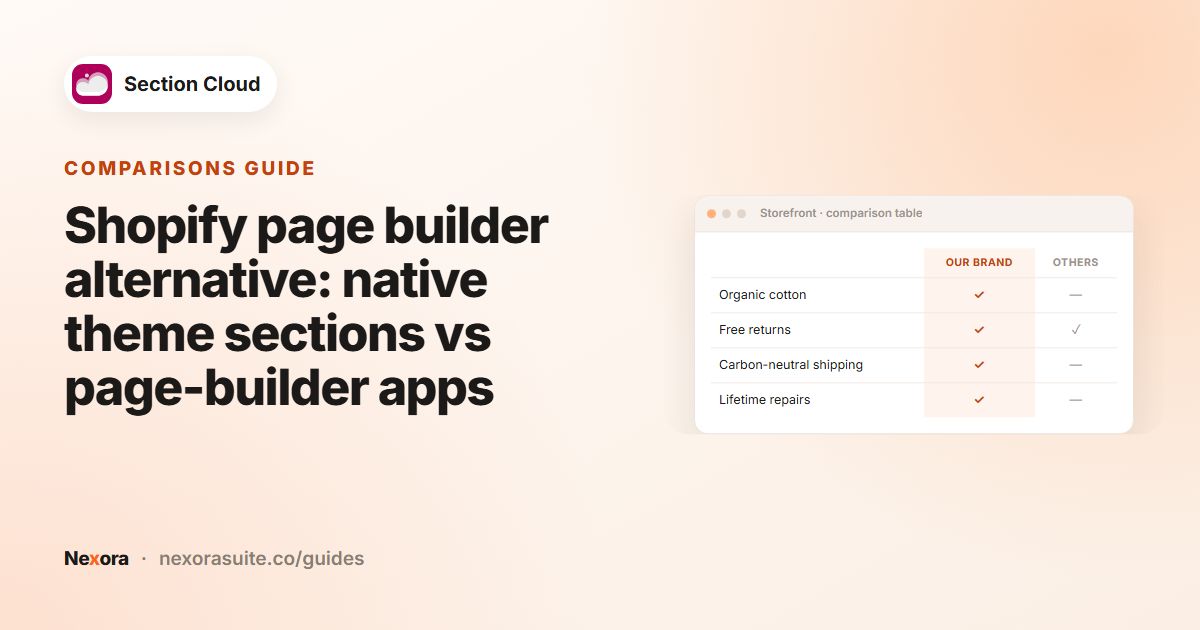
Shopify themes rarely include a dedicated comparison table section. Merchants often fall back on a table inside a rich text or page content area, which works but is hard to style and to read on mobile. A comparison section gives you columns with headings and images, icons for yes/no values, and colors for a highlighted column.
Section Cloud's Comparison table category includes several designs:
- Feature tables — rows of features with check or cross icons per column.
- Tables with column images — each column heading has its own image, such as a product photo.
- Highlighted column — settings like Table Column Active make one column stand out as the recommended choice.
- Product comparison — layouts where each column is a Product block, with price, rating and specification fields.
- Comparison with media — a table next to an image, with heading, text and button.
Build a comparison table step by step
- Decide your columns and rows
Write down the two to four options you are comparing and the five to eight points that matter most to buyers.
- Pick a layout
In the app, open Sections, choose the Comparison table category, and open the DEMO of each card to see how it behaves on mobile.
- Install
Click Install or Purchase, choose a theme in Choose theme, then click Install and Customize.
- Add the section
In the theme editor, open the page, click Add section and select the section, usually named ✨ Comparison table.
- Set the columns
In the section settings, set Number of columns and fill in each column heading (and heading image, if the layout has one).
- Add rows
Add a row block for each feature: a row heading, then a value, image or icon for each column.
- Highlight and save
If the layout supports it, choose the column to highlight, adjust colors, then click Save.
Typical settings
| Setting | What it does |
|---|---|
| Heading | Title above the table, such as "Which kit is right for you?" |
| Number of columns | How many options you compare. |
| First / Second / Third heading and heading image | Name and image of each column. |
| Row heading | The feature in that row, for example "Battery life". |
| Column value, image or icon | What each option offers for that feature — text, an image, or a check/cross icon. |
| Table Column Active | Which column is highlighted (in layouts that offer it). |
| Table and row text alignment, colors | Alignment of headings and values, plus heading, row and icon colors. |
| Button label and URL | A call to action under the table in some layouts. |
Example: comparing three coffee grinders
| Row | Hand grinder | Electric | Electric Pro |
|---|---|---|---|
| Grind settings | 18 | 30 | 40 |
| Burr type | Ceramic | Steel | Steel |
| Suits espresso | ✗ | ✓ | ✓ |
| Warranty | 1 year | 2 years | 2 years |
The store highlights the middle column as its most popular model, uses product photos as column images, and adds a "Shop grinders" button that links to the collection. The values above are example data — use the real specifications of your products.
Tips and common mistakes
- Keep it short. Five to eight rows is usually enough; move detailed specs to product pages.
- Put the rows that decide the purchase at the top.
- Use icons for yes/no rows and words for everything else.
- Check the table on a phone — three or four columns is the practical maximum on small screens.
- Update the table when a product changes; an outdated spec in a comparison is worse than none.
Frequently asked questions
How many columns can a comparison table have?
It depends on the layout. Many use a Number of columns setting; the maximum differs by design, so check the section's settings or its Demo.
Can columns show real products with prices?
Some layouts use a Product block per column, which takes the product details from your store, with fallback fields you can fill in.
Can I use check and cross icons?
Yes. Many comparison layouts let you set an icon or image for each value instead of text.
Will the table work on mobile?
The sections include mobile settings, but wide tables are always tighter on phones. Keep columns to three or four and preview on your phone.
Can I put the same table on several product pages?
Add it to the product template those products use. For different tables per product type, create separate product templates.