Why a bar instead of just a number
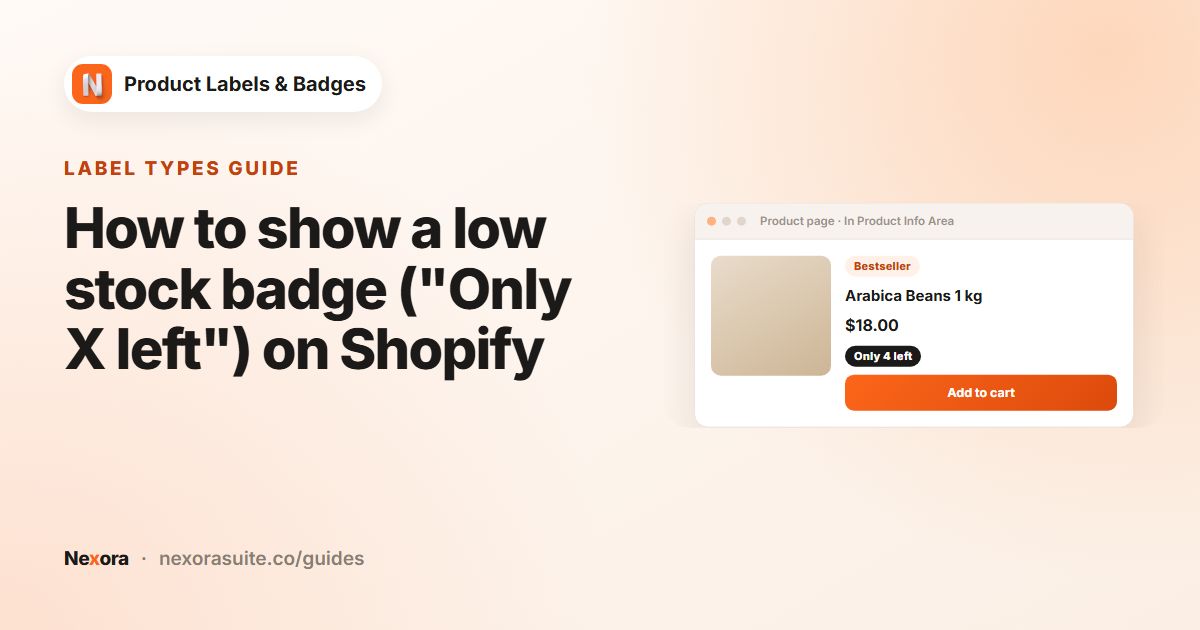
"Only 4 left" is clear, but a bar shows the same fact at a glance: a full bar means plenty in stock, a short red bar means it's nearly gone. It also reads well on product cards, where shoppers scan many products quickly.
Because the bar comes from your real Shopify inventory, it stays honest. It goes down as orders come in and fills up again when you restock, without anyone editing a label.
Your options on Shopify
Some themes have an inventory block for the product page that shows a low stock message, and a few include a simple bar. They usually stay on the product page and follow the theme's own design.
| Option | Product page | Product cards | Notes |
|---|---|---|---|
| Theme inventory block | Often | Rarely | Check your theme editor for an inventory block |
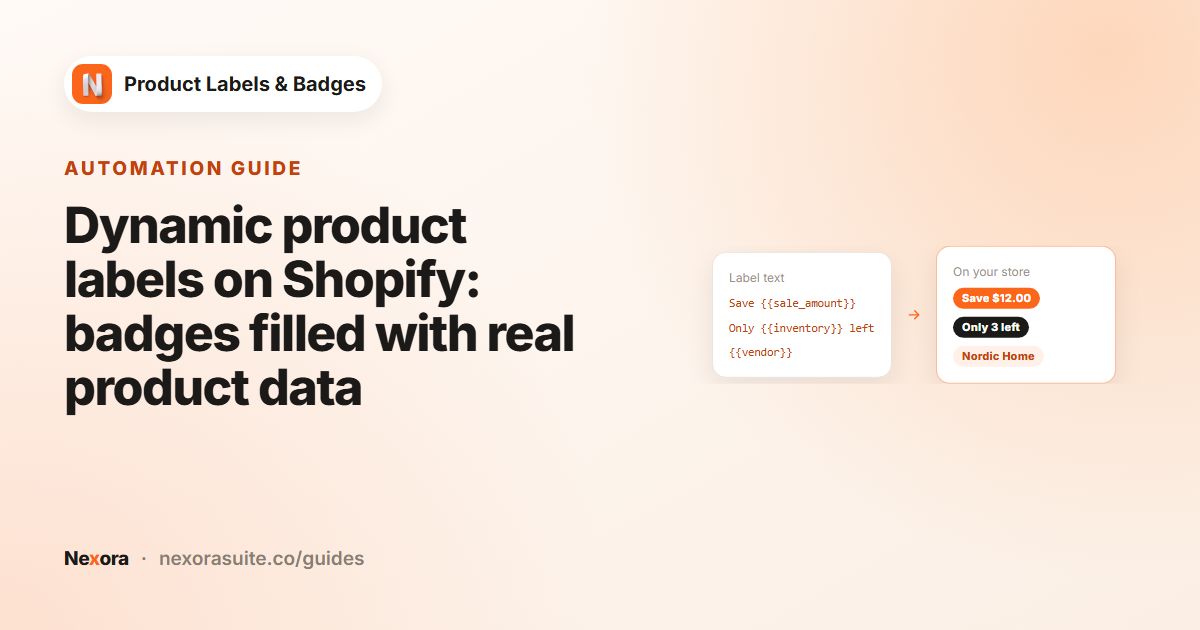
| Low stock text label | Yes | Yes | A line such as Only {{inventory}} left; see low stock badges |
| Stock bar label | Yes, follows the selected variant | Yes, uses total stock | Colour levels, flash and its own settings for cards |
A stock bar needs a stock count, so inventory tracking must be on for the product. See Shopify's guide to setting up inventory tracking.
Step by step: add a stock bar
Stock bars are part of the Pro plan ($6.99 every 30 days or $59 a year, with a 7-day free trial).
- Create a label
Go to Product Labels and click + Add Label. On General, choose the Stock bar type. Its position is fixed to the product info area.
- Write the text
On Design, keep or edit the Label Text, for example
Only {{inventory}} left in stock. - Set the scale
Under Stock bar, set Full bar at. With 20, a product with 5 left fills a quarter of the bar.
- Choose layout and size
Pick a Bar layout: Text above bar, Text below bar or Inline (side by side). Set Width (60–600 px) and Bar height (2–24 px), per device if you like.
- Add colour levels
Under Color by stock level, click Add level, enter When stock is at most and a Color, and tick Flash for the lowest level.
- Choose products and save
On Display condition, pick the products, then click Save. Use the Label Preview switch between Product page and Product card to check both.
Stock bar settings explained
| Setting | Default / range | What it does |
|---|---|---|
| Full bar at | 20 (minimum 1) | The stock count that fills the whole bar |
| Width | 200 px (60–600) | Per device |
| Bar height | 6 px (2–24) | Per device |
| Bar layout | Text above bar / Text below bar / Inline (side by side) | Where the text sits next to the bar |
| Text color, Bar color, Empty bar color | Empty bar #E3E3E3 | Bar color is the label background colour and can be a gradient |
| Color by stock level | Up to 3 levels; defaults ≤ 4 red with flash, ≤ 20 orange | The lowest level that fits the stock is used; above every level the bar keeps its bar color |
| Show on product cards | On | Home, collection and "You may also like" cards |
| Use different settings on product cards | Off | Own layout, size and text size on cards; colours stay the same |
On the product page, the bar uses the stock of the selected variant and changes when the shopper picks another size or colour. On product cards it uses the product's total stock across variants.
Example: small-batch coffee
A roaster sells 1 kg bags in batches of about 20. They want a calm bar most of the time and a clear warning near the end of a batch.
- Label Text
Only {{inventory}} left in stock, Full bar at 20, Bar layout Text above bar, Width 200 px, Bar height 6 px. - Levels: at most 20 in orange, at most 4 in red with Flash.
- On cards: Use different settings on product cards with Inline (side by side) and a smaller text size, so the bar fits under the price.
- A separate Out stock automation label for empty batches. See sold out badges.
Tips and limits
- Pick Full bar at from your real batch size. If you usually hold 200 units, a full bar at 20 would look full almost all the time.
- Keep flash for the last level. A flashing bar on every product gets tiring fast.
- Product info area only. A stock bar can't be placed on the product image.
- Not in label groups. Groups only hold labels shown on the product image, so stock bars can't be added to them.
- Untracked products have no count. Turn on inventory tracking for products that should show the bar.
If you don't want to show exact numbers, write a fixed text such as Selling fast and let the bar do the talking.
Stock bar, low stock text, or both?
| You want | Use | Why |
|---|---|---|
| A visual sense of stock on every product | A manual Stock bar label on All products | Full bars on well-stocked items, short ones on the rest |
| A warning only when stock is low | An automation label with Low stock and the Stock bar type | Products above your threshold show nothing |
| A badge on the product image | A Low stock text label Inside Product Image | Stock bars can't go on the image |
| Both a badge and a bar | Two labels: a text badge on the image and a bar in the info area | Each label has its own design and products |
Most stores pick one approach per product type. A bar on every product suits shops with small batches; a short warning near the end suits shops with deep stock where a full bar says little.
Frequently asked questions
Can the stock bar go on the product image?
No. Stock bars always show in the product info area, near the title and price.
Does the bar change when a shopper picks another variant?
Yes, on the product page it follows the selected variant's stock. Product cards use the product's total stock.
How many colour levels can I add?
Up to 3. Each has When stock is at most, a Color and an optional Flash.
Can I hide the bar on collection pages?
Yes. Turn off Show on product cards, or untick pages under Show On Pages.
Why doesn't the bar show on some products?
Usually because the product doesn't track inventory, so Shopify has no stock count. Also check the label's product selection and Show On Pages.