When simple targeting isn't enough
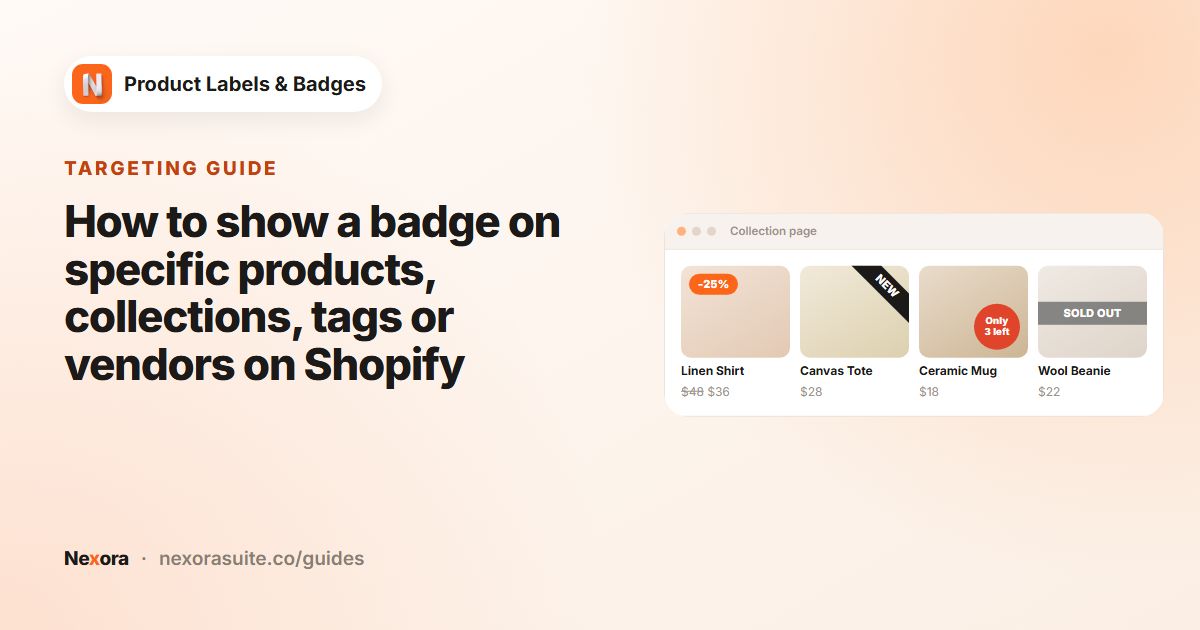
Picking a collection or a tag covers many badges. But real merchandising rules are often a mix: "big discounts, but only on items still in stock", "this brand's products under $50", or "new this month in the Shoes collection". Creating a special tag or collection for each combination works, but it's one more thing to keep up to date.
Conditions let the label check product data directly. When a price changes, stock runs out or a tag is added, the badge follows without you editing a list.
For one collection, tag or vendor on its own, the simpler options are enough. See badges by collection, tag or vendor.
The fields and operators you can use
| Field | Operators | Example |
|---|---|---|
| Price, Compare-at price, Discount amount | is at least, is at most, is greater than, is less than, is between | Price is less than 50 |
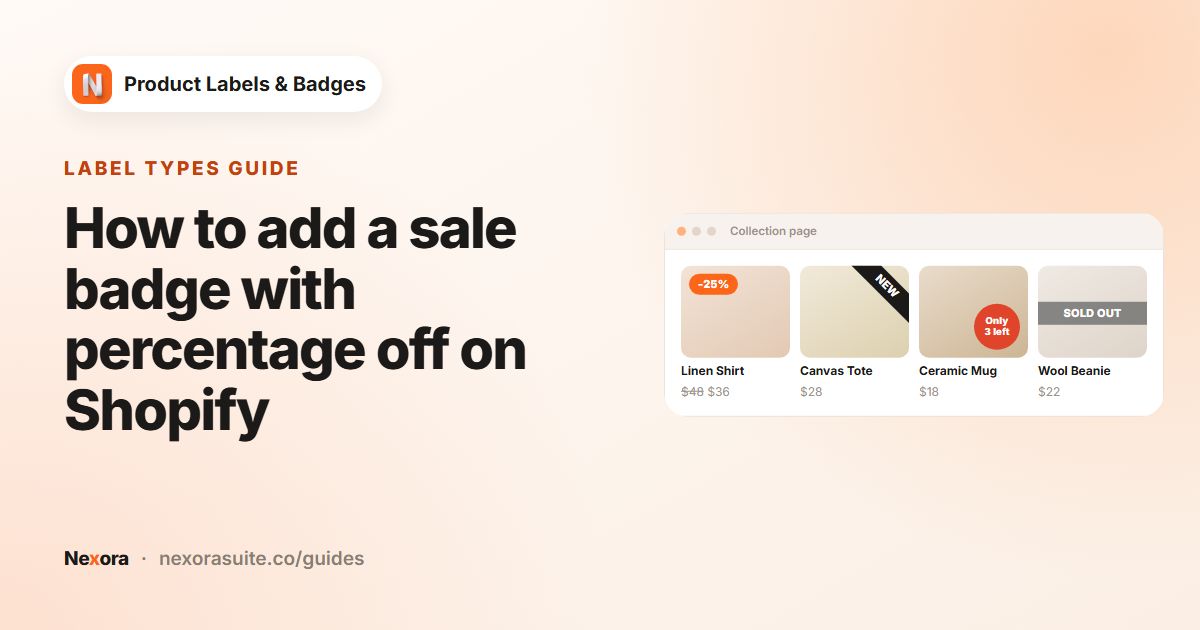
| Discount percentage | Same number operators | Discount percentage is at least 30 |
| Inventory | Number operators, plus is in stock / is out of stock | Inventory is at most 10 |
| Product title | contains, does not contain, starts with, ends with, is equal to | Product title contains linen |
| Product type, Vendor | is equal to, is not equal to, contains | Vendor is equal to Nordic Home |
| Product tag | has tag / doesn't have tag | Product tag doesn't have tag final-sale |
| Collection | is in / is not in | Collection is in Shoes |
| Product created | within the last (days) / more than (days) ago | Product created within the last 30 days |
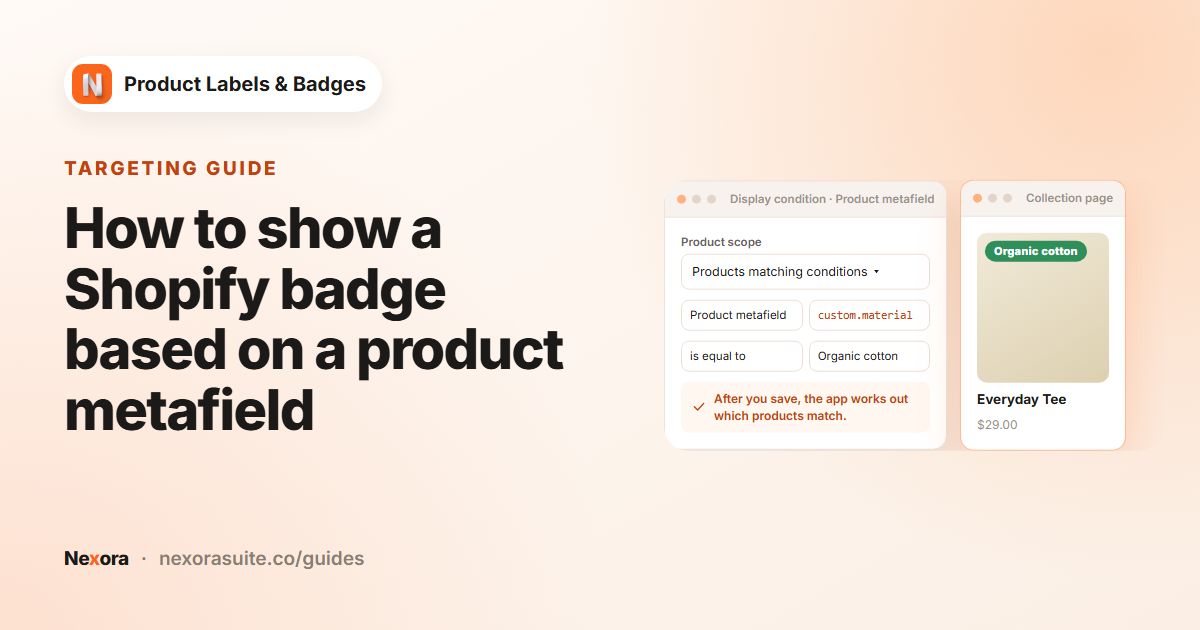
| Product metafield | has a value, is empty, is equal to, is not equal to, contains | See metafield conditions |
Money values are compared in your store currency. On the product page, price and stock rules follow the selected variant, so a badge can appear for one size and disappear for another.
Step by step: a badge for big discounts that are still in stock
Products matching conditions is part of the Pro plan ($6.99 every 30 days or $59 a year, with a 7-day free trial). On the Free plan you can choose specific products, collections, tags or vendors.
- Create a manual label
Go to Product Labels, click + Add Label and design the badge, for example
-{{sale_percent}}on a red Pill. - Switch to conditions
On Display condition, under Products, set Product scope to Products matching conditions.
- Choose All or Any
Under Products must match, pick All conditions so every rule has to be true.
- Add the rules
Set the first row to Discount percentage is at least
30. Click Add condition and set Inventory is in stock. Add Product tag doesn't have tagfinal-sale. - Exclude anything else
Open Exclude products and add a collection, products or tags that must never show the badge, such as a gift card collection.
- Save
Click Save and check a product that matches and one that doesn't.
Exclusions and specific variants
Exclude products works on top of any product scope: all products, collections, tags, conditions, and automation labels too. It accepts Products, Collections and Product tags. An excluded product never shows the label, whatever else matches.
With Specific products, you can also tick only some variants of a product in the picker. The product page then shows the label only while one of those variants is selected; collection cards show it on the product.
Example rule sets
| Badge | Match | Rules |
|---|---|---|
Big deal | All conditions | Discount percentage is at least 30; Inventory is in stock |
Under $50 | All conditions | Price is less than 50; Collection is in Gifts |
New in Shoes | All conditions | Product created within the last 30 days; Collection is in Shoes |
Eco pick | Any condition | Product tag has tag organic; Product tag has tag recycled |
Last few | All conditions | Inventory is at most 5; Vendor is equal to Nordic Home |
Tips and common mistakes
- All vs Any. Two tags with All conditions means a product needs both tags; with Any condition, either one is enough.
- Complete every row. A rule without a value can't be saved. Remove empty rows with the remove button.
- Use exclusions for exceptions. It's often easier to keep a broad rule and exclude a few products than to write a narrow rule.
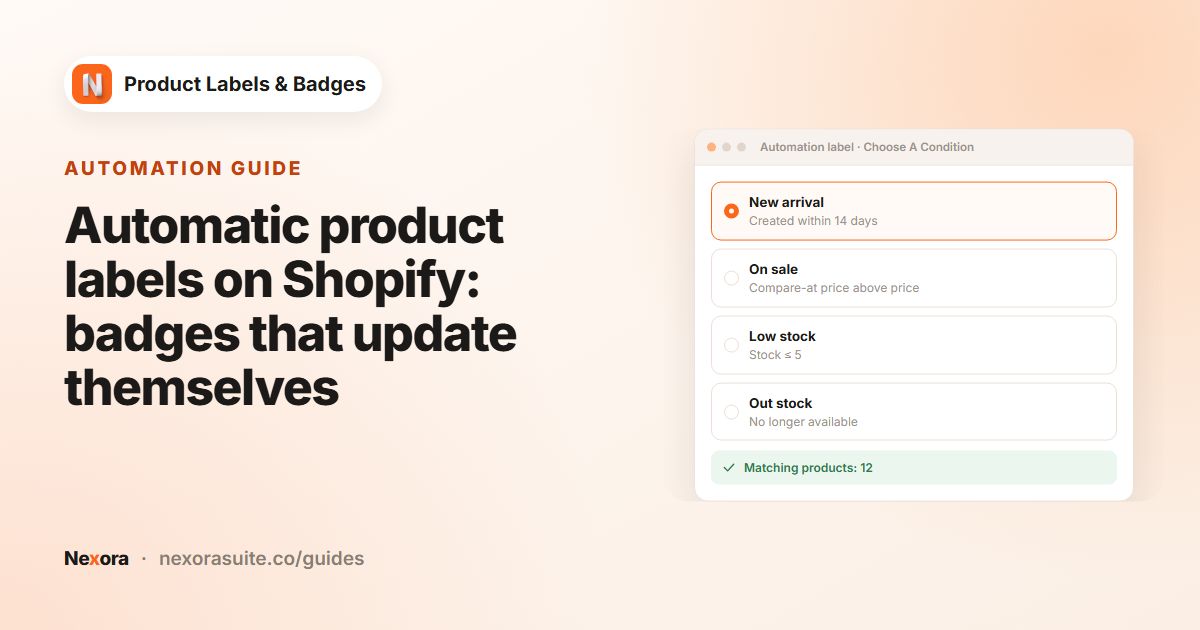
- Conditions are for manual labels. Automation labels keep their one condition, such as On sale or Low stock, but can still exclude products.
- Use contains for loose matches. If vendor names or product types vary slightly, contains is more forgiving than is equal to.
If a product doesn't get the badge
- Go through the rules one by one. With All conditions, a single rule that isn't true hides the badge. Switch temporarily to Any condition to see which rule is the blocker.
- Check the variant. On the product page, price and stock rules use the selected variant. A size that's out of stock fails Inventory is in stock even if other sizes are available.
- Check exclusions. A product in an excluded collection or with an excluded tag never shows the label.
- Check the discount. Discount percentage compares price and compare-at price. A product without a compare-at price has no discount.
- Check the rest of the label. Dates, weekly schedule, Show On Pages, countries, customers and devices all still apply.
Frequently asked questions
Can I combine a collection and a tag in one label?
Yes. Use Products matching conditions with All conditions and add a Collection rule and a Product tag rule.
How many fields can I use in conditions?
Twelve: Price, Compare-at price, Discount percentage, Discount amount, Inventory, Product title, Product type, Vendor, Product tag, Collection, Product created and Product metafield.
Do price rules follow the selected variant?
Yes. On the product page, price and stock rules are checked against the selected variant. Prices are compared in your store currency.
Can automation labels use these conditions?
No. Products matching conditions is for manual labels. Automation labels can use Exclude products.
Can I show a badge on only one variant?
Yes. Choose Specific products and tick only that variant in the picker. The product page shows the label while it's selected.