Metafield condition vs metafield variable
There are two different ways to use metafields with labels, and it helps to know which one you need before you start.
| Metafield condition | Metafield variable {{mtf.KEY}} | |
|---|---|---|
| What it does | Decides which products show the label | Prints the metafield value inside the label text |
| Example | Show Organic on products where custom.material is equal to Organic cotton | Made in {{mtf.origin}} shows Made in Portugal |
| Namespaces | Any namespace, including other apps' | custom only |
| Storefront access | Not needed | The definition needs storefront access |
| Where to set it | Display condition → Products matching conditions | Design → Label Text |
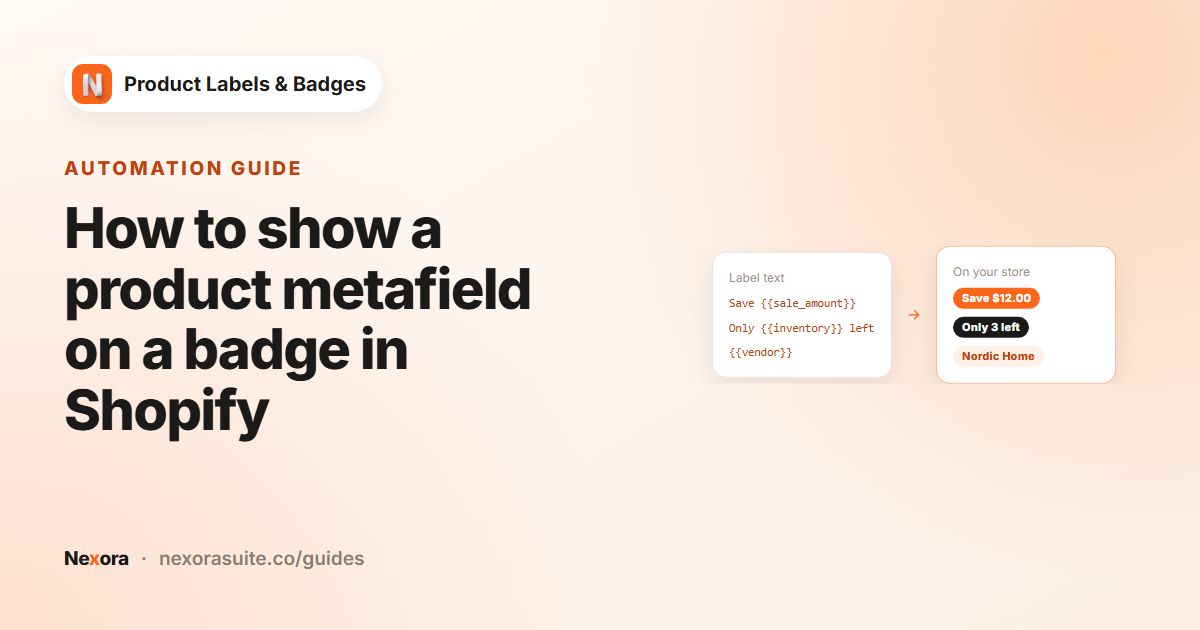
To show the value itself on the badge, see how to show a metafield on a badge. You can also use both together: a condition picks the products, and the variable prints their value.
Why target by metafield
Many stores already keep product facts in metafields: material, certification, care rating, battery type, whether an item is personalisable. Some of those come from other apps that write their own namespace. Targeting by that data means you don't have to mirror it in tags or collections just for a badge.
Organicwherecustom.materialis equal toOrganic cotton.Personalise itwherecustom.engravinghas a value.Veganwherecustom.certificationscontainsvegan.Spec sheet coming soonwherecustom.spec_sheetis empty, shown only on product pages.
Step by step: an Organic badge from a metafield
Products matching conditions, including metafield rules, is part of the Pro plan ($6.99 every 30 days or $59 a year, with a 7-day free trial).
- Check the metafield
In your Shopify admin, open a product and confirm the metafield and its exact value, for example Material (
custom.material) set toOrganic cotton. See Shopify's help on metafields. - Create the label
In Product Labels, click + Add Label and design a green
Organicbadge. - Add a metafield rule
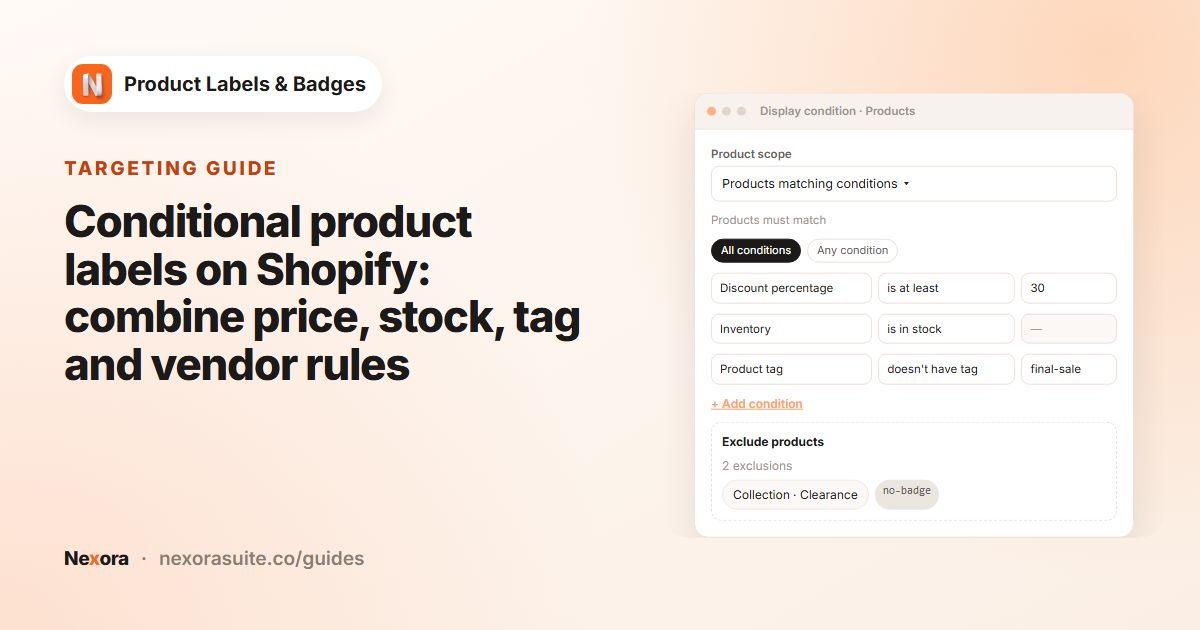
On Display condition, set Product scope to Products matching conditions. In the first row, choose Product metafield, then pick the definition or type
custom.material. - Choose the operator and value
Pick is equal to and enter
Organic cotton. You can add more rules, such as Inventory is in stock, and choose All conditions or Any condition. - Save and wait for matching
Click Save. The app then works out which products match. This can take up to a few minutes for large stores; the editor tells you while it's still finding products.
How metafield matching works
Other rules, such as price or tags, are checked on the storefront from data the page already has. Metafields are different: the app reads them on its server, with the same product access it already has, and publishes a list of matching products to your storefront. That's why any namespace works and the metafield doesn't need storefront access.
| Situation | What happens |
|---|---|
| Right after saving | The match list is built; the rule matches nothing until it's published |
| A product's metafield changes | The list is kept up to date as products change |
| Very broad rules on a big catalog | If the list would be too large, the editor shows an error and asks you to narrow the condition |
| Matching fails | The editor shows that it couldn't work out which products match |
Choosing the right operator
| Operator | Use it for | Example |
|---|---|---|
| has a value | Any product where the metafield is filled in | custom.engraving has a value |
| is empty | Products still missing the data | custom.spec_sheet is empty |
| is equal to | One exact value | custom.material is equal to Organic cotton |
| is not equal to | Everything except one value | custom.fit is not equal to Slim |
| contains | Part of a longer value | custom.certifications contains vegan |
If the editor says too many products match, use a narrower operator, for example is equal to instead of has a value, or add another rule such as a collection.
Tips and common mistakes
- Use the full key. Type
namespace.key, such ascustom.material, not just the display name. - Check the stored value. Compare against the value as it's stored on the product, not how a theme block displays it.
- Give it a few minutes. On a large catalog, the badge appears once matching is done, not the second you click Save.
- Manual labels only. Products matching conditions isn't available on automation labels.
- Combine with exclusions. Add Exclude products for the few items that match the metafield but shouldn't show the badge.
Example: a skincare store with three metafield badges
| Badge | Rule | Other settings |
|---|---|---|
Vegan | custom.certifications contains vegan | Inside Product Image, Top-Left |
Refill available | custom.refill_product has a value | In Product Info Area, Below price |
Fragrance-free | custom.fragrance is equal to None, and Inventory is in stock with All conditions | Inside Product Image, Top-Right |
The store already filled these metafields for its product pages, so no extra tags were needed. When a new refillable product gets its custom.refill_product value, the Refill available line appears after the match list updates.
Frequently asked questions
Can I use metafields from another app's namespace?
Yes, for conditions. The metafield condition works with any namespace. The {{mtf.KEY}} text variable only reads the custom namespace.
Does the metafield need storefront access?
Not for the condition. The app works out the matches on its server. The {{mtf.KEY}} variable does need storefront access.
Why doesn't my badge appear right after saving?
The app first works out which products match. That can take up to a few minutes for large stores, and the rule matches nothing until it's done.
Which operators are available?
has a value, is empty, is equal to, is not equal to and contains.
Does the badge update when I change a metafield?
Yes. The match list is kept up to date as products change.
Can the badge show the metafield's value?
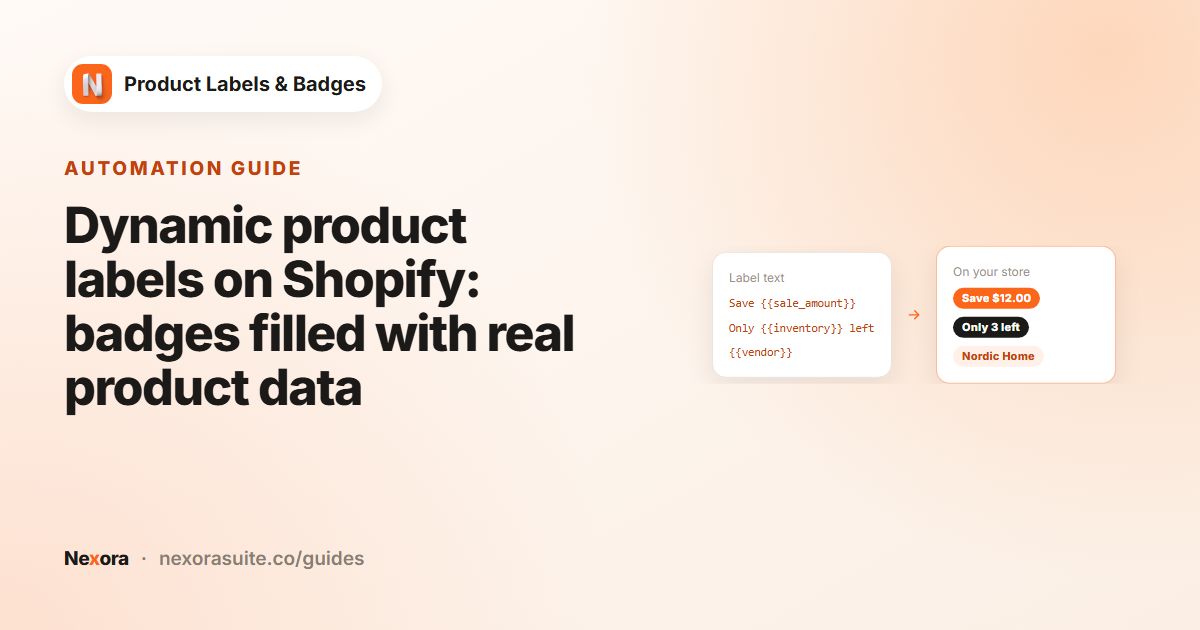
Not through the condition. Add {{mtf.KEY}} to the label text for custom metafields with storefront access.