Why repeat a badge in the cart
Some product information matters most just before checkout. A shopper who added a discounted item from a collection page may not remember that it's a final sale. Someone buying a gift wants to see that gift wrap is included. Repeating the label on the cart line answers those questions where the decision is made.
Final saleon clearance items that can't be returned.Gift wrap includedorPersonalisedon products where that's part of the offer.Ships separatelyorPre-orderon items with a different dispatch time.Member priceon items where signed-in customers get a special offer.
Your options on Shopify
Shopify's cart shows the product title, variant, price and any line item properties, but themes don't usually show product badges there. Cart drawers are built differently in every theme, which makes custom code fiddly to maintain.
| Option | Cart page | Cart drawer | Notes |
|---|---|---|---|
| Theme code in the cart template | Yes | Only if the developer also edits the drawer | Must be redone after a theme change |
| Line item properties | Yes | Usually | Set when the product is added; not a styled badge |
| Also show in the cart | Yes | Yes | Uses the same label and conditions as on the product |
Step by step: a Final sale label in the cart
- Create or open a label
Go to Product Labels and click + Add Label, or open an existing label. Keep the Text type and enter
Final saleas the Label Text on Design. - Choose the products
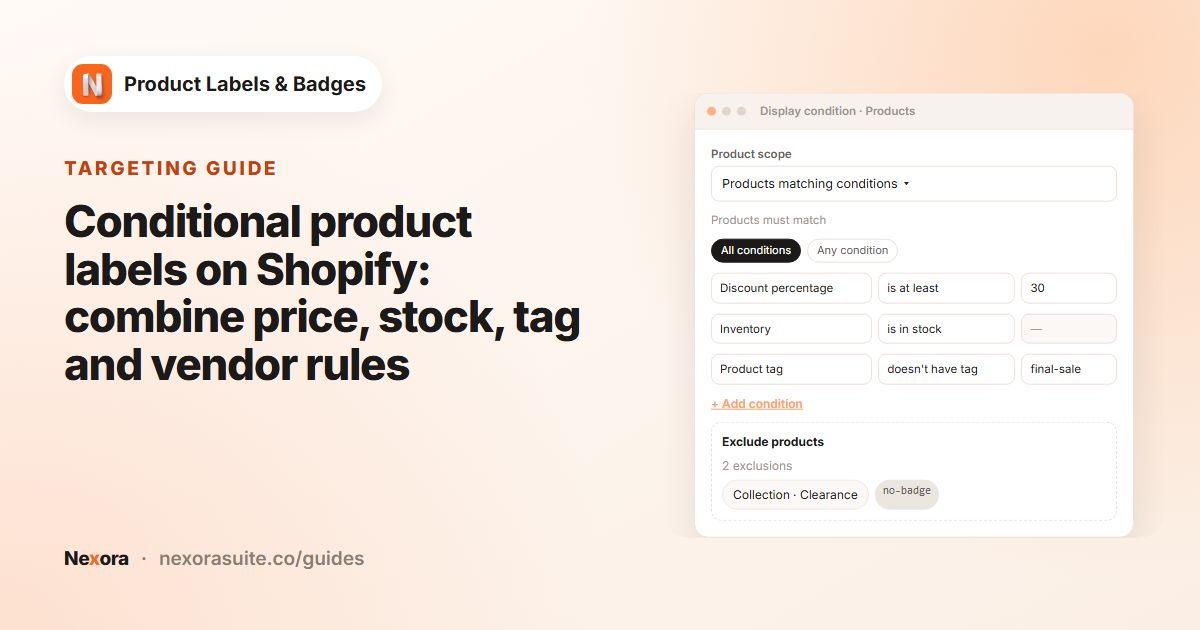
On Display condition, under Products, pick Collections and choose your clearance collection, or use a product tag such as
final-sale. - Turn on the cart
Tick Also show in the cart. It's off by default.
- Decide on product pages
Under Show On Pages, keep or untick pages for the product image and cards. This filter doesn't affect the cart lines.
- Save and test
Click Save, add a matching product to the cart and open both the cart drawer and the /cart page.
How cart labels work
| Question | Answer |
|---|---|
| Where does the label show? | Under the product name on each matching line, in the cart page and the cart drawer |
| On which pages? | On any page where the cart opens, because a drawer can open anywhere |
| Does Show On Pages apply? | No, not to cart lines. It still controls product images and cards |
| Which conditions apply? | The label's other conditions, checked per line: products, dates and weekly schedule, countries, customers and devices |
| What about Cart Page in Show On Pages? | That option is for product cards shown on /cart, such as a recommendations section, not for cart lines |
| Label groups? | A group doesn't put labels in the cart. Turn on Also show in the cart in each member label instead |
Example: a fashion store's clearance and gift labels
- Final sale: products tagged
final-sale, dark background, Also show in the cart on. Shoppers see it on the image and again on the cart line. - Gift wrap included: the Gift Sets collection, green background, shown in the cart during December with a Visibility Date from 1 to 24 December.
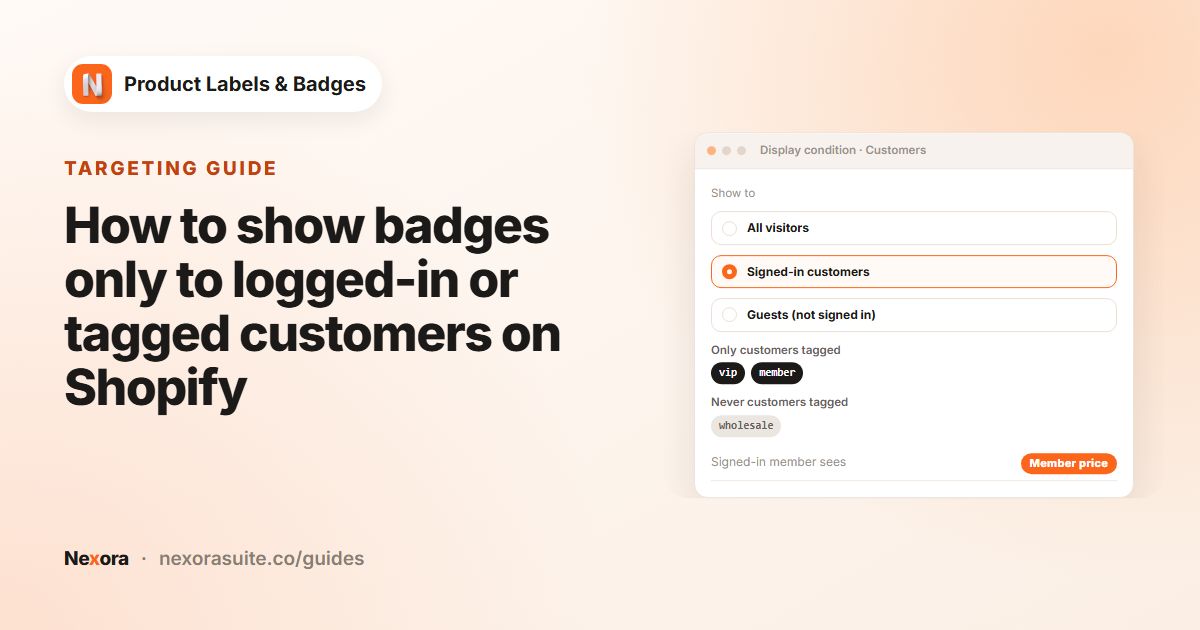
- Member price: shown only to Signed-in customers under Customers, so guests don't see it in their cart either. See badges for signed-in customers.
Tips and troubleshooting
- Keep cart labels short. Cart lines are narrow, especially in drawers on mobile. Two or three words work best.
- Only the labels that help checkout. A NEW badge rarely adds anything in the cart; a returns or dispatch note often does.
- Unusual drawers. The app finds cart lines by known cart areas and by the quantity box or remove button on each line. A heavily customised drawer may not be detected. If your label doesn't appear, contact us through live chat in the app.
- Test after theme changes. A new theme often means a new cart drawer, so check your cart labels after switching.
Cart labels follow the label's dates. A label with an End date disappears from cart lines at the same moment it disappears from product pages.
If the label doesn't appear in the cart
- Check the setting
Open the label and confirm Also show in the cart is ticked under Display condition, and that the label is active.
- Check the product matches
Open the product page of the item in your cart. If the label doesn't show there either, the product isn't in the label's selection, or a date, customer, country or device condition is hiding it.
- Check the app embed
Make sure the Product Labels app embed is turned on in your theme editor under App embeds.
- Try the cart page
Open /cart directly. If the label shows there but not in the drawer, your theme's drawer is likely built in a way the app doesn't recognise yet. Send us your store address through live chat in the app and we'll take a look.
Frequently asked questions
Does the label show in the cart drawer and on the cart page?
Yes. Also show in the cart covers both, on any page where the cart opens.
Why does my label show in the cart even though I unticked Cart Page?
Show On Pages doesn't apply to cart lines. Cart Page there refers to product cards shown on the /cart page.
Can a label group show in the cart?
No. Turn on Also show in the cart in each label of the group that should appear on cart lines.
Do customer and date conditions apply in the cart?
Yes. The label's conditions are checked for each line, except the Show On Pages filter.
Is Also show in the cart on by default?
No. It's off for every label until you tick it.