Why show different badges to different customers
Not every message is meant for every visitor. A member offer only makes sense to members. A "Sign up for 10% off" nudge is wasted on someone who already has an account. A note about trade pricing should stay out of sight for retail shoppers.
Member pricefor signed-in customers in a loyalty programme.VIP early accessfor customers taggedvipduring a pre-sale.Create an account for 10% offfor Guests (not signed in).Trade pack of 12for customers taggedwholesale, hidden from everyone else.
Your options on Shopify
Shopify knows whether a visitor is signed in and which tags their customer record has. Themes can use that in Liquid, but showing a badge based on it means editing theme code for product pages and cards. Customer tags themselves are added in the Shopify admin; see Shopify's help on customer tags.
| Option | Effort | Notes |
|---|---|---|
| Custom Liquid in the theme | Developer needed | Has to cover product pages, cards and the cart separately |
| Customers condition on a label | A few clicks | Login state plus customer tags, on pages, cards, groups and the cart |
A badge only changes what shoppers see. It doesn't give anyone a different price. Set up the discount itself in Shopify, or with a pricing app such as Nexora B2B Wholesale Pricing for trade customers.
Step by step: a Member price badge
Customer targeting is part of the Pro plan ($6.99 every 30 days or $59 a year, with a 7-day free trial). On the Free plan, labels show to all visitors.
- Create the label
Go to Product Labels, click + Add Label and set the Label Text on Design to
Member price. - Pick the products
On Display condition, under Products, choose the collection or tag that has the member offer.
- Choose who sees it
Under Customers, set Show to to Signed-in customers.
- Narrow by tag (optional)
Type
memberunder Only customers tagged and click Add. A customer needs any one of the listed tags. Leave it empty for every signed-in customer. - Exclude a group (optional)
Add
staffunder Never customers tagged if staff accounts shouldn't see it. - Save and test
Click Save. Check the store in a private window as a guest, then sign in with a tagged test customer.
Customer settings explained
| Setting | Options | Notes |
|---|---|---|
| Show to | All visitors / Signed-in customers / Guests (not signed in) | All visitors is the default |
| Only customers tagged | Any tags you type | Matches if the customer has any one of them. Empty means everyone |
| Never customers tagged | Any tags you type | Hides the label from customers with any of these tags |
| Tag matching | Case-insensitive | VIP and vip are the same |
| Where it applies | Product pages, cards, label groups and the cart | Together with the label's other conditions |
Tags are typed by hand rather than picked from a list, so copy them exactly from the customer records in your Shopify admin. Only the visitor's own sign-in state and tags are used; the app doesn't read email addresses or other personal details for this.
Example: a loyalty store with three audiences
| Label | Show to | Only customers tagged | Never customers tagged |
|---|---|---|---|
Create an account for 10% off | Guests (not signed in) | — | — |
Member price | Signed-in customers | member | staff |
VIP early access | Signed-in customers | vip | — |
The VIP label also uses a Visibility Date for the two days of early access. Once the public sale starts, a normal sale badge for All visitors takes over.
Limits and tips
- Tags, not segments. Shopify customer segments, B2B companies and Markets can't be targeted. Tag the customers you want instead.
- No customer picker. You can't choose individual customers; give them a tag.
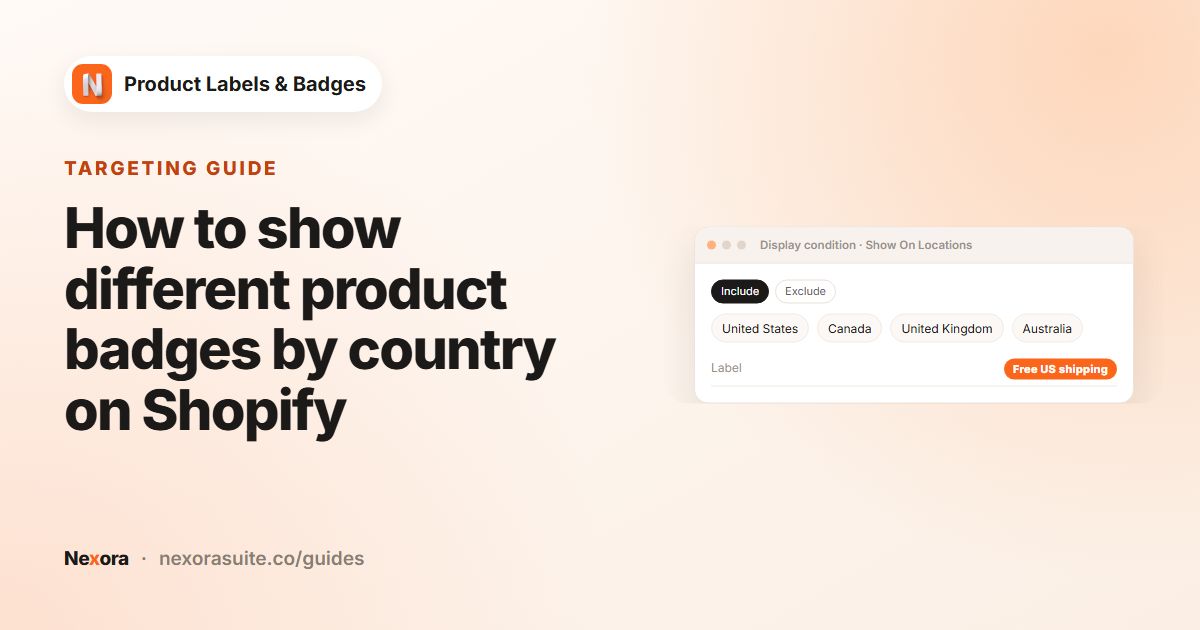
- Country is separate. To show a badge by country, use Show On Locations. See badges by country.
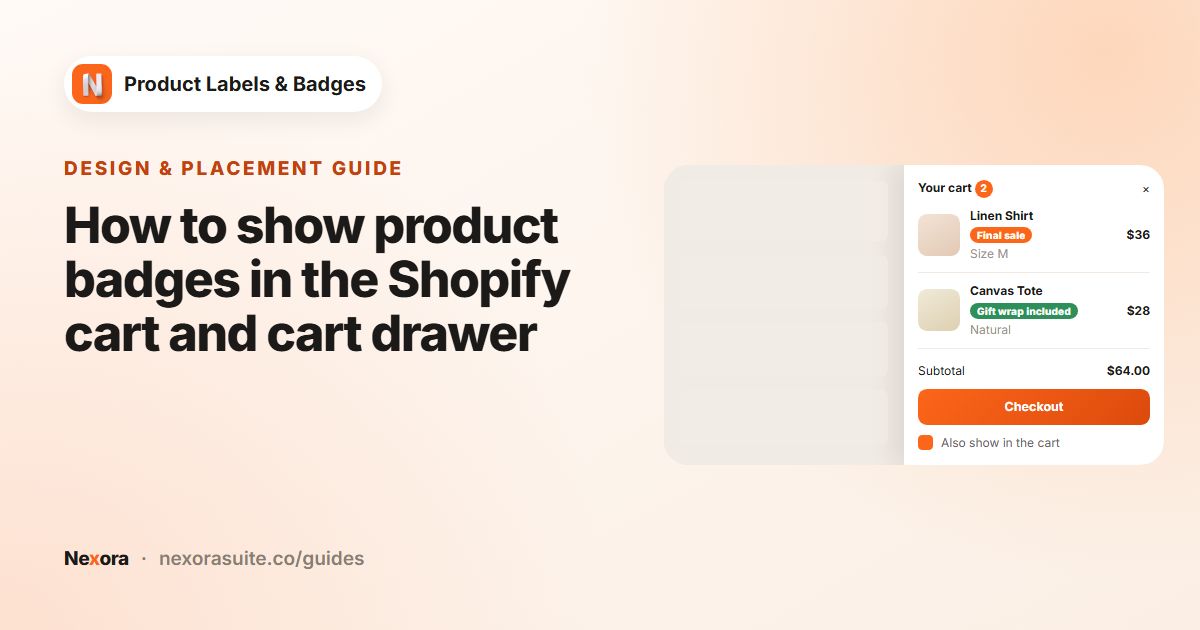
- Cart labels follow the same rule. If Also show in the cart is on, a guest won't see a member-only label on their cart lines either.
How to test what each customer sees
Because the badge depends on who is looking, the editor preview can't show every case. A quick test with real accounts avoids surprises.
- Create test customers
In your Shopify admin, create one customer with the tag you target, such as
member, and one without it. - Check as a guest
Open your store in a private browser window without signing in. Member labels should be hidden; guest labels should show.
- Sign in as each test customer
Sign in with the tagged customer and check a product page, a collection page and the cart. Then repeat with the untagged one.
- Check exclusions
Add a Never customers tagged tag to a test customer and confirm the label disappears for them.
If a tagged customer doesn't see the label, compare the tag spelling in the customer record with the one you typed. Upper and lower case don't matter, but spaces and hyphens do.
Frequently asked questions
Can I show a badge only to logged-in customers?
Yes. Under Display condition → Customers, set Show to to Signed-in customers.
Can I target customers by tag?
Yes. Type the tags under Only customers tagged. A customer needs any one of them. Matching is case-insensitive.
Can I hide a badge from wholesale customers?
Yes. Add their tag, for example wholesale, under Never customers tagged.
Can I target Shopify B2B companies or customer segments?
No. Only sign-in state and customer tags are supported. Tag the customers in those groups instead.
Does the app read customers' email addresses?
No. Only the visitor's own sign-in state and customer tags are used to decide whether the label shows.
Does a member badge change the price?
No. Labels only display information. Set up the member discount in Shopify or with a pricing app.