Why put free shipping on the product itself
Unexpected shipping costs are a common reason shoppers abandon a purchase. If an item ships free, saying so next to the price removes a doubt before it becomes a reason to leave. An announcement bar helps too, but it's easy to scroll past, and it can't say which products qualify.
A product-level badge is most useful when free shipping applies to only part of your catalog, for example one collection, items from one vendor, or products tagged for a promotion.
Wording that stays accurate
Free shippingwhen every visitor who can see the badge really gets it.Free UK deliveryorFree US shippingwhen the offer depends on the country.Free shipping over $50when there is a minimum order value.Ships free this weekendfor a time-limited offer, paired with Visibility Date.
How free shipping works on Shopify (and where a badge fits)
A badge only tells shoppers about an offer. The offer itself comes from Shopify: free shipping rates in your shipping settings, or a free shipping discount. Set that up first and test it at checkout, then add the badge so the message matches what shoppers actually pay.
| Way to tell shoppers | Good for | Limits |
|---|---|---|
| Announcement bar in your theme | Store-wide offers like Free shipping over $50 | Can't point out which products qualify |
| Product description text | One-off products | Easy to forget to remove, and not shown on collection cards |
| A label on chosen products | Offers that apply to some products or some countries | You keep the label's product list in step with your shipping setup |
The label doesn't change shipping rates. If your free shipping only applies above a minimum order value, say so in the badge text, for example Free shipping over $50, so the badge never promises more than checkout gives.
Step by step: a free shipping badge
- Create a manual label
In the app, go to Product Labels and click + Add Label.
- Place it near the price
On General, enter a Label name such as
Free shipping - US, choose In Product Info Area and keep the Text type. Or choose Inside Product Image for a corner badge. - Write the text
On Design, set Label Text to
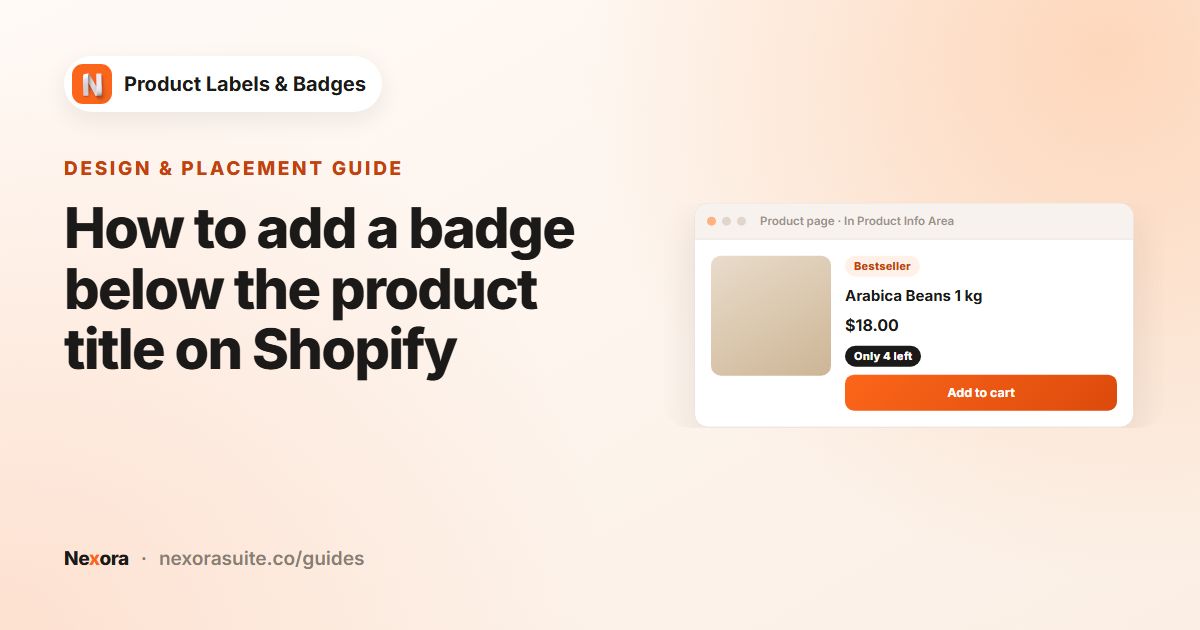
Free shipping. For In Product Info Area, set Info Placement to Below price and pick an Info Alignment that lines up with your price. - Style it
A pale green Background Color with dark green Text Color reads as good news without competing with sale badges. Adjust Padding and Font Size per device.
- Pick the products
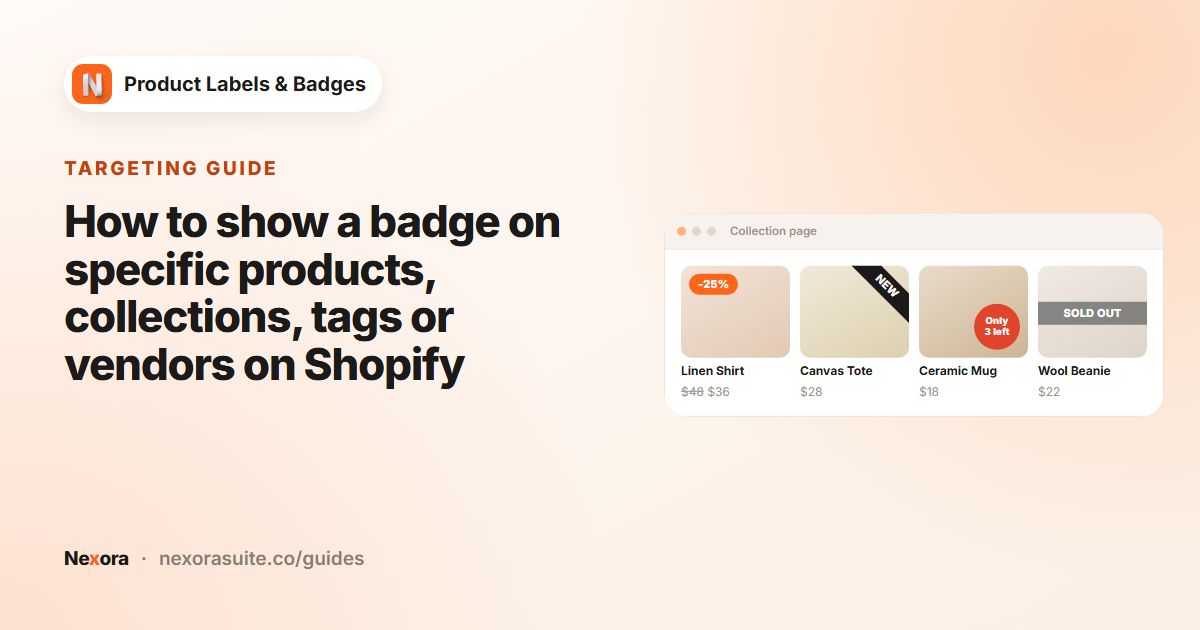
On Display condition, set Products to All products, Specific products, Collections, Product tags or Vendor, and select at least one item.
- Limit it to countries (optional)
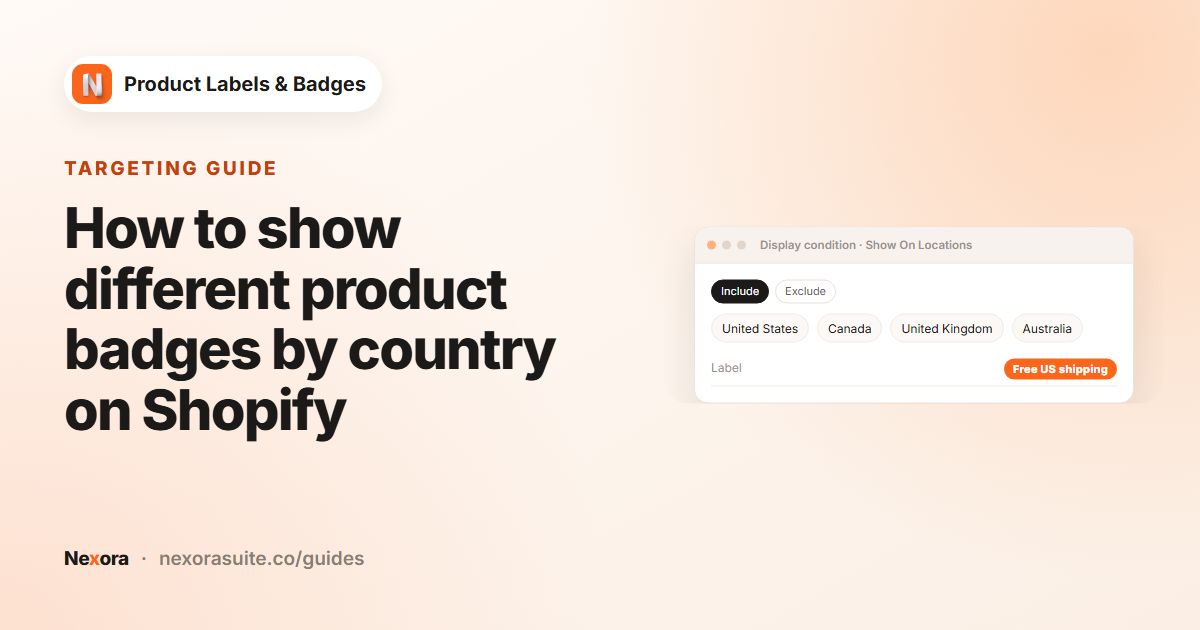
Under Show On Locations, choose Include, remove All Countries and add the countries where shipping is free. The app works out the visitor's country from their IP address.
- Activate and save
Click Activate, then Save.
Settings for a free shipping badge
| Setting | Example | Notes |
|---|---|---|
| Display Position | In Product Info Area | Reads like product information, close to the price |
| Info Placement | Below price | Or Above price if your price block is busy |
| Products | Collections → Free shipping | Matches what your shipping setup covers |
| Show On Locations | Include → United States, Canada | Visitors from other countries don't see the badge |
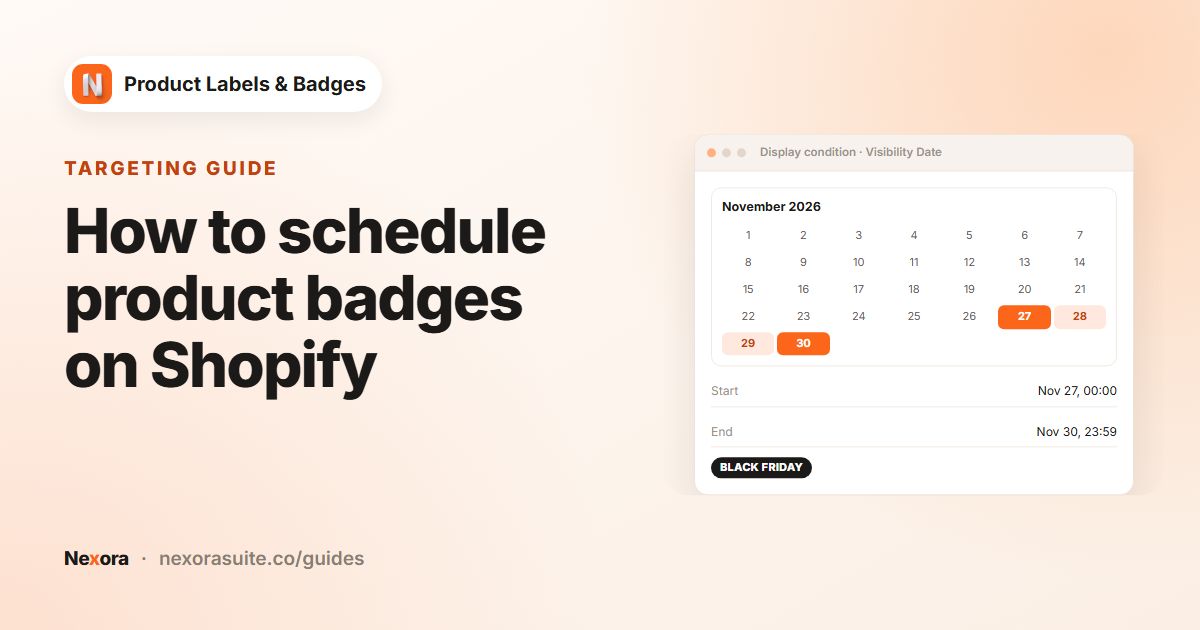
| Visibility Date | Custom Date for a limited offer | Dates use midnight UTC on the day you pick |
| Label Text translations | Livraison gratuite for French | One translation per published language |
Example: free domestic shipping on one collection
A UK homeware store ships its lightweight textiles collection free within the UK, but charges for international orders. It also publishes its store in French.
- Products: Collections →
Textiles. - Show On Locations: Include → United Kingdom.
- Label Text:
Free UK delivery, with a French translationLivraison gratuite au Royaume-Uni. - In Product Info Area, Below price, Info Alignment Left.
- Visitors browsing from France don't see the badge, so it never promises free shipping that checkout won't give them.
Tips and common mistakes
- Keep the label and your shipping setup in step. When you change which products ship free, update the label's Products at the same time.
- Country is based on IP. Visitors using a VPN may appear to be in a different country. Keep the wording accurate, for example
Free UK deliveryrather than justFree shipping. - Use dates for promotions. A free shipping weekend can use Visibility Date → Custom Date, so the badge turns itself off.
- Don't crowd the card. If products also show sale and NEW badges, put the shipping message in the info area rather than on the image.
Frequently asked questions
Does the badge give customers free shipping?
No. It only displays a message. Set up the free shipping rate or discount in your Shopify admin, then use the label to tell shoppers about it.
Can I show it only in some countries?
Yes. Use Show On Locations on the Display condition tab. Choose Include to show it only in the countries you pick, or Exclude to hide it there.
How does the app know the visitor's country?
It uses the visitor's IP address, not the country or currency the shopper picks in your store's selector.
Can I show the badge on one collection only?
Yes. Set Products to Collections and click Select collections.
Can the badge only run for a weekend?
Yes. Set Visibility Date to Custom Date with a Start date and End date.