How promo and print buyers shop
Promotional products and print sit between retail and wholesale. Buyers are often marketing teams, schools, clubs or event organisers, not resellers, and many of them have never ordered from you before. They want to see the price at different quantities straight away, and for branded items they need to send artwork and agree on a proof before anything is printed.
- Price depends on quantity. The unit price of a printed mug or tote bag drops as the run gets longer, and buyers expect to see the breakpoints up front.
- Artwork comes with the order. Logos, vector files and brand guidelines have to reach you with the request.
- Not everything can be priced instantly. Print colours, positions and finishes change the price, so some items are quote-only.
- Deadlines matter. Event merchandise is useless if it arrives after the event, so the needed-by date is part of the request.
- Guests, not accounts. Many buyers order once a year and won't create an account just to ask for a price.
Recommended setup for a promo or print shop
| Need | Feature | Example value |
|---|---|---|
| Public quantity breaks | Volume pricing, Customers = All customers | Price breaks visible to every shopper |
| A unit price per break | Discount type = Flat price | 50+: $6.40; 100+: $5.20; 250+: $4.30; 500+: $3.60 |
| Count all colours together | Qualifying products = Mix variants (same product) | Black and white totes count toward one tier |
| Show the savings | Display → Change template → Savings | Adds a Save column to the table |
| Quote for custom branding | Request a Quote, Quote-only (replace Add to cart) | Products tagged custom-print |
| Artwork upload | Quote Modal → Attachments | Up to 5 files, 10MB each |
| Deadline and budget | Needed by (ship date), Target price | Both on |
Step-by-step setup
Quantity breaks for stock items
- Create the volume rule
Go to Pricing → Volume pricing → Create new. Under Customers, choose All customers so every shopper sees the breaks. Under Products, choose the collection of print-ready items, such as plain totes and mugs.
- Add the breaks
In Tiers, keep Tier basis on Quantity, set Qualifying products to Mix variants (same product) and Discount type to Flat price. Add the rows: From 50 To 99 Value 6.40, From 100 To 249 Value 5.20, From 250 To 499 Value 4.30, From 500 Value 3.60. Use Per-product & per-variant overrides for items with different prices.
- Pick the table design
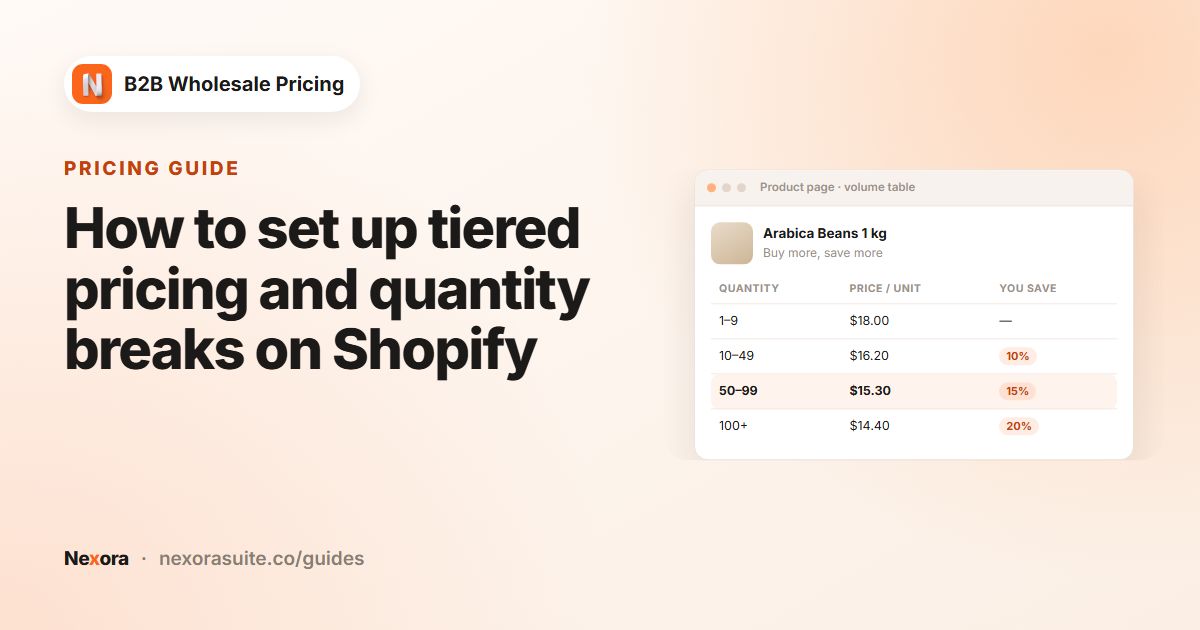
Under Display, click Change template and choose Savings, which adds a Save column. Turn on Highlight the tier matching the entered quantity, so the row lights up as the buyer types. Add the Volume Table block to the product template.
- Add a reseller discount with a badge
If agencies resell your products, create a Wholesale pricing rule for customers tagged
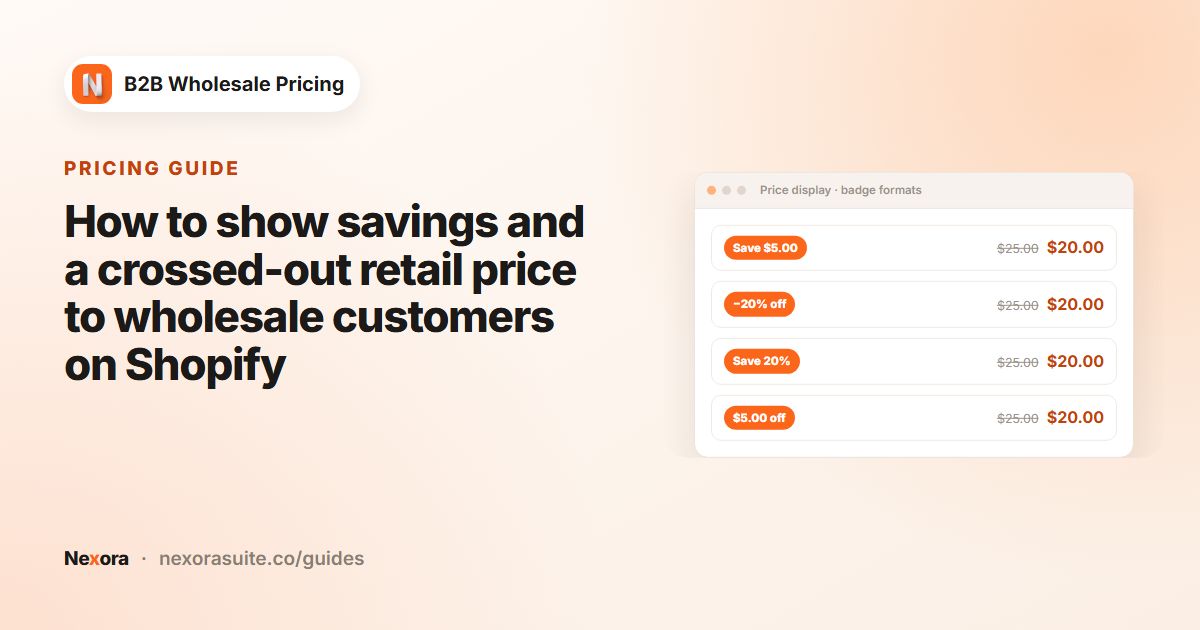
resellerwith Percentage off, for example 15, and pick a Save badge → Format such asSave {percent}%. Keep Settings → Display → Show savings badge on. Badges hide automatically when the price is a flat price, so the public flat-price breaks show the table instead.
Quotes for custom-branded items
- Create the quote rule
Tag custom items
custom-printin Shopify. Go to Add-ons → Request a Quote → Create new. On General, choose those products, set customers to All customers so guests can ask for quotes, and turn on Quote-only (replace Add to cart). - Ask for the right details
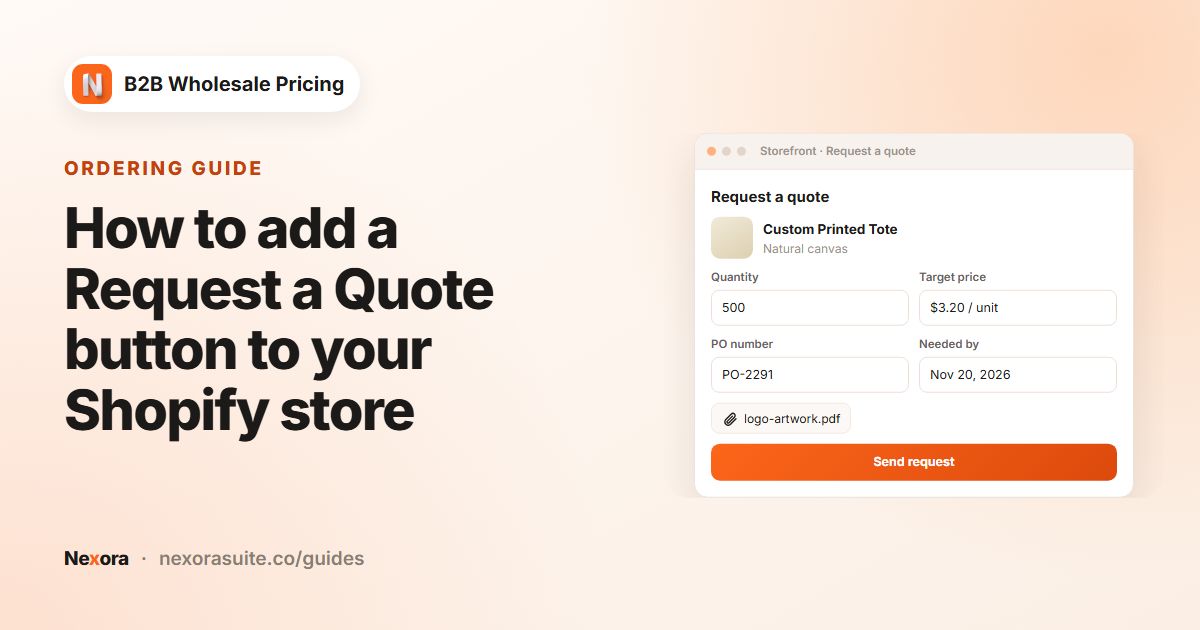
On Modal, set the Subtitle to Tell us the quantity, print colours and logo position. Under Optional fields, enable Message to the seller, Needed by (ship date) and PO number, and turn on Target price and Attachments. Under Guest fields, make Name and Company required.
- Add the buttons
On Button, set the Button label to Get a print quote. Add the Request a Quote block to the product template, and turn on the RaQ Quote List app embed if buyers often combine several items.
- Handle the quote
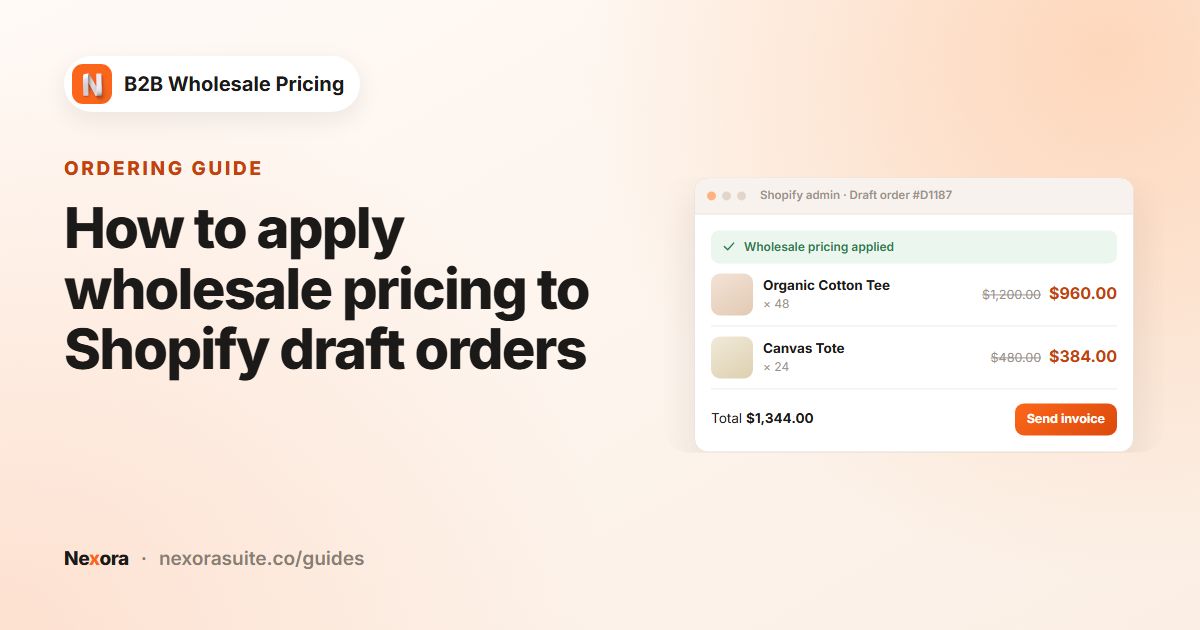
In Order forms → Quotes & orders, open the request. Download the artwork from the Attachments section, send a proof by email, then click Approve and Convert to draft order. Adjust the line prices to your quote in the draft, and send the invoice.
Example: plain totes and a custom event order
A marketing manager visits a plain cotton tote and enters 120 in the quantity box (60 black, 60 natural). The 100–249 row lights up, and the cart prices each tote at $5.20, because both colours count toward the same tier.
The same buyer also needs 300 branded water bottles for a conference. The bottle is tagged custom-print, so the page shows Get a print quote instead of Add to cart. They enter 300, attach the logo as a PDF, set Needed by to two weeks before the event and give a target price. You see everything in one quote, convert it to a draft order once the proof is approved, and send the invoice.
All prices above are examples. Set breaks that match your own print costs and set-up fees.
Tips for promo and print shops
- Set a minimum run. If you never print fewer than 50 units, add an MOQ — Order quantity (per product) limit with a Minimum quantity of 50 on print items.
- Tell buyers which files you accept. Attachments accept PDF, images, Office files, CSV, TXT and ZIP. Say in the modal Subtitle if you prefer vector PDFs.
- Files go to Shopify Files. Uploaded attachments are stored in your store's Shopify Files, so you can find them later in the Shopify admin.
- Tag quotes by type. Use a custom tag for submitted quotes, such as
print-quote, keeps print requests separate from other quotes. - Use auto drafts for fixed-price print items. For items with a fixed print price, Auto-create draft order (pay later) creates the draft and emails a proforma invoice straight away.
The Save column and save badges appear on the storefront. The cart and checkout show Shopify's own discount display.
Frequently asked questions
Can I show a different unit price at 50, 100 and 250 units?
Yes. Create a volume rule with Discount type set to Flat price and one tier row per break. The Volume Table block shows the breaks on the product page.
Can buyers upload their logo with a quote request?
Yes. Turn on Attachments in the quote rule's Modal tab. Buyers can attach up to 5 files of up to 10MB each.
Can I hide Add to cart on custom items?
Yes. Quote-only (replace Add to cart) hides Add to cart and Buy it now on the products the quote rule covers.
Do buyers need an account to ask for a quote?
No. Set the quote rule's customers to All customers, and guests fill in the Guest fields such as email, name and company.
Do different colours of one item count toward the same price break?
Yes, when Qualifying products is set to Mix variants (same product).