When a quote works better than a cart
Not every B2B order fits a fixed price. A buyer may want 2,000 units when your volume table stops at 500, need a custom print or finish, or want freight to a site you don't usually ship to. In those cases, a quote request is the honest answer: the buyer tells you what they need, and you reply with a price.
A good quote flow has three parts:
- A clear button where buyers decide, on the product page, on product cards and in the cart.
- A short form that collects what you need to price the order (quantities, target price, delivery date, PO number) and nothing more.
- One inbox where your team can review, approve and turn quotes into orders or invoices without retyping.
Your options on Shopify
Shopify's standard online store doesn't include a request-a-quote button. A common workaround is a contact form, after which you build a draft order by hand and send the invoice from Shopify. That works for a few quotes a month but means copying products and quantities from emails.
An app connects the two ends: buyers request quotes from the product or cart, and you convert the request into an order, a draft order or an invoice in a click. Nexora B2B Wholesale Pricing includes this for free.
How to set up Request a Quote
- Create a quote rule
Go to Add-ons → Request a Quote and click Create new. Give the rule a Name (only you see it). The editor has three tabs: General, Button and Modal, with a live preview.
- Choose products and customers
On General, pick the products the button appears on. For customers, choose All customers to let guests request quotes too, or Logged in only or tags to keep it for approved B2B accounts.
- Decide the behavior
Under Behavior, tick Quote-only (replace Add to cart) to hide Add to cart and Buy it now on matching products. Tick Auto-create draft order (pay later) if each quote should immediately become a Shopify draft order with a proforma invoice and payment link.
- Set up the button
On Button, set the Button label and icon. Under Storefront placement, you can Show an add-to-quote button on product cards and Show the floating quote-list launcher, so buyers can collect several products into one quote.
- Build the form
On Modal, set the Modal title, Subtitle, Submit button label and Success message. Turn on the Optional fields and Guest fields you need.
- Add the theme blocks
In the theme editor, add Request a Quote to the product template and Request a Quote (cart) to the cart template, and turn on the RaQ Quote List app embed for the store-wide quote list. Save.
Settings explained
| Tab | Setting | What it does |
|---|---|---|
| General | Quote-only (replace Add to cart) | Hides the theme's Add to cart and Buy it now buttons on matching products. Shoppers can only request a quote. |
| General | Auto-create draft order (pay later) | On submit, creates a Shopify draft order, emails a proforma invoice and shows the shopper a payment link. The quote still appears in your inbox. |
| General | Use a custom tag for submitted quotes | By default, quotes are tagged with the rule's own slug. A custom Quote tag (for example b2b-eu) lets several rules share one tag. |
| Button | Button label, icon, Custom CSS (advanced) | The product page button text and look. |
| Button | Storefront placement | Add-to-quote buttons on product cards (with Button position: before, inside or after the card), and a floating launcher that opens the quote list from any page. Hide the launcher while the list is empty keeps it out of the way. |
| Button | Toast title, Toast message, View-list link label | The confirmation shown when an item is added to the quote list. |
| Modal | Optional fields | Message to the seller, PO number and Needed by (ship date), each optional or required. A Target price column lets buyers suggest a price per item, and attachments let them upload files such as drawings. |
| Modal | Guest fields | Shown when a shopper isn't signed in. Email is always shown (tick it to make it required). Name, Company and Phone are optional. |
Handling quotes in the Quotes & orders inbox
Every quote from the product page, cart, quote list or a quick order form lands in Order forms → Quotes & orders. Filter by status (Pending, Reviewed, Approved, Rejected, Converted) or type. Open a quote to see the items, target prices, submission details and internal notes.
| Action | When to use it |
|---|---|
| Mark as reviewed | You've seen it and are working on a price. |
| Approve / Reject | Record your decision. |
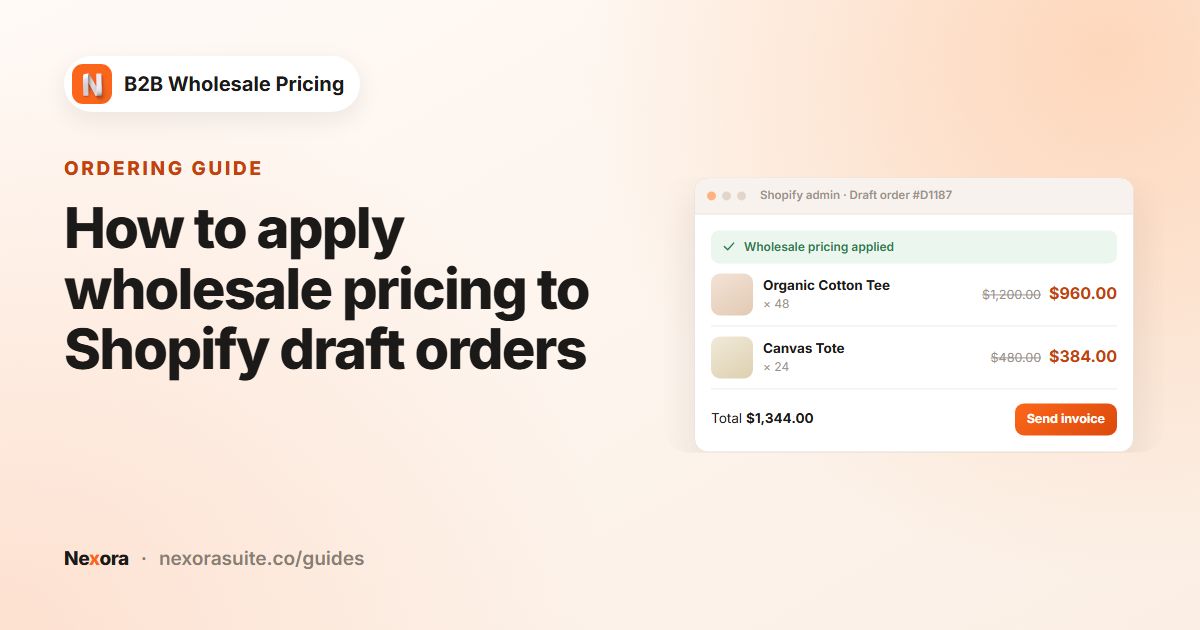
| Convert to draft order | Build a Shopify draft order from the quote, then adjust prices or shipping before sending. |
| Convert to order | Turn the quote straight into an order. |
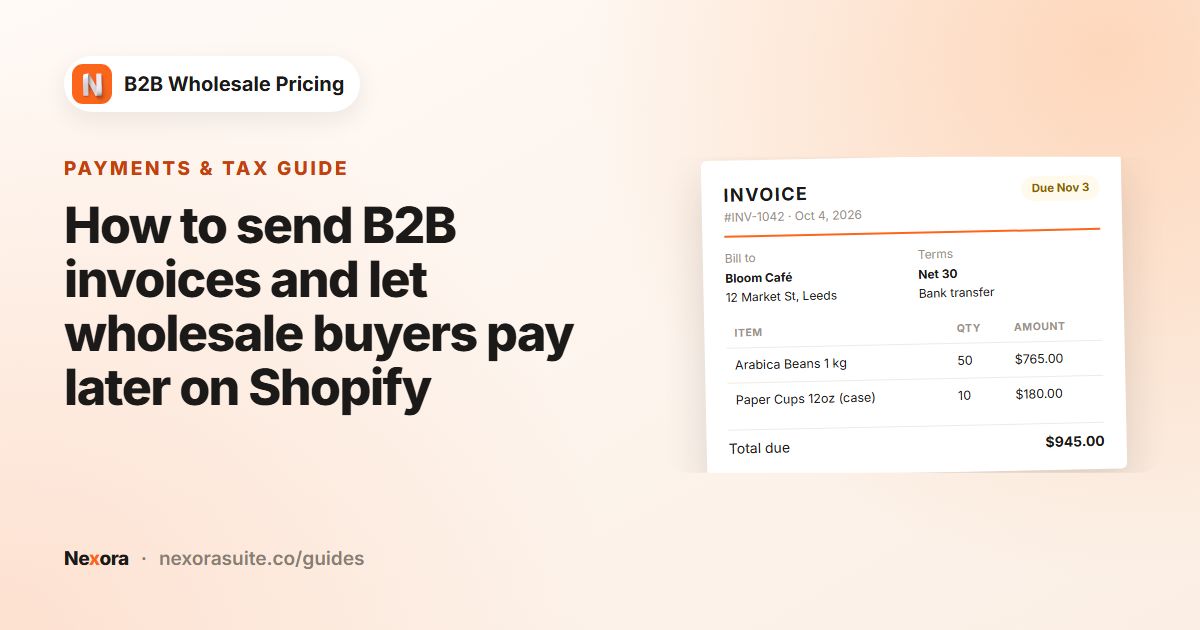
| Create & send invoice | Email the buyer a PDF invoice or proforma from the quote. |
| Reopen as pending | Move a quote back if the buyer changes the request. |
New quotes also appear in Order forms → Notifications, with an unread count on the tab.
Example setup: custom-printed packaging
A packaging supplier sells stock boxes at fixed prices but quotes every custom-printed order. Custom products are tagged custom-print.
- Products: product tag
custom-print. - Customers: All customers, so new businesses can ask without an account.
- Quote-only (replace Add to cart): on, because the price depends on the artwork.
- Auto-create draft order (pay later): off, because the team prices each job by hand.
- Optional fields: Message to the seller (required), Needed by (ship date), target price and attachments for artwork.
- Guest fields: Email (required), Name, Company.
- Button label: Get a print quote. Success message: Thanks, we'll reply with a price within one working day.
Stock boxes keep their normal Add to cart. When the price is agreed, the team opens the quote, clicks Convert to draft order, sets the final price and sends the invoice.
Tips and common mistakes
- Ask for the minimum. Every extra required field lowers the number of quotes you get. Make only what you truly need required.
- Use Quote-only on a few products, not the whole store, unless every price is negotiated. Fixed-price repeat orders are faster through the cart or a quick order form.
- Turn on auto draft orders only for fixed prices. It suits stores where the quote is mainly a pay-later request rather than a price negotiation.
- Check the product card selector if add-to-quote buttons don't appear on collection pages. Product card CSS selector lets you point the app at your theme's card.
- Translate the storefront text in Settings → Translations. Your own Request a Quote text has its own section there.
Once a quote is accepted, you can invoice it directly. See wholesale invoices for how invoices and proformas work.
Frequently asked questions
Can guests request a quote without an account?
Yes. Set the rule's customers to All customers. Guests fill in the Guest fields (email, plus name, company and phone if you turn them on).
Can I remove Add to cart and only allow quotes?
Yes. Tick Quote-only (replace Add to cart). Add to cart and Buy it now are hidden on the products the rule covers.
Can buyers request a quote for several products at once?
Yes. Turn on the add-to-quote buttons on product cards and the floating quote-list launcher, and enable the RaQ Quote List app embed. Buyers collect products into one list and submit them together.
Where do quote requests go?
To Order forms → Quotes & orders, where you can review, approve, convert to an order or draft order, or send an invoice.
Can a quote become a pay-later order automatically?
Yes. Tick Auto-create draft order (pay later). The app creates a Shopify draft order, emails a proforma invoice and shows the shopper a payment link.