Why professional beauty needs its own setup
Beauty brands that sell to salons, spas and stylists usually run two programs on one store: retail products for everyone, and a professional program with lower prices and products that only trained professionals should buy. The hard part is not the discount itself. It is deciding who counts as a professional and keeping certain products away from everyone else.
- Proof of licence. Many brands only sell professional lines to licensed cosmetologists, estheticians or salon owners, so applicants need to send a licence, salon registration or student ID.
- Different groups, different prices. A salon buying back-bar sizes often gets a deeper price than an individual stylist or a beauty student.
- Professional-only products. Some products, such as high-strength treatments or salon-size developers, may only be meant for professional use under your brand's own policy.
- Salon sizes and minimums. Back-bar litres and multi-packs are often sold with a minimum quantity.
- Accounts change. A licence can lapse or an account can be paused, so you need a quick way to take professional access away.
Which products count as professional-only, and what proof you need, depends on your brand agreements and local rules. This guide shows how to set the rules up, not which rules you must follow.
Recommended setup for a beauty brand
| Need | Feature | Example value |
|---|---|---|
| Collect proof of licence | Registration form File element, plus Text for licence number | Licence or salon ID, required |
| Sort applicants into groups | Dropdown with Customer tag per option | Salon owner → pro-salon; Stylist → pro-stylist; Student → pro-student |
| Check every applicant | Settings → Registration → Approval mode = Manual | Review the uploaded file before approving |
| Pro prices per group | One Wholesale pricing rule per tag | pro-salon 40% off; pro-stylist 30% off; pro-student 20% off |
| Professional-only products | Catalog locks, Hide product | Products tagged professional-only, visible to pro |
| Back-bar minimums | Order limits, MOQ — Order quantity (per product) | Minimum 6 on back-bar sizes for pro-salon |
| Pause an account | Exclude customers with these tags | pro-paused removes pro pricing |
Step-by-step setup
- Build the professional application
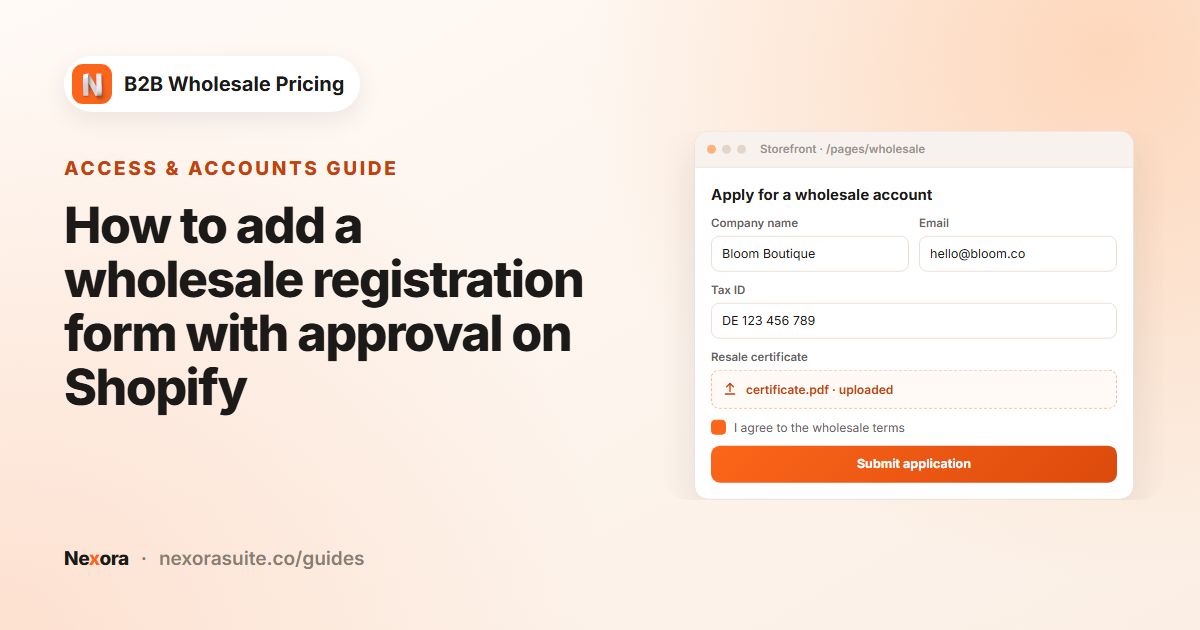
Go to Registration → Registration forms → Add registration form and name it Professional account. Add Name, Email, Password, Phone, a Text field for Salon or business name and a Text field for Licence number. Add a File element labelled Licence or salon ID, set Allowed extensions to PDF, JPG and PNG, and tick Required.
- Tag each applicant type
Add a Dropdown called I am a, with Salon owner, Independent stylist and Beauty student. In Customer tag per option, give each option its own tag (
pro-salon,pro-stylist,pro-student). Add an Accept terms element that links to your professional terms of sale. - Write the emails
On the Email tab, edit Customer — Submitted to say you check licences within, for example, two working days. Edit Customer — Rejected to explain what proof you accept. Add your team to Admin — Received.
- Publish the form and set manual approval
Save, copy the Form ID and add the Registration form block to a page called Professional account. In Settings → Registration, set Approval mode to Manual.
- Approve with tags
Open Registration → Customer submissions, filter by Pending and open an application. Check the uploaded licence, add the shared tag
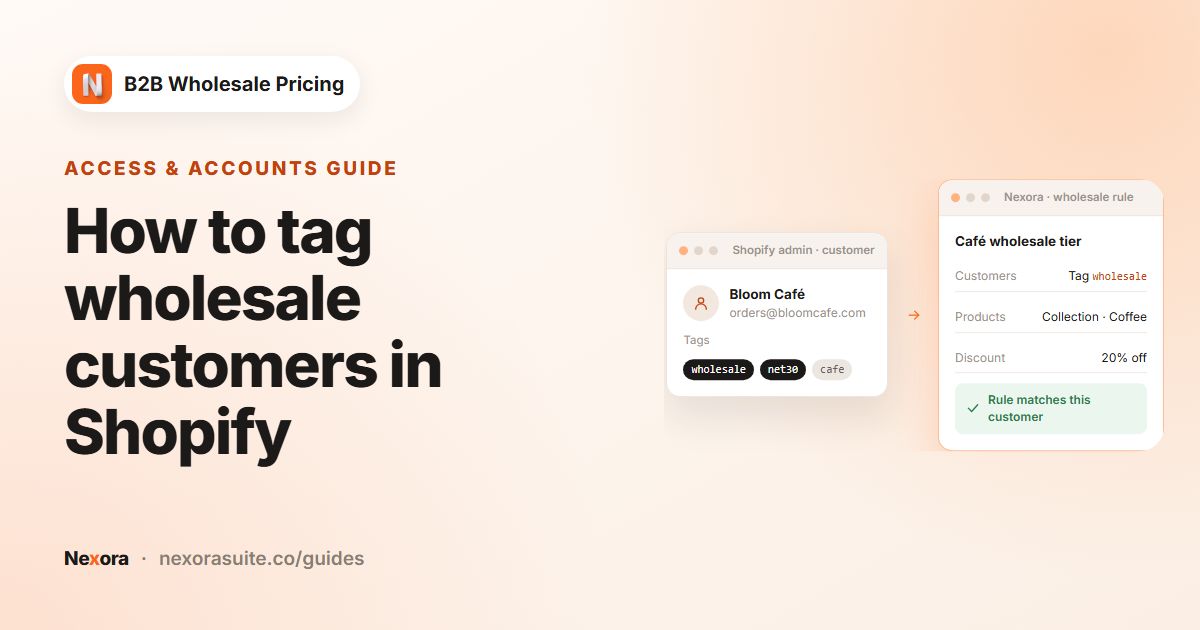
pro, then choose Approve request and save. The account is created with the dropdown tag,proandnb2b. - Create one price rule per group
Go to Pricing → Wholesale pricing → Create new. For salons, choose By customer tags with
pro-salon, pick your professional collections and set Percentage off to 40. Repeat forpro-stylistandpro-student. In each rule, addpro-pausedunder Exclude customers with these tags. - Lock professional-only products
Tag the products
professional-onlyin Shopify. Go to Restrictions → Catalog locks → Create lock, choose Hide product, set the scope to that product tag, and under Who can see choose By customer tags withpro. Edit the Unavailable message, for example: {{title}} is available to licensed professionals. - Add a back-bar minimum
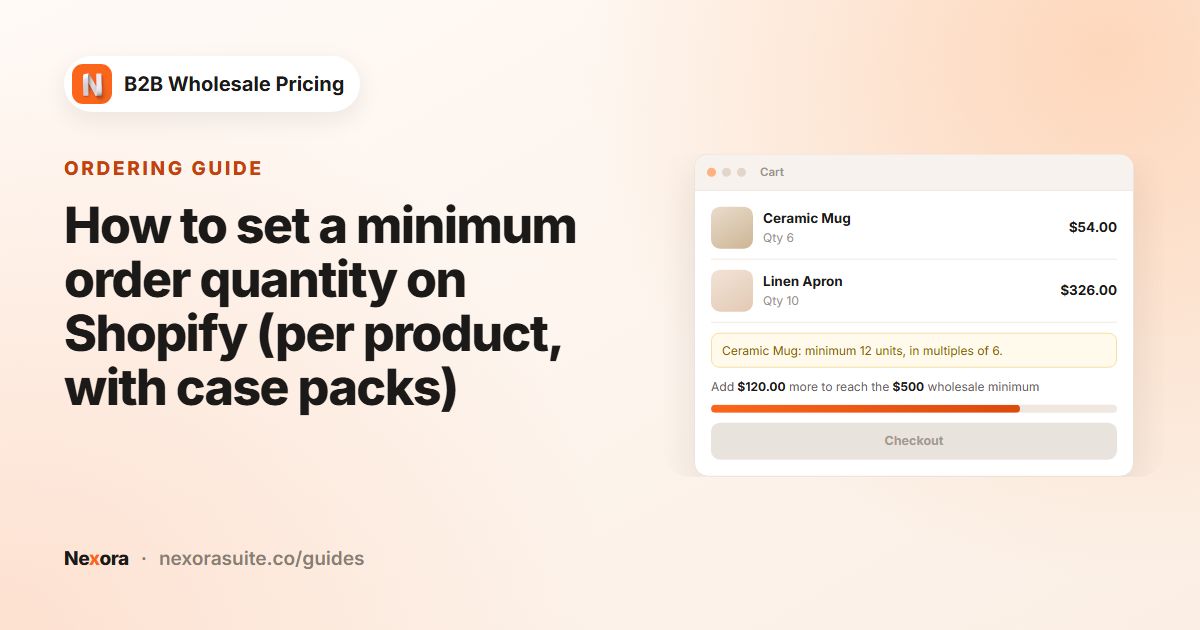
Go to Restrictions → Order limits → Create limit, choose MOQ — Order quantity (per product), set Minimum quantity to 6 and scope it to your back-bar collection. Target
pro-salonand choose Block checkout. Add the MOQ Badge and MOQ Cart Enforce blocks.
Example: three professional groups on one store
| Customer | Tags | What they see |
|---|---|---|
| Retail shopper (signed out) | none | Retail prices. Professional-only product pages show the unavailable message. |
| Beauty student | pro, pro-student, nb2b | 20% off professional collections and access to professional-only products. |
| Independent stylist | pro, pro-stylist, nb2b | 30% off professional collections. |
| Salon owner | pro, pro-salon, nb2b | 40% off, and a minimum of 6 on back-bar sizes. |
| Paused salon | pro, pro-salon, pro-paused | Retail prices, because pro-paused is excluded from every pro rule. |
Note that the paused salon still has the pro tag, so it can still open professional-only product pages. To fully remove access, remove the pro tag in Shopify as well, or require both tags on the lock.
Tips for professional beauty programs
- Use match all of for stricter access. On a rule's Customers card, choosing By customer tags with all of
proandlicence-verifiedmeans both tags are needed. This helps when you verify licences in two stages. - Decide on resubmission. When you decline an application, choose whether the person can resubmit. Allowing resubmission suits a blurry licence photo; blocking suits a clearly ineligible applicant.
- Keep tags short and consistent. Tags are matched exactly, so
pro-salonandPro Salonare different tags. - Show the pro label. Turn on Show a label under the price in each rule so stylists can see that the price is their professional price. You can translate the label in Settings → Translations.
- Bulk-approve after a trade show. In Customer submissions, select several rows and use Add tags and Approve selected.
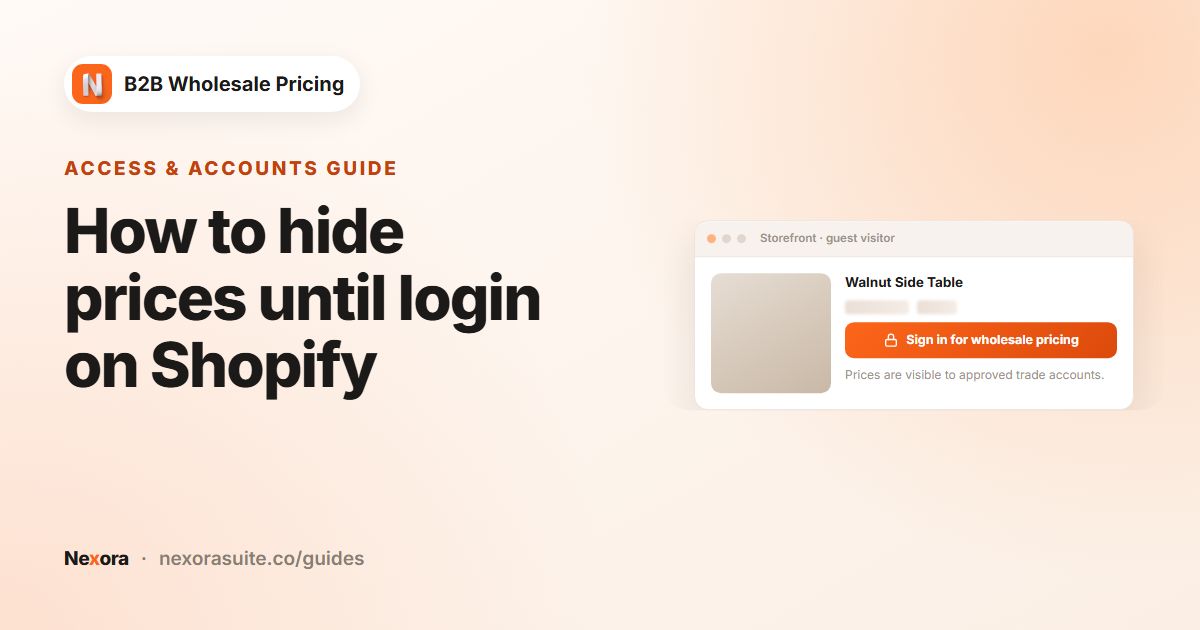
If professional prices must never appear in the page source for guests, add a Hide price lock on professional collections too. Hide product controls the product page, and Hide price controls price display.
Frequently asked questions
Can applicants upload a cosmetology licence?
Yes. Add a File element to the registration form, choose the allowed file types and tick Required. You see the file when you open the submission.
Can salons and individual stylists get different prices?
Yes. Tag each group differently, for example with Customer tag per option on a dropdown, and create one wholesale rule per tag.
How do I hide professional-only products from the public?
Create a catalog lock with Hide product, scope it to those products, and allow only customers tagged pro under Who can see.
Can I approve applicants automatically?
You can set Approval mode to Automatic, but for licence checks Manual is usually the better choice, so someone looks at each uploaded document.
How do I pause a professional account without deleting it?
Add an exclusion tag such as pro-paused under Exclude customers with these tags in your pro rules, then add that tag to the customer.